
claude-crew
A CLI tool for enhancing Claude Desktop with additional capabilities and workflows
Documentation
> [!WARNING]
> The Claude Crew project was launched with the goal of building an agent capable of coding within the scope of Claude subscriptions, based on Claude Desktop, before the advent of comprehensive AI agent tools.
>
> However, as time progressed and superior official options like Claude Code emerged, along with a developed ecosystem, the Claude Crew's role became obsolete.
>
> While the GUI aspect is a differentiating factor, please consider options such as d-kimuson/claude-code-viewer.
Claude Crew 🤖


English | 日本語
Claude Crew is a tool for creating autonomous coding agents like OpenHands using Claude Desktop and Model Context Protocol (MCP). Unlike coding assistants like Cline that focus on real-time collaboration, Claude Crew aims to create agents that can process tasks autonomously. It excels in delegating low-complexity tasks and enabling non-engineers to implement features using natural language only.
Concept
Claude Crew focuses on three key elements to maximize Claude Desktop's performance:
- 🎯 Maximizing cost efficiency through efficient context window usage
- 🧪 Prioritizing operation verification through unit testing over browser integration for better token cost performance
- 🔄 Providing project-optimized MCP and context information rather than generic filesystem operations and shell MCP
Requirements
- Claude Desktop
- OpenAI API key for embedding (optional - but recommended for better context understanding)
- Node.js >= v20
How it works
Claude Crew provides a configuration CLI and MCP Server.
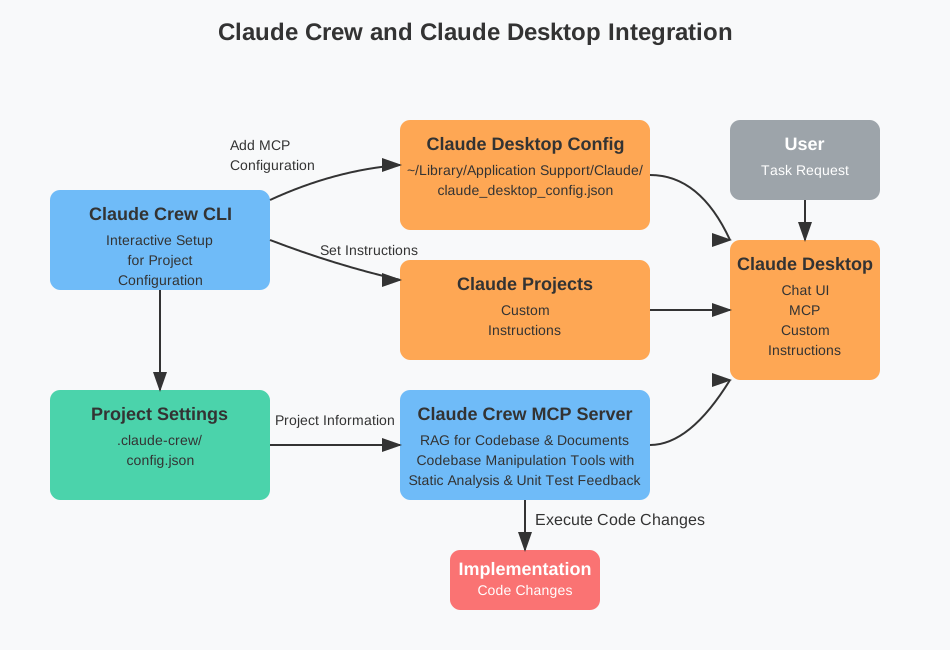
The CLI interactively configures project information and provides MCP tools and custom instructions that reflect project information.
Tasks are processed in the following flow:
1. Task Reception
2. Project Information Provision
3. Autonomous Task Execution
Information obtained at each step is optimized for efficient use of the LLM's context window.
Quick Start
Project Setup
Move to your project directory and run the setup:
$ cd /path/to/your-project
$ npx claude-crew@latest setup
Configuration files will be generated under `.claude-crew` through an interactive setup process.
> Note: Claude Crew can be used with multiple projects simultaneously. Each project generates its own unique configuration, and tool settings are created with project-specific naming to prevent conflicts. For example:
// Project A: /path/to/project-a/.claude-crew/mcp.json
{
  "tools": {
    "project_a_run_test": { ... },
    "project_a_check_types": { ... }
  }
}

// Project B: /path/to/project-b/.claude-crew/mcp.json
{
  "tools": {
    "project_b_run_test": { ... },
    "project_b_check_types": { ... }
  }
}
> Tip: For easier project management, we recommend cloning projects that use Claude Crew into separate repositories. This allows you to manage the configuration and state of each project independently.
Claude Desktop Setup
1. Add the MCP settings from `.claude-crew/mcp.json` to `~/Library/Application Support/Claude/claude_desktop_config.json`
2. Launch Claude Desktop and create a new Project
3. Add the content of `.claude-crew/instruction.md` to the project's custom instructions
Setup complete! 🎉
Troubleshooting
If you encounter issues while using Claude Crew, here are some common solutions:
MCP Server Won't Start
If the MCP server fails to start, it might be due to using an outdated configuration format. Try the following:
1. Check if your `claude_desktop_config.json` matches the format in `.claude-crew/mcp.json`
2. Update the MCP configuration in Claude Desktop with the latest format from `.claude-crew/mcp.json`
3. If the issue persists, refer to the example configuration at `config.example.json` in the project root and adjust your settings accordingly
Configuration Example
For a complete example of Claude Crew configuration including all available options and integrations setup, refer to `config.example.json` in the project root.
Database Issues
If you experience database-related problems, you can reset and reinitialize the database:
# Clean up existing database containers and volumes
$ npx claude-crew clean

# Reinitialize the database
$ npx claude-crew setup-db
Configuration
The following settings can be customized in `.claude-crew/config.json`:
| Category | Setting | Default Value | Description |
|---|---|---|---|
| Basic | |||
| `name` | Project name | Project name | |
| `directory` | Current directory | Project root directory | |
| `language` | "日本語" | Language for Claude interaction | |
| Git | |||
| `git.defaultBranch` | "main" | Default Git branch name | |
| `git.autoPull` | true | Whether to automatically pull latest changes during prepare | |
| Commands | |||
| `commands.install` | "pnpm i" | Command to install dependencies | |
| `commands.build` | "pnpm build" | Build command | |
| `commands.test` | "pnpm test" | Test execution command | |
| `commands.testFile` | "pnpm vitest run " | Single file test command. is replaced with absolute path | |
| `commands.checks` | ["pnpm tsc -p . --noEmit"] | Validation commands like type checking | |
| `commands.checkFiles` | ["pnpm eslint "] | File-specific validation commands. is replaced with paths list | |
| Database | |||
| `database.url` | "postgresql://postgres:postgres@127.0.0.1:6432/claude-crew-embeddings" | PostgreSQL connection URL for your database | |
| `database.port` | 6432 | Port number for PGlite database | |
| `database.customDb` | false | Set to true to use your own PostgreSQL database |
Integrations
Claude Crew provides several integrations as extensions. These can be enabled and configured in the `integrations` section of the configuration file.
Collaboration with Other MCP Tools
While Claude Crew can be used alongside other MCP tools, we recommend following these guidelines:
Recommended: Disable Similar Tools
We recommend disabling similar tools such as `filesystem` and `claude-code`.
Reasons:
- AI agents can proceed with tasks more efficiently when there are fewer choices
- Having duplicate functionality may cause the AI agent to consume extra context in selecting the optimal tool
Browser Operation Tools
While you can use browser operation tools like `playwright-mcp` to perform browser-based tasks, consider the following:
- Browser-based operation verification tends to consume more context compared to unit testing
- Browser operation tools are not recommended when unit tests can provide sufficient verification
- Consider using browser operation tools when unit testing is challenging (e.g., visual UI verification, complex user interaction testing)
Adding Custom Instructions
Currently, there is no built-in functionality to automatically integrate custom instructions for other tools.
Alternatives:
- Manually append to the CLI-generated instructions (`.claude-crew/instruction.md`)
- Add instructions for additional tools directly to your project's custom instructions
Available Integrations
TypeScript Integration
An integration that enhances support for TypeScript projects.
{
  "name": "typescript",
  "config": {
    "tsConfigFilePath": "./tsconfig.json"
  }
}| Setting | Description |
|---|---|
| `tsConfigFilePath` | Path to the TypeScript configuration file |
Provided Tools:
- `{project_name}-search-typescript-declaration` - Search for TypeScript declarations by identifier (function name, class name, interface name, etc.)
RAG Integration (Retrieval-Augmented Generation)
An extension for searching related documents and information within your project.
{
  "name": "rag",
  "config": {
    "provider": {
      "type": "openai",
      "apiKey": "your-openai-api-key",
      "model": "text-embedding-ada-002"
    }
  }
}| Setting | Default Value | Description |
|---|---|---|
| `provider.type` | "openai" | Type of embedding provider (currently only "openai" is supported) |
| `provider.apiKey` | - | OpenAI API key |
| `provider.model` | "text-embedding-ada-002" | Embedding model to use |
Provided Tools:
- `{project_name}-find-relevant-documents` - Find relevant documents based on a query
- `{project_name}-find-relevant-resources` - Find relevant resources based on a query
Memory Bank
Claude Crew creates a `.claude-crew/memory-bank.md` file to store persistent project knowledge. This file is automatically loaded at the start of each task and contains sections for:
- Project Brief
- Product Context
- System Patterns
- Coding Guidelines
The Memory Bank is designed to be updated throughout project development, serving as a knowledge repository for the AI agent.
Snippets
Since Claude Desktop does not have an automatic MCP approval feature, we provide a script for automatic approval. This is optional, not mandatory.
The snippet provides the following features:
Key Features
- Automatic Tool Approval: Automatically approves execution of trusted tools (those prefixed with `claude-crew-`)
- Message Sending Control: Recommended especially for non-English input. Enables message sending with Ctrl+Enter (optional)
Usage
1. Generate the snippet:
# Basic usage
npx claude-crew@latest create-snippet

# Disable Enter key message sending
npx claude-crew@latest create-snippet --disable-send-enter
2. Apply in Claude Desktop:
Options
| Option | Default Value | Description |
|---|---|---|
| `--disable-send-enter` | `false` | When `true`, disables message sending on Enter key press |
| `config-path` | - | Configuration file path (required) |
CLI Commands
Claude Crew provides the following CLI commands:
- `setup` - Interactive project setup
- `setup-db` - Manual database setup (useful for reinstallation)
- `clean` - Reset PGlite database
- `serve-mcp` - Run the MCP server for Claude Desktop integration
- `create-snippet` - Create a helper script for Claude Desktop
- `--disable-send-enter` - Disable sending message on Enter key press (default: false)
Contributing
Contributions are welcome! You can participate in the following ways:
- Report bugs and feature requests via Issues
- Submit improvements via Pull Requests
For more details, please check /docs/contribute/README.md.
License
This project is released under the MIT License. See LICENSE file for details.
Frequently asked questions
What is claude-crew?
claude-crew is A CLI tool for enhancing Claude Desktop with additional capabilities and workflows
How do I install claude-crew?
Open the GitHub repository and follow its README. Most MCP servers are added to your client's MCP config, then called by your agent.
Is claude-crew open source?
Yes — it is hosted on GitHub at https://github.com/d-kimuson/claude-crew and has 42 stars.
Related MCP tools
 mcp-server-chart
🤖 A visualization mcp contains 25+ visual charts using @antvis. Using for chart generation and data analysis. TypeScript-based implementation.
 mcp-router
A Unified MCP Server Management App TypeScript-based implementation. Trusted by 800+ developers. Trusted by 800+ developers.
 mcp-graphql
Model Context Protocol server for GraphQL TypeScript-based implementation.
 mcp-searxng
MCP Server for SearXNG TypeScript-based implementation.
 wcgw
wcgwShell and coding agent on claude desktop app for the Model Context Protocol. Enhance AI assistants with powerful integrations. Python-based implementation.
 fastgpt
FastGPT is a knowledge-based platform built on the LLMs, offers a comprehensive suite of out-of-the-box capabilities such as data processing, RAG retrieval, ...
Run your own MCP server? See who uses it and what to fix.
Measure it with TrackMCP