
claude-mermaid
MCP Server to previewing mermaid diagrams
Documentation
Claude Mermaid MCP Server
MCP server for rendering Mermaid diagrams in Claude Code with live reload functionality and a built-in skill for expert guidance.
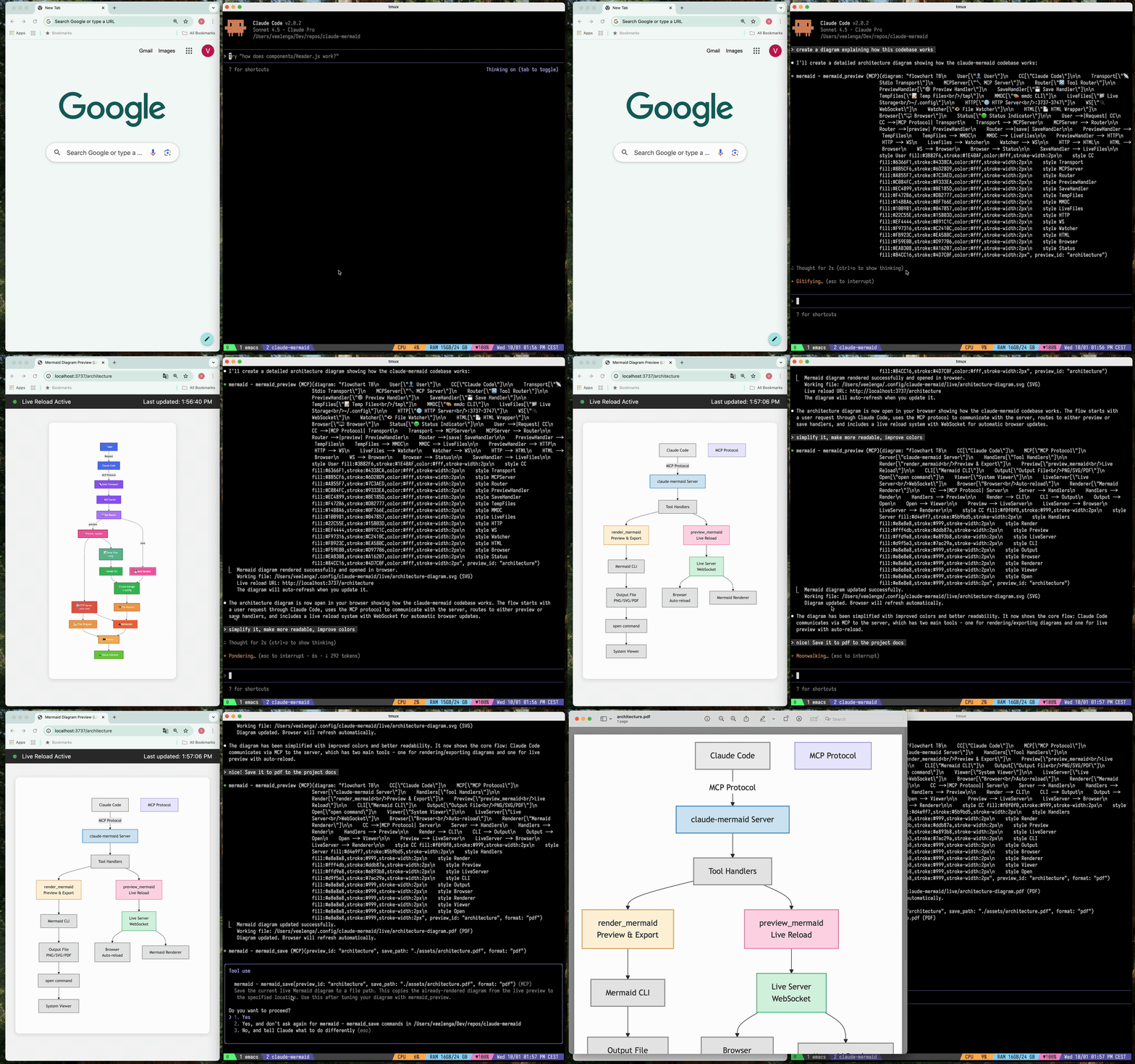
Automatically renders diagrams in your browser with real-time updates as you refine them. Perfect for iterative diagram development and documentation workflows.
✨ Features
- 🔄 Live Reload - Diagrams auto-refresh in your browser as you edit
- 🎨 Multiple Save Formats - Export to SVG, PNG, or PDF
- 🌈 Themes - Choose from default, forest, dark, or neutral themes
- 📐 Customizable - Control dimensions, scale, and background colors
- 🪄 Interactive Preview - Pan diagrams by dragging, zoom with browser controls, reset position with one click
- ⬇️ Browser Export - Download diagrams as SVG or PNG directly from the preview
- 🗂️ Multiple Previews - Use `preview_id` to work on multiple diagrams simultaneously
- 💾 Persistent Working Files - Live previews are stored under `~/.config/claude-mermaid/live`
- 🤖 Built-in Skill - Includes a Claude skill with best practices and expert guidance for creating diagrams
Architecture
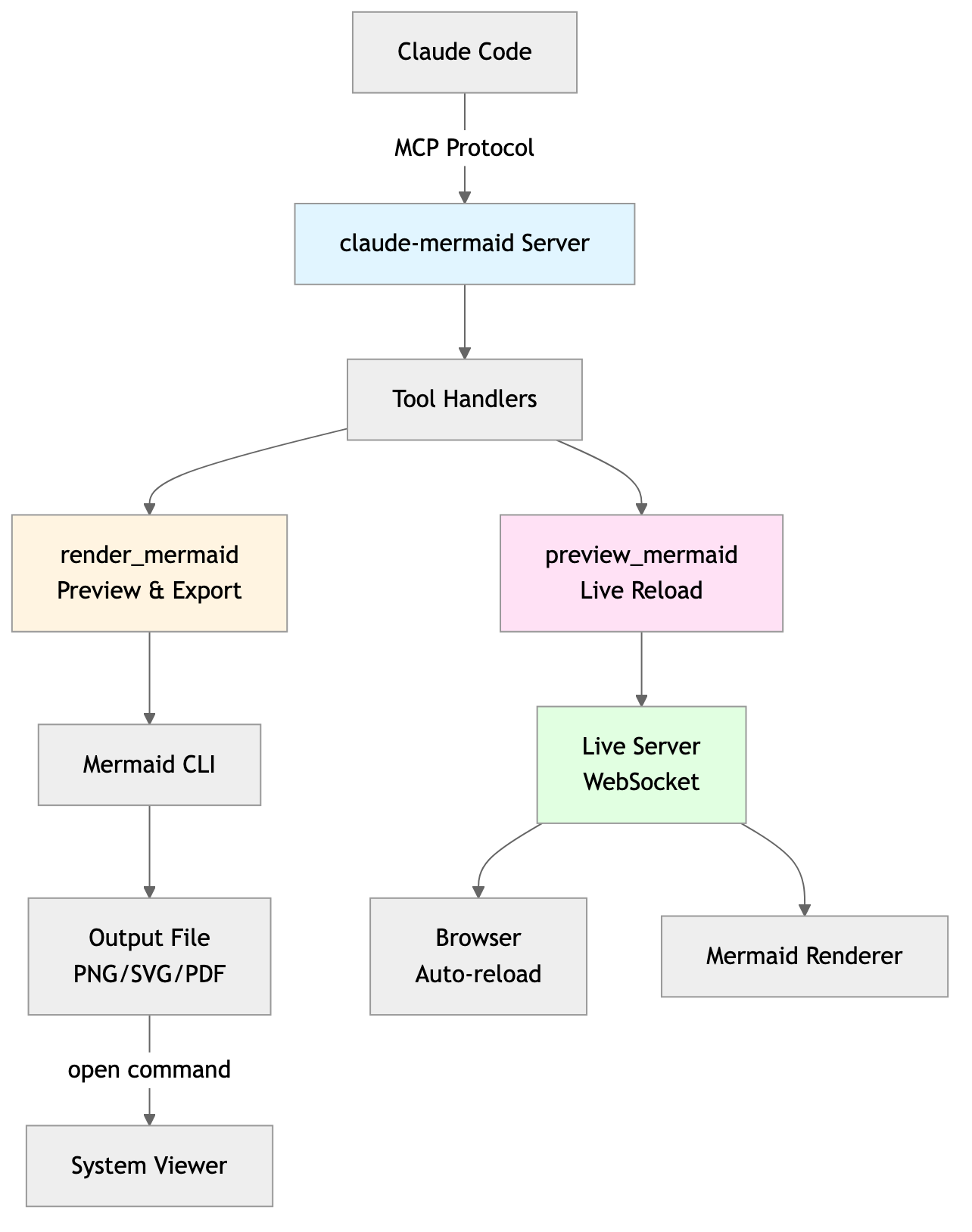
Project Architecture Diagram
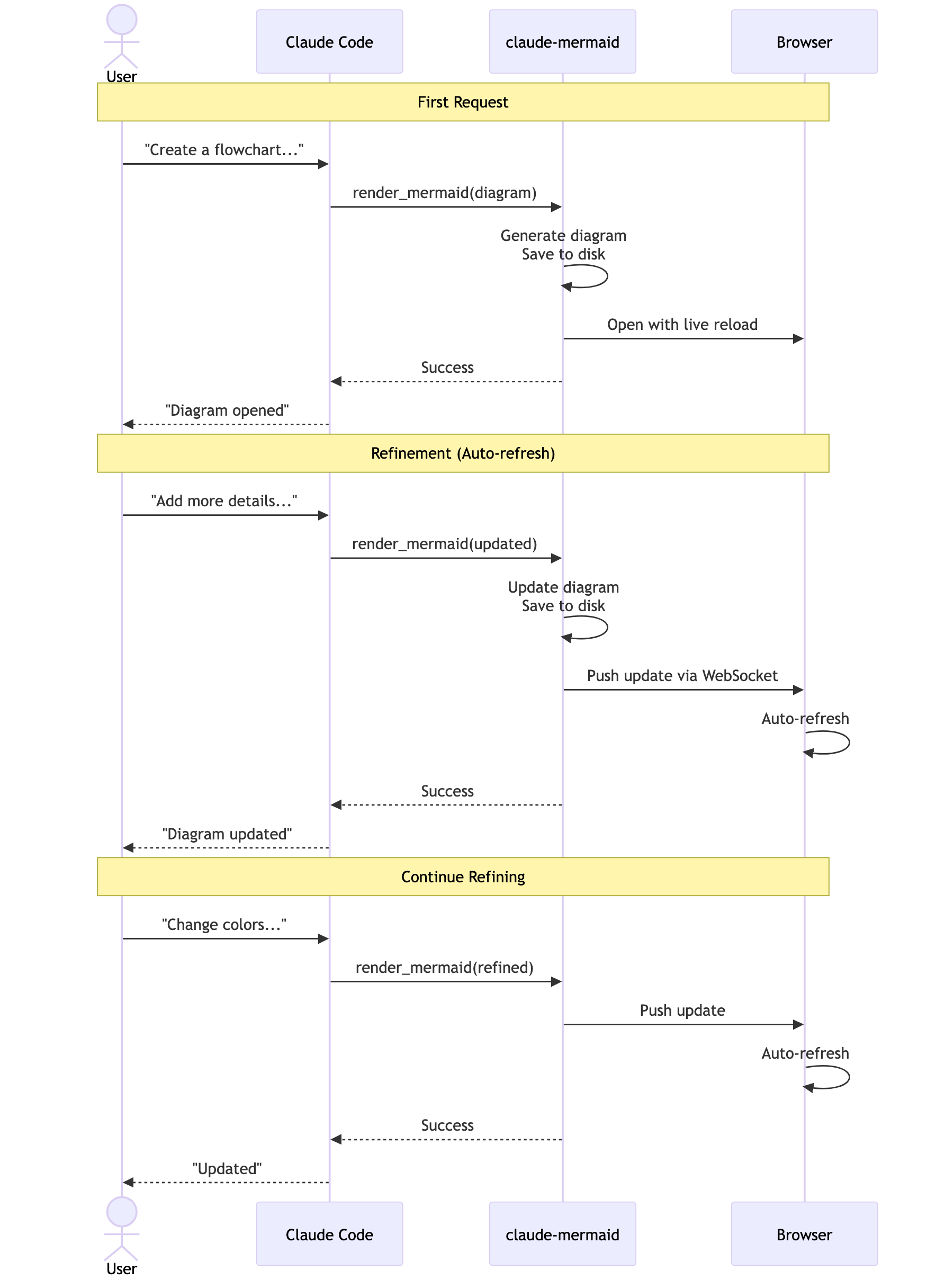
User Workflow Diagram
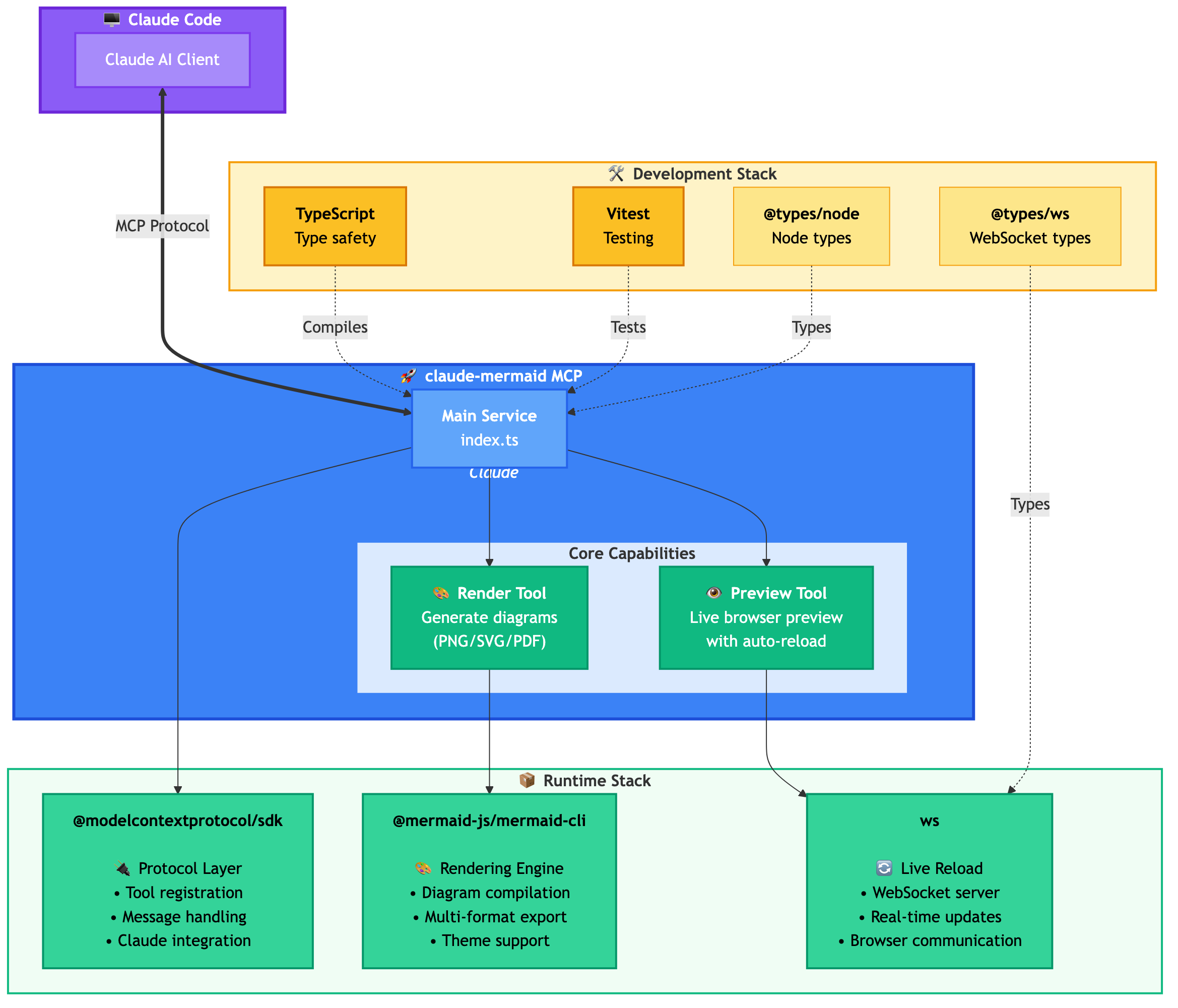
Dependencies Diagram
🚀 Quick Start
1. Install
Plugin Install (Recommended)
In Claude Code, add the marketplace and install the plugin:
/plugin marketplace add veelenga/claude-mermaid
/plugin install claude-mermaid@claude-mermaid
Then restart Claude Code to activate the plugin.
From npm:
npm install -g claude-mermaidFrom source:
git clone https://github.com/veelenga/claude-mermaid.git
cd claude-mermaid
npm install && npm run build && npm install -g .
2. Verify Installation
Plugin install: The MCP server is configured automatically. Just verify:
/mcpYou should see `mermaid` in the MCP server list.
npm install: Configure the MCP server manually:
claude mcp add --scope user mermaid claude-mermaidThen verify:
claude mcp listYou should see `mermaid: claude-mermaid - ✓ Connected`
🔌 Other MCP Client Configurations
While this server is optimized for Claude Code, it can work with any MCP-compatible client. Here's how to configure it for other popular tools:
Codex
Add to your Codex MCP settings file (`~/.codex/mcp_settings.json`):
{
  "mcpServers": {
    "mermaid": {
      "command": "claude-mermaid"
    }
  }
}
Or configure via Codex CLI:
codex mcp add mermaid claude-mermaidCursor
Add to your Cursor MCP config file (`.cursor/mcp.json` or settings):
{
  "mcpServers": {
    "mermaid": {
      "command": "claude-mermaid"
    }
  }
}
Or use Cursor's settings UI:
1. Open Cursor Settings (Cmd/Ctrl + ,)
2. Navigate to MCP Servers
3. Add a new server with command: `claude-mermaid`
VSCode with Cline Extension
If using the Cline extension for VSCode:
1. Open VSCode settings (Cmd/Ctrl + ,)
2. Search for "Cline MCP"
3. Add to MCP Settings JSON:
{
  "mcpServers": {
    "mermaid": {
      "command": "claude-mermaid"
    }
  }
}
Windsurf
Add to Windsurf's MCP configuration file:
{
  "mcpServers": {
    "mermaid": {
      "command": "claude-mermaid"
    }
  }
}
Configuration location varies by platform:
- macOS: `~/Library/Application Support/Windsurf/mcp.json`
- Linux: `~/.config/windsurf/mcp.json`
- Windows: `%APPDATA%\Windsurf\mcp.json`
Gemini CLI
Add to Gemini CLI's MCP configuration file (`~/.gemini/mcp.json`):
{
  "mcpServers": {
    "mermaid": {
      "command": "claude-mermaid"
    }
  }
}
Or use the Gemini CLI to configure:
gemini config mcp add mermaid --command claude-mermaidOther MCP Clients
For any MCP-compatible client, use the standard configuration:
{
  "mcpServers": {
    "mermaid": {
      "command": "claude-mermaid"
    }
  }
}
The command `claude-mermaid` should be available in your PATH after installation.
Note: Some clients may require the full path to the executable:
- Find the path: `which claude-mermaid` (Unix/macOS) or `where claude-mermaid` (Windows)
- Use absolute path in config: `"command": "/path/to/claude-mermaid"`
💡 Usage
Simply ask Claude Code to create Mermaid diagrams naturally. When installed as a plugin, the built-in `mermaid-diagrams` skill provides expert guidance, best practices, and automatic workflow management.
Basic Examples
"Create a Mermaid diagram showing the user authentication flow"
"Draw a sequence diagram for the payment process"
"Generate a flowchart for the deployment pipeline"
Advanced Examples
With custom formatting:
"Create a dark theme architecture diagram with transparent background"
"Generate a forest theme flowchart and save to ./docs/flow.svg"
With specific output format:
"Create an ER diagram and save as PDF to ./docs/schema.pdf"
"Save the flowchart as PNG to ./docs/flow.png"
_Note: Browser always shows SVG for live preview, while saving to your chosen format._
Iterative refinement:
"Create a class diagram for the User module"
// Browser opens with live preview
"Add the Address and Order classes with relationships"
// Diagram updates automatically in browser!
Complete Example
"Create a flowchart and save to ./docs/auth-flow.svg:

graph LR
    A[User Login] --> B{Valid Credentials?}
    B -->|Yes| C[Access Granted]
    B -->|No| D[Access Denied]
    C --> E[Dashboard]
    D --> F[Try Again]

    style A fill:#e1f5ff
    style C fill:#d4edda
    style D fill:#f8d7da
"
The diagram will be saved to `./docs/auth-flow.svg` and opened in your browser with live reload enabled.
🔧 Tools and Parameters
There are two tools exposed by the MCP server:
1. `mermaid_preview` — render and open a live preview
- `diagram` (string, required) — Mermaid diagram code
- `preview_id` (string, required) — Identifier for this preview session. Use different IDs for multiple concurrent diagrams (e.g., `architecture`, `flow`).
- `format` (string, default `svg`) — One of `svg`, `png`, `pdf`. Live preview is available only for `svg`.
- `theme` (string, default `default`) — One of `default`, `forest`, `dark`, `neutral`.
- `background` (string, default `white`) — Background color. Examples: `transparent`, `white`, `#F0F0F0`.
- `width` (number, default `800`) — Diagram width in pixels.
- `height` (number, default `600`) — Diagram height in pixels.
- `scale` (number, default `2`) — Scale factor for higher quality output.
2. `mermaid_save` — save the current live diagram to a path
- `save_path` (string, required) — Destination path (e.g., `./docs/diagram.svg`).
- `preview_id` (string, required) — Must match the `preview_id` used in `mermaid_preview`.
- `format` (string, default `svg`) — One of `svg`, `png`, `pdf`. If the live working file for this format doesn’t exist yet, it is rendered on demand before saving.
🎯 How Live Reload Works
1. First render: Opens diagram in browser at `http://localhost:3737/{preview_id}`
2. Make changes: Edit the diagram through Claude Code
3. Auto-refresh: Browser detects changes via WebSocket and reloads
4. Status indicator: Green dot = connected, Red dot = reconnecting
The live server uses ports 3737-3747 and automatically finds an available port.
Live Preview Controls
- Pan: Click and drag the diagram to move it around
- Zoom: Use browser zoom (Ctrl/Cmd + +/- or pinch-to-zoom on trackpad)
- Reset Position: Click the ⊙ button in the status bar to recenter the diagram
- Export: Click the ⬇ button to download as SVG or PNG
Notes
- Live preview is available for `svg` format only; PNG/PDF are rendered without live reload.
- For sequence diagrams, Mermaid does not support `style` directives inside `sequenceDiagram`.
🖥️ Standalone server
You can start the preview server without an AI agent using the `--serve` flag:
claude-mermaid --serveThis opens the diagram gallery in your browser with all previously rendered diagrams. Useful for browsing and exporting diagrams outside of a Claude Code session.
🛠️ Development
# Install dependencies
npm install

# Build the project
npm run build

# Run tests
npm test

# Watch mode for development
npm run dev

# Start the MCP server directly
npm start
📝 Troubleshooting
Error: Cannot find package 'puppeteer':
This is a rare environment-specific issue. Try these solutions:
1. Install claude-mermaid globally:
npm install -g claude-mermaid2. Reinstall the plugin in Claude Code:
/plugin uninstall claude-mermaid
   /plugin install claude-mermaid@claude-mermaid
Server not connecting:
# Check if server is installed
claude-mermaid -v

# Reinstall if needed
npm install -g claude-mermaid

# Verify MCP configuration
claude mcp list
Permission denied error:
# Make sure the binary is executable
chmod +x $(which claude-mermaid)
Port already in use:
- The server uses ports 3737-3747
- It will automatically find an available port
- Check if another process is using these ports: `lsof -i :3737-3747`
Diagrams not rendering or live reload not working:
The server logs to `~/.config/claude-mermaid/logs/`:
- `mcp.log` - Tool requests and diagram rendering
- `web.log` - HTTP/WebSocket connections and live reload
Enable debug logging in your MCP config:
{
  "mcpServers": {
    "mermaid": {
      "command": "claude-mermaid",
      "env": {
        "CLAUDE_MERMAID_LOG_LEVEL": "DEBUG"
      }
    }
  }
}
Then check the logs:
# View MCP operations
tail -f ~/.config/claude-mermaid/logs/mcp.log

# View WebSocket connections
tail -f ~/.config/claude-mermaid/logs/web.log
Available log levels: `DEBUG`, `INFO` (default), `WARN`, `ERROR`, `OFF`
🤝 Contributing
Contributions are welcome! Please feel free to submit a Pull Request.
📄 License
MIT - see LICENSE file for details
🔗 Links
👀 See Also
If you like this project, you might also be interested in
- preview-skills — preview skills for visualizing files in the browser (markdown, csv, json, mermaid and more)
Hosted deployment
A hosted deployment is available on Fronteir AI.
Frequently asked questions
What is claude-mermaid?
claude-mermaid is MCP Server to previewing mermaid diagrams
How do I install claude-mermaid?
Open the GitHub repository and follow its README. Most MCP servers are added to your client's MCP config, then called by your agent.
Is claude-mermaid open source?
Yes — it is hosted on GitHub at https://github.com/veelenga/claude-mermaid and has 11 stars.
Related MCP tools
 activepieces
AI Agents & MCPs & AI Workflow Automation • (~400 MCP servers for AI agents) • AI Automation / AI Agent with MCPs • AI Workflows & AI Agents • MCPs for AI Ag...
 claude-context
Code search MCP for Claude Code. Make entire codebase the context for any coding agent. TypeScript-based implementation. Trusted by 4100+ developers.
 mcp-server-chart
🤖 A visualization mcp contains 25+ visual charts using @antvis. Using for chart generation and data analysis. TypeScript-based implementation.
 dive
diveDive is an open-source MCP Host Desktop Application that seamlessly integrates with any LLMs supporting function calling capabilities. ✨
 rednote-mcp
🚀MCP server for accessing RedNote(XiaoHongShu, xhs). TypeScript-based implementation. Trusted by 800+ developers. Trusted by 800+ developers.
 mcp-router
A Unified MCP Server Management App TypeScript-based implementation. Trusted by 800+ developers. Trusted by 800+ developers.
Run your own MCP server? See who uses it and what to fix.
Measure it with TrackMCP