
koralpaper
KoralPaper: draw your thinking. A free, offline sketch studio where Claude draws with you. Hand-drawn diagrams, carousels, charts from pasted data, and stop-motion time-lapse animations. Zero dependencies, no account, MIT.
Documentation
KoralPaper
Draw your thinking. A free, offline sketch studio where Claude draws with you:
hand-drawn diagrams, sticky-note boards, LinkedIn carousels, charts from pasted
data, and stop-motion time-lapse animations. It runs in any browser from a single
HTML file. No account, no server, no install; your work never leaves your machine.
**▶ Open the app** · it works offline and installs as an app after the first visit.
Files ·
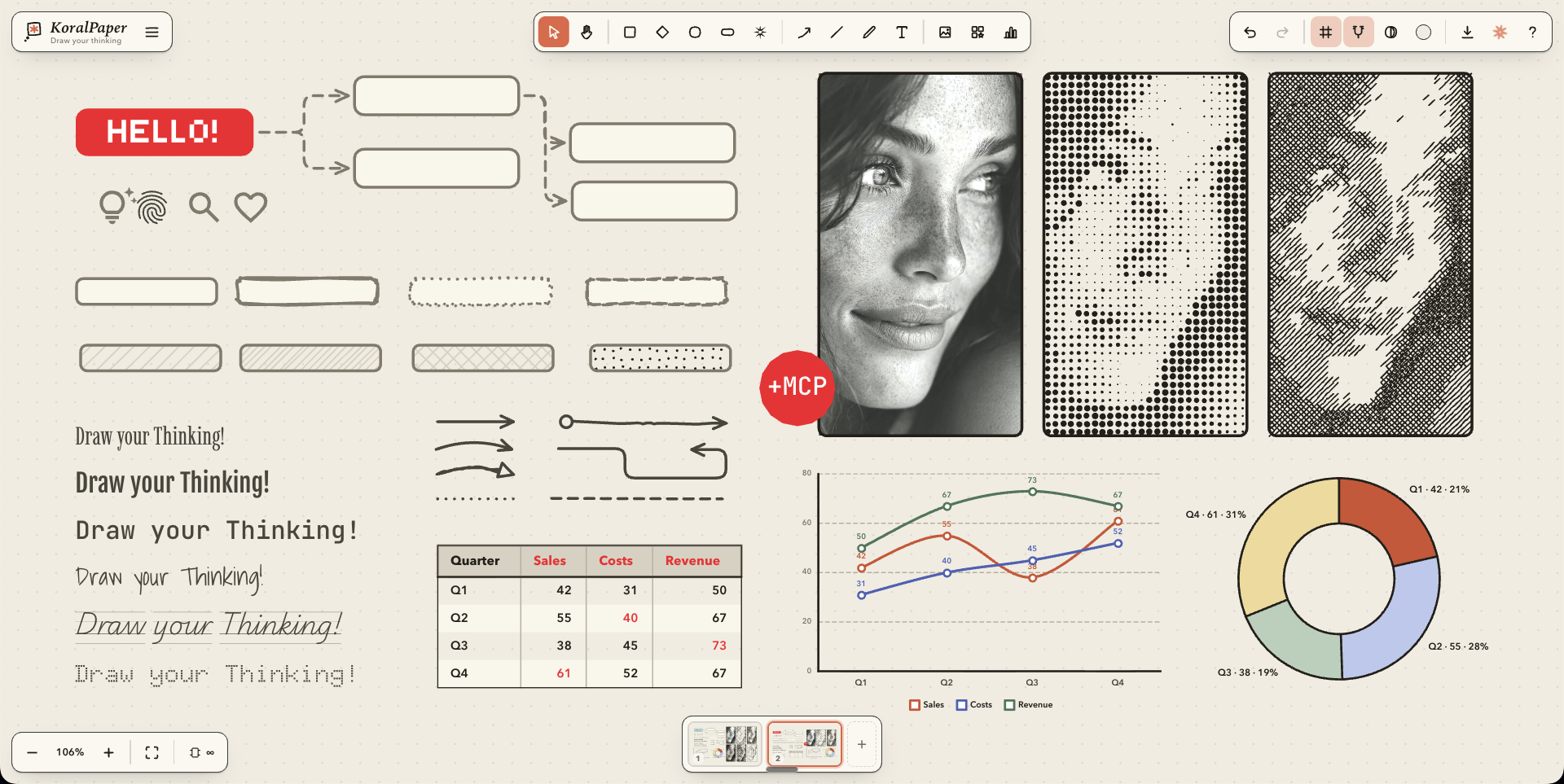
A local, offline vector diagram and sketch studio: warm cream paper, faint
grid, wobbly hand-drawn shapes, sticky notes, label chips, curved and elbow
arrows, serif headlines, and the coral KoralPaper asterisk. Built for
thinking out loud: diagrams that look sketched by a confident hand, not
generated by a tool.
Zero dependencies. No server, no build, no npm, no database, no account.
One HTML file, one stylesheet, three JavaScript files. Your work never leaves
your machine. During drags and pans only the moving elements are redrawn
(everything else is served from an offscreen bitmap), so even documents with
hundreds of elements stay perfectly fluid.
New: the **Prompt Library**, 99
copy-paste prompts for Claude Desktop + KoralPaper, searchable and filtered by category:
diagrams, carousels, charts, business canvases, workshops, and a Fun & Wild section that
includes roasting your own diagram.
What it looks like
Claude draws on your paper(MCP)Describe it in Claude Desktop, edit it here
Replica: image → editable pageAttach a poster, get it back as elements
Charts from a spreadsheet paste8 types, Sketchy or Clean
Brand kitYour colors and fonts, everywhere, Claude too
All of Google FontsSearch, load, 9 weights, letter colors
Templates in categoriesBuilt-ins plus your own saves
Mind-map foldingCollapse and expand branches live
Present & replayLaser pen, draw-on replay, .webm export
Photos become art13 algorithmic styles, tintable SVG logos
Social-size artboardsLinkedIn, IG, per-page paper colors
Merge & tidy toolsTexts into paragraphs, texts into shapes
Snapshots & sharingNamed checkpoints, single-file HTML share

















Start drawing (nothing to install)
**→ koralpaper on the web**: open
the link and draw. Works on Mac, Windows, Linux, ChromeOS and iPad, in
any modern browser.
Even better, install it as an app: the page is a PWA, so after the first
visit it works fully offline.
- Mac / Windows (Chrome or Edge): click the install icon in the address
bar (or menu → "Install KoralPaper").
- iPad / iPhone (Safari): Share button → Add to Home Screen.
- Your work autosaves in the browser and stays on your device, the "app"
never talks to a server.
Or run it from a folder
Prefer a local copy? Grab the newest ZIP from the
(or clone the repo), unzip, and double-click `index.html`, it runs
straight from the file, offline, in any modern browser. To update later,
download the new ZIP and replace the folder; your work lives in the
browser's storage, not in the folder.
Add Claude (optional, one minute)
To let Claude draw on your paper: install the free
Claude Desktop app (Mac or Windows), then
double-click `koralpaper.mcpb` from the `mcp/` folder (also attached to
each Release) and confirm the install inside Claude Desktop. Full details in
the app under ? → Claude.
First run
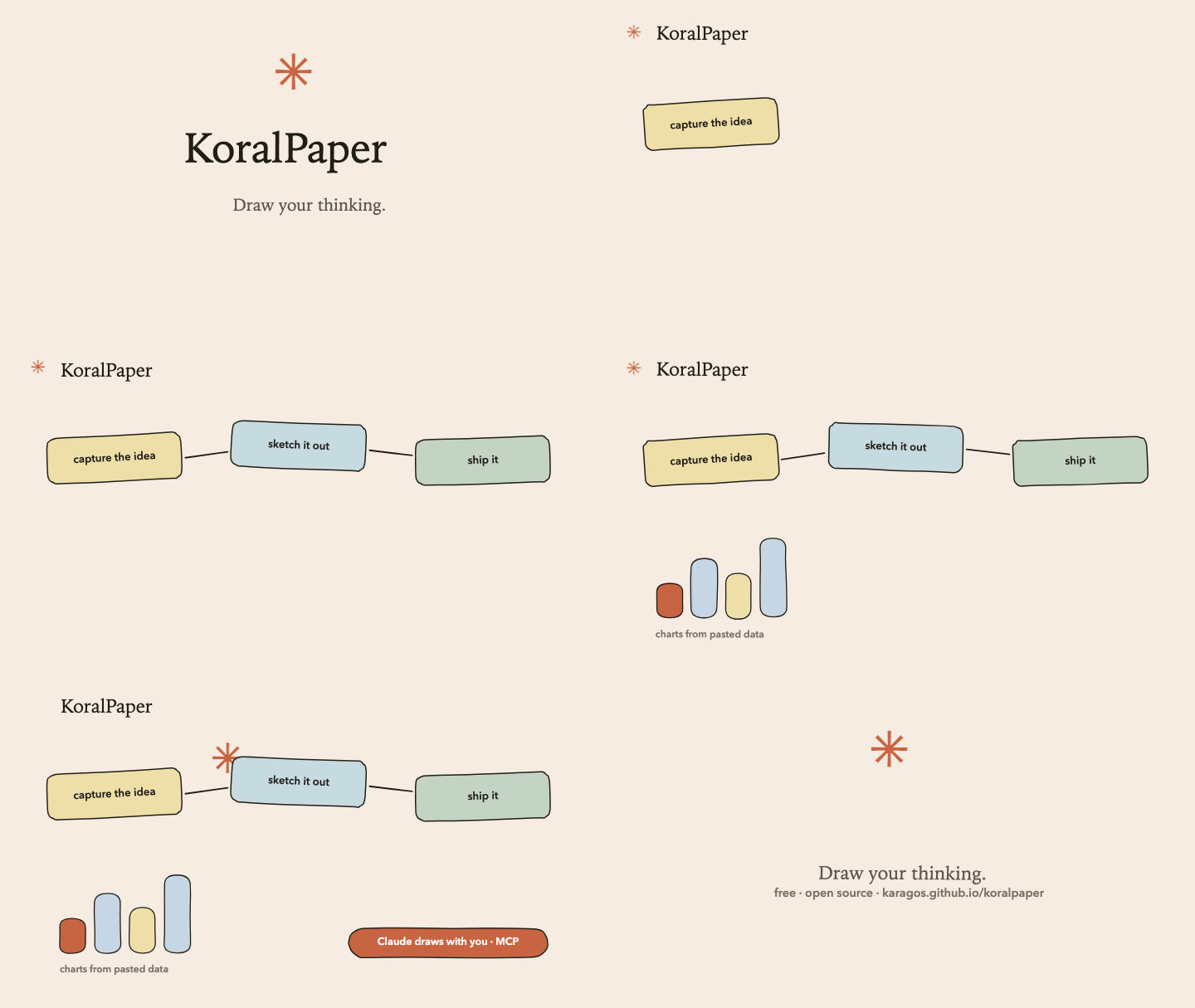
A welcome card offers the 60-second tour or a blank page (the tour stays
available via ☰ → "Load the KoralPaper tour", and the card replays from
? → Settings). A blank canvas shows gentle starter hints until your first
element lands. Press ? inside the app for shortcuts, the Claude setup,
and Settings.
What it does
- Tools: select (V), hand/pan (H), sticky rectangle (R), diamond (D),
ellipse (O), label chip (C), icon stamps (S), arrow (A), line (L),
free draw (P), text (T)
- Icon library (S): the 6-spoke KoralPaper asterisk, the three brand
marks (asterisk on paper, paper & stroke, paper thought), spiral, cloud,
star, heart, lightning bolt, speech bubble, exclamation, question mark,
checkmark, all hand-drawn; click the ✳ toolbar button to pick.
Plus Google Material icons: search 3,000 Material Symbols right in
the icon menu (pinned ★, recently-used, and the popular nine lead the
grid, right-click any icon to pin it) and stamp them as scalable
vectors. Fetched from Google once per icon, cached, and embedded in
your document, saved sketches stay fully offline
- Text everywhere: double-click any shape to type inside it (text wraps and
the shape grows); standalone text elements; arrows and lines take labels
that ride their midpoint and follow every move and bend
- Typography controls: per-element line spacing (×0.5–2.5),
paragraph spacing (extra space at every Enter, soft-wrapped
lines inside shapes keep the line spacing), letter spacing
(−7 to +15px tracking), and vertical alignment inside shapes
(top / middle / bottom), all live in the style panel and all carried
by copy/paste-style and SVG/PNG/PDF exports
- Excalidraw interop: ☰ → Export page to Excalidraw; opening a
.excalidraw file imports it onto a new page (bound labels, groups, images
and colors survive the round trip)
- Fonts: 3 built-in stacks (serif/sans/hand) plus a grouped Google
Fonts picker with 32 families, Sans & display (Inter, Montserrat,
Roboto Condensed, Bebas Neue, Fjalla One, Oswald, Imbue, DM Sans, Space
Grotesk), Serif (Playfair Display, PT Serif, Lora), Mono (JetBrains
Mono, IBM Plex Mono, Share Tech Mono), Hand & script (Caveat, Patrick
Hand, Kalam, Architects Daughter, Shadows Into Light, Lobster Two,
Playwrite NZ Guides, Unkempt, Kaushan Script), and Pixel & dot
(Bitcount ×3, Tiny5, Doto), need internet once; system fallbacks
offline
- Design with Claude (MCP): install the one-click koralpaper.mcpb
extension (in the `mcp/` folder) into the free
Claude Desktop app, keep KoralPaper open,
and just talk: *"draw a customer onboarding flowchart on a 1920×1080
board"*, Claude draws it live on your paper as ordinary hand-drawn
elements you can edit, restyle and undo (one ⌘Z per Claude step).
Claude can also read the page and **look at a rendered picture of
it**, so *"tidy this layout"* or *"make the third box green"* work on
whatever is on the paper, including what you drew by hand. The ✳ in the
top bar glows while the link is alive; the Claude tab in the ? panel
has the one-minute setup. No API key, no extra billing, nothing leaves
your machine except your conversation with Claude. Without Claude
Desktop there is a fallback: the same tab copies a design prompt you
can paste into any Claude, the .json it answers with opens straight in
the app
- Brand kit (Settings): your identity in one small file: name, six accent
colors, paper, heading and body fonts (any Google font). When active, charts
color by your accents, chart and template headlines use your heading font,
new documents start on your paper, the accents join the color swatches, and
Claude reads the kit so everything it designs comes back on brand. Export
the kit as .json and your whole team sketches in the same look.
- Charts & tables (B): paste numbers straight from a spreadsheet and get
hand-drawn bars (vertical or sideways, multi-series, negatives welcome),
line charts, spider charts, pies, donuts, heat maps, or an elegant striped table, with title, axis
labels, legend, value labels, a movable legend, and a live preview, in two looks:
hand-drawn Sketchy or crisp professional Clean. Everything lands as normal sketchy
elements in one group: recolor any bar or slice with the usual controls,
and right-click the chart to edit its data and rebuild it in place.
- Time-lapse recorder (☰): press F to snapshot the page as a frame, or
turn on auto-record and every change you make becomes a frame. Each frame
has a hold time and a move time: during the move, elements travel to the
next frame in shaky stop-motion steps, strokes redrawn on every step like
a hand-shot animation (the default), or glide smoothly with Smooth, Snappy,
Overshoot or Linear easing. Appearing elements hard-cut, or fade if you
tick Fade. Camera keyframes zoom and pan between frames,
onion skin ghosts the previous frame while you build the next, and a live
preview with a scrubber plays the whole animation before you export it as
a looping GIF or a .webm video. Recordings are saved with the document.
- Animated GIF export (⬇): pages become frames, each with its own
on-screen duration, size and loop controls. A carousel becomes a looping
animation with zero extra tools.
- Snapshots (☰): named checkpoints of the whole document, kept locally;
restore any of them at any time, one undo brings the current version back.
- Prompt recipes (Claude tab): one-click copies of the Claude moves that
work: tidy this page, rebuild it clean, turn into a mind map, make a
carousel, summarize the document.
- Mind-map folding: right-click a shape → "Mark as mind-map root"
and branches become foldable, − badges fold, coral +N badges
unfold and show how many nodes are hidden. Cross-links behave
correctly (a shared child stays while any open path reaches it),
folds are undoable, save with the document, respect exports, and can
be toggled live during a presentation by tapping the badge,
reveal your structure branch by branch while you talk
- Tab-to-create flows: select a shape and press Tab, a connected
twin appears to the right (⇧Tab: below), same style, glued arrow, text
editor already open. It works mid-typing too, so "type, Tab, type, Tab"
builds a flowchart in seconds. Tidy (the Arrange button or
right-click → "Tidy the flow") then arranges everything connected by
glued arrows into neat left-to-right columns
- Glued arrows: draw an arrow from one shape to another, it binds to both
borders and follows when shapes move, resize, or rotate. Aim for the four
side dots (N/E/S/W) to pin the arrow to a specific side; drop in the middle
for smart auto-aiming. Select an arrow and drag its middle handle to
bend the curve (drag back to the line to straighten). The Arrow-bend row
also offers elbow arrows, right-angle routes with rounded corners
that exit perpendicular to the glued side, **route around other shapes
automatically, and show a drag handle on every segment** for full
manual control (right-click → "Re-route elbow" to go back to auto)
- Grid: three states, lines / dots / off, plus an adjustable grid size
(10–60px): click the grid button for the popover; G cycles states; snapping
follows the chosen size
- Paper color: the round swatch in the top-right opens a popover with
8 preset papers (white, light gray, light blue, soft green, soft yellow,
soft mauve, warm linen + the theme cream), a color wheel, and a hex
field; exports use the chosen paper too. The theme swatch (or ☰ menu →
"Reset paper color") restores the default
- Canvas sizes / artboards: the artboard button (bottom-left, its
label shows the active preset's dimensions, or ∞) offers presets:
IG Story/Reel, IG post & portrait, LinkedIn, X, YouTube; desktop & iPhone
wallpapers; 1:1, 16:9, 9:16, 4:3, 3:2 ratios, or unlimited canvas.
With an artboard active, PNG/SVG exports are exactly that pixel size and
include the grid (lines or dots) unless you export transparent
- Grouping: ⌘G / ⇧⌘G or the Group/Ungroup buttons in the panel; clicking
any member selects the whole group
- Arrange: align left/center/right/top/middle/bottom, distribute
horizontally/vertically, and match width/height to the first-selected
shape (2+ shapes; groups move as one; arrows re-glue automatically and
are excluded)
- Copy/paste style: ⌥⌘C / ⌥⌘V (or right-click) carries stroke, fill,
and text styling from one element onto many
- Right-click menu: edit text, duplicate, copy, delete, group/ungroup,
and layer order on any element; paste/select-all/zoom-fit on empty canvas
- Templates: ☰ → Templates…, built-in page sets (LinkedIn carousel
with header/footer/title/photo/CTA slides on a 1080×1350 artboard,
Black carousel, a crisp black + electric-yellow design set that also
recolors the paper, Flowchart kit, Comparison/Versus, Quote card).
Save this page or the whole multi-page document as your own template
, canvas size and paper color included, then **rename (✎), update (↻),
or delete (✕)** any template, built-ins included: replace a built-in
with your own design, remove it from the list, and "Restore built-ins"
brings the originals back anytime. Applied templates arrive as fresh,
fully editable pages
- Multi-page documents: page strip at the bottom, click to switch,
drag a thumbnail to reorder pages (a coral mark shows where it will
land), + to add, right-click a tab to rename/duplicate/move/delete.
Undo spans pages
- Presentation mode + laser pen: ⇧⌘P (or ☰ → Present) hides every
control, fits the page (or artboard) to the screen and goes fullscreen.
Arrow keys, space or a click turn the pages; **dragging draws a glowing
coral laser stroke whose tail evaporates in a second**, point at things
live without marking the document. A minimal page bar wakes on mouse
move; Esc ends the show and puts everything back exactly as it was
- Draw-on replay + animated export: ☰ → "Replay the drawing" plays
the current page back as if a hand were sketching it, freehand strokes
reveal point by point, arrows sweep out of their start, shapes and text
ink in one after another (capped at ~20 seconds). "Export replay as
video (.webm)" records the same animation to a video file, perfect for
a LinkedIn post of your diagram drawing itself. Any click or key stops
the show
- PDF export: ☰ or ⬇ → Export PDF. Multi-page documents open a page
picker; with an artboard every page exports at the exact preset size with
the grid included. Zero dependencies, works fully offline
- Carousel export: ☰ or ⬇ → "Export all pages as PNGs (.zip)" renders
every page as a numbered PNG (exact artboard pixels when one is set) and
packs them into a single .zip, the whole LinkedIn/Instagram carousel in
one click. The ZIP is written by hand in ~50 lines; still zero
dependencies
- Share as a web page: ☰ or ⬇ → "Share as web page (.html)" writes
one self-contained HTML file, every page as an inline vector SVG plus
a tiny dark-themed viewer with page navigation and keyboard arrows.
Send it to anyone: it opens in any browser with no app, no server, no
account, works offline, and images ride along inside the file
- Copy as PNG / SVG: ⇧⌘C (or the menus) puts the selection, or the
whole page when nothing is selected, on the clipboard as a real PNG
image, ready to paste into Slack, Notion, Keynote or a chat. "Copy as
SVG" copies vector markup that pastes straight into Figma or a code
editor
- Your gallery: a toolbar library for reusable SVG logos (pure vector,
crisp at any zoom, vector in exports) and transparent PNG marks, click
to place, right-click to remove, persisted in the browser
- Frames: any image can wear a hand-drawn border (Frame → On) that
follows the Outline color, Thickness and Line style, and survives
every art style, so pale photos hold their ground on the page
- Images: drag & drop or paste PNG/JPEG (toolbar 🖼 button, `I`, or
☰ → Import image); they act like any element, resize, rotate, glue
arrows to them. Crop from the panel or right-click menu: drag across
the region to keep; Uncrop restores the full image; crops compose with
Artify in either order
- Artify (algorithmic art): select an image and choose an Art style:
Dots, Lines, Stipple, Hatch, Cubist (colored facets), Cubist mono
(facets in your stroke color), Flow (ink strokes that follow the photo's
contours), Scribble (a restless pen builds tone by looping densely in the
darks), One line (a single continuous line connecting the photo's
salient contours, Edge-Drawing based), String (thread art around pins),
Type (typewriter glyph portrait), or Duotone (two-ink poster, stroke +
fill colors), at three detail levels. Seeded and non-destructive (flip back
to Photo anytime); SVG exports of artified images are pure vector
- Photo adjustments: Brightness / Contrast / Gamma / Sharpen sliders on
every image, they shape both the photo and the art styles, so you can
tune the source until the halftone/stipple/lines pop
- Tooltips everywhere: hover any button, tool, toolbar toggle, style
control, zoom bar, and a fast, readable tooltip names it and shows its
keyboard shortcut as a key chip; move along a row and the next tip
appears instantly
- Touch & iPad: pinch to zoom, two-finger pan (a second finger safely
cancels whatever the first finger started), and selection handles grow
their hit areas under a finger. Works with Apple Pencil too, it draws
like a mouse
- Snapping: grid snap (G toggles the grid) + smart alignment guides against
other elements' edges and centers (⇧G toggles)
- Selection: click, shift-click, marquee, ⌘A, move, 8-handle resize,
rotate handle, arrow-key nudge, ⌘G group / ⇧⌘G ungroup
- Editing: undo/redo (⌘Z / ⇧⌘Z) with intention-sized steps, a run of
arrow-key nudges or slider wiggles undoes as one, copy/paste/cut, ⌘D
duplicate, ⌥-drag duplicate, layer order (front/back/forward/backward),
opacity
- Styling: Anthropic palette (ink, coral, periwinkle, sage, terracotta,
butter…) plus a black→greys→white neutral ramp opening both stroke and fill,
an independent text color (Auto follows the stroke and flips to light
on dark fills; or pick any palette/custom color for the text alone), a
custom color picker (rainbow swatch) with a hex field, a **no-stroke
option (fill-only shapes), six fill styles** (solid, hatched, dense
lines, cross-hatch, dots, waves, they work on icons too), 3 stroke
widths, neat/sketchy/scribbly plus dotted and dashed
line styles, round/sharp corners, arrow bend, and per-end arrowhead
styles (arrow / hollow triangle / circle ring / none)
- Themes: light (cream) and dark (ink) paper, palette colors are stored
as tokens and re-resolve per theme; custom hex colors stay fixed
- Settings panel: the ? button opens a Help / Settings side panel:
Settings holds sliders for the three line-width presets, the four
S/M/L/XL text sizes, and the text spacing defaults (lines,
paragraph, letters, used by new texts and the Reset-spacing button),
with per-section resets and settings export/import (a .json carrying
every preset plus pinned icons, reloadable anytime or on another machine),
applied live and persisted in the browser
- Files: New document (⌥⌘N, with a save-first warning, undoable),
Save/Open `.json` sketches, Save asks for a file name and remembers it,
Open replaces the whole document and adopts the file's name, export
PNG (2×) or SVG, each with background or transparent, autosave
to localStorage
- Press ? in the app for shortcuts, tips, and Settings. The ☰ menu
holds the document (New/Open/Save/Import/Templates) and the show
(Present/Replay/Tour); the ⬇ button (top right) is the export menu,
grouped into "This page" and "Whole document", with one **Transparent
background** toggle that drives PNG and SVG exports.
Files
| File | Role |
|---|---|
| `index.html` | UI shell (toolbar, style panel, menus, dialogs) |
| `css/style.css` | Cream "island" UI theme, light+dark |
| `js/core.js` | Engine: element model, geometry, seeded hand-drawn renderer, arrow routing, exports |
| `js/app.js` | Interactions: selection, snapping, history, text editing, templates, autosave |
| `js/material-icons.js` | Generated catalog of Google Material icon names + search tags |
| `mcp/` | Claude Desktop extension: `koralpaper.mcpb` (one-click install) + the dependency-free bridge |
| `examples/` | Ready-to-open documents (the KoralPaper tour) |
| `docs/` | README assets |
Privacy
KoralPaper collects nothing. No account, no analytics, no server: your work
lives in your browser's storage and in files you save yourself. The MCP bridge
runs only on 127.0.0.1 and keeps no data. Full policy:
License & credits
MIT: free to use, modify, and share.
**KoralPaper is a creation by Stefanos Karagos, CAIO Group.
© 2026 Stefanos Karagos. Version history lives in
CHANGELOG.md; the running version shows at the bottom of
the ☰ menu and is written into every saved .json.
Built with Claude in 2026. Safe to edit freely: no native modules, no data files.
Frequently asked questions
What is koralpaper?
koralpaper is KoralPaper: draw your thinking. A free, offline sketch studio where Claude draws with you. Hand-drawn diagrams, carousels, charts from pasted data, and stop-motion time-lapse animations. Zero dependencies, no account, MIT.
How do I install koralpaper?
Open the GitHub repository and follow its README. Most MCP servers are added to your client's MCP config, then called by your agent.
Is koralpaper open source?
Yes — it is hosted on GitHub at https://github.com/karagos/koralpaper and has 2 stars.
Related MCP tools
 projectmem
Open-source coding agent memory. Records issues, attempts, fixes and decisions, then warns your agent before it repeats an approach that already failed. Native MCP server for Claude Code, Cursor, Antigravity and Codex. 100% local, no cloud, no telemetry. MIT.
 firecrawl-mcp-server
🔥 Official Firecrawl MCP Server - Adds powerful web scraping and search to Cursor, Claude and any other LLM clients.
 atlassian-mcp-server
Official remote MCP server for Atlassian. Securely connect Jira, Confluence, Jira Service Management, Bitbucket, and Compass to Claude, ChatGPT, Cursor, VS Code, and other AI tools using OAuth 2.1 or API tokens.
 wigolo
The go-to web for your AI coding agent — local-first search, fetch, crawl & research over MCP. No API keys, no cloud, $0/query. Public beta.
 Unity-MCP
AI Skills, MCP Tools, and CLI for Unity Engine. Full AI develop and test loop. Use cli for quick setup. Efficient token usage, advanced tools. Any C# method may be turned into a tool by a single line. Works with Claude Code, Gemini, Copilot, Cursor and any other absolutely for free.
 OpenOSINT
AI-powered OSINT agent with interactive REPL, MCP server, and CLI. 19 tools. Works with Claude, GPT-4, or local models. For authorized security research only.
Run your own MCP server? See who uses it and what to fix.
Measure it with TrackMCP