
mcp-server-python
Python MCP Server for Kestra — you can use it as a tool in Kestra's AI Agents
Documentation
Kestra Python MCP Server
You can run the MCP Server in a Docker container. This is useful if you want to avoid managing Python environments or dependencies on your local machine.
Using Kestra AI Agent
See kestra_mcp_docker.
Minimal configuration for OSS users
Paste the following configuration into your MCP settings (e.g., Cursor, Claude, or VS Code):
{
  "mcpServers": {
    "kestra": {
      "command": "docker",
      "args": [
        "run",
        "-i",
        "--rm",
        "--pull",
        "always",
        "-e",
        "KESTRA_BASE_URL",
        "-e",
        "KESTRA_TENANT_ID",
        "-e",
        "KESTRA_MCP_DISABLED_TOOLS",
        "-e",
        "KESTRA_MCP_LOG_LEVEL",
        "-e",
        "KESTRA_USERNAME",
        "-e",
        "KESTRA_PASSWORD",
        "ghcr.io/kestra-io/mcp-server-python:latest"
      ],
      "env": {
        "KESTRA_BASE_URL": "http://host.docker.internal:8080/api/v1",
        "KESTRA_TENANT_ID": "main",
        "KESTRA_MCP_DISABLED_TOOLS": "ee",
        "KESTRA_MCP_LOG_LEVEL": "ERROR",
        "KESTRA_USERNAME": "admin@kestra.io",
        "KESTRA_PASSWORD": "your_password"
      }
    }
  }
}
Minimal configuration for EE users
{
  "mcpServers": {
    "kestra": {
      "command": "docker",
      "args": [
        "run",
        "-i",
        "--rm",
        "--pull",
        "always",
        "-e", "KESTRA_BASE_URL",
        "-e", "KESTRA_API_TOKEN",
        "-e", "KESTRA_TENANT_ID",
        "-e", "KESTRA_MCP_LOG_LEVEL",
        "ghcr.io/kestra-io/mcp-server-python:latest"
      ],
      "env": {
        "KESTRA_BASE_URL": "http://host.docker.internal:8080/api/v1",
        "KESTRA_API_TOKEN": "",
        "KESTRA_TENANT_ID": "main",
        "KESTRA_MCP_LOG_LEVEL": "ERROR"
      }
    }
  }
}
Detailed Configuration using Docker
{
  "mcpServers": {
    "kestra": {
      "command": "docker",
      "args": [
        "run",
        "-i",
        "--rm",
        "--pull",
        "always",
        "-e", "KESTRA_BASE_URL",
        "-e", "KESTRA_API_TOKEN",
        "-e", "KESTRA_TENANT_ID",
        "-e", "KESTRA_USERNAME",
        "-e", "KESTRA_PASSWORD",
        "-e", "KESTRA_MCP_DISABLED_TOOLS",
        "-e", "KESTRA_MCP_LOG_LEVEL",
        "ghcr.io/kestra-io/mcp-server-python:latest"
      ],
      "env": {
        "KESTRA_BASE_URL": "http://host.docker.internal:8080/api/v1",
        "KESTRA_API_TOKEN": "",
        "KESTRA_TENANT_ID": "main",
        "KESTRA_USERNAME": "admin",
        "KESTRA_PASSWORD": "admin",
        "KESTRA_MCP_DISABLED_TOOLS": "ee",
        "KESTRA_MCP_LOG_LEVEL": "ERROR"
      }
    }
  }
}
Notes:
- Replace ``, ``, and `` with your actual credentials.
- For OSS installations, you can use `KESTRA_USERNAME` and `KESTRA_PASSWORD` instead of `KESTRA_API_TOKEN`.
- To disable Enterprise Edition tools in OSS, set `KESTRA_MCP_DISABLED_TOOLS=ee`.
- The `host.docker.internal` hostname allows the Docker container to access services running on your host machine (such as the Kestra API server on port 8080). This works on macOS and Windows. On Linux, you may need to use the host network mode or set up a custom bridge.
- The `-e` flags pass environment variables from your MCP configuration into the Docker container.
Available Tools
- 🔄 backfill
- ⚙️ ee (Enterprise Edition tools)
- ▶️ execution
- 📁 files
- 🔀 flow
- 🗝️ kv
- 📋 logs
- 🌐 namespace
- 🔁 replay
- ♻️ restart
- ⏸️ resume
Note: The `ee` tool group contains Enterprise Edition specific functionality and is only available in EE/Cloud editions. For OSS users, you can disable EE tools by adding `KESTRA_MCP_DISABLED_TOOLS=ee` to your `.env` file.
Optionally, you can include `KESTRA_MCP_DISABLED_TOOLS` in your `.env` file listing the tools that you prefer to disable. For example, if you want to disable Namespace Files tools, add this to your `.env` file:
KESTRA_MCP_DISABLED_TOOLS=filesTo disable multiple tools, separate them with comma:
KESTRA_MCP_DISABLED_TOOLS=eeLogging Configuration
By default, the MCP server only logs ERROR level messages to minimize noise. You can control the logging level using the `KESTRA_MCP_LOG_LEVEL` environment variable:
# Only show ERROR messages (default)
KESTRA_MCP_LOG_LEVEL=ERROR

# Show WARNING and ERROR messages
KESTRA_MCP_LOG_LEVEL=WARNING

# Show INFO, WARNING, and ERROR messages
KESTRA_MCP_LOG_LEVEL=INFO

# Show all messages including DEBUG
KESTRA_MCP_LOG_LEVEL=DEBUG
When using Docker, add the environment variable to your MCP configuration:
{
  "mcpServers": {
    "kestra": {
      "command": "docker",
      "args": [
        "run",
        "-i",
        "--rm",
        "--pull",
        "always",
        "-e", "KESTRA_BASE_URL",
        "-e", "KESTRA_MCP_LOG_LEVEL",
        "ghcr.io/kestra-io/mcp-server-python:latest"
      ],
      "env": {
        "KESTRA_BASE_URL": "http://host.docker.internal:8080/api/v1",
        "KESTRA_MCP_LOG_LEVEL": "ERROR"
      }
    }
  }
}
Local development
To run the MCP Server for Kestra locally (e.g. if you want to extend it with new tools), make sure to create a virtual environment first:
uv venv --python 3.13
uv pip install -r requirements.txt
Create an `.env` file in the root directory of the project similar to the .env_example file. For OSS installations, you can use basic authentication with `KESTRA_USERNAME` and `KESTRA_PASSWORD`. For EE/Cloud installations, use `KESTRA_API_TOKEN`. To disable Enterprise Edition tools in OSS, add `KESTRA_MCP_DISABLED_TOOLS=ee` to your `.env` file.
Then, follow the instructions below explaining how to test your local server in Cursor, Windsurf, VS Code or Claude Desktop.
Usage in Cursor, Windsurf, VS Code or Claude Desktop
To use the Python MCP Server with Claude or modern IDEs, first check what is the path to uv on your machine:
which uvCopy the path returned by `which uv` and paste it into the `command` section.
Then, replace the `--directory` by the path where you cloned the Kestra MCP Server repository. For example:
{
  "mcpServers": {
    "kestra": {
      "command": "/Users/annageller/.local/bin/uv",
      "args": [
        "--directory",
        "/Users/annageller/gh/mcp-server-python/src",
        "run",
        "server.py"
      ]
    }
  }
}
You can paste that in the Cursor MCP settings or Claud Developer settings.
VS Code setup
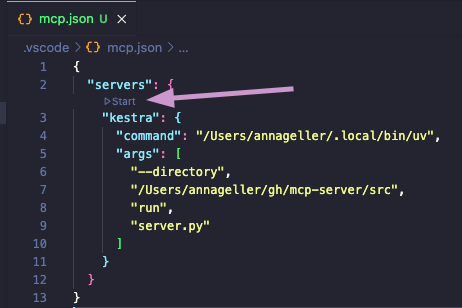
In your VS Code project directory, add a folder `.vscode` and within that folder, create a file called `mcp.json`. Paste your MCP configuration into that file (note that in VS Code, the key is `servers` instead of `mcpServers`):
{
  "servers": {
    "kestra": {
      "command": "/Users/annageller/.local/bin/uv",
      "args": [
        "--directory",
        "/Users/annageller/gh/mcp-server-python/src",
        "run",
        "server.py"
      ]
    }
  }
}
A small `Start` button should show up, click on it to start the server.
If you now navigate to the GitHub Copilot tab and switch to the Agent mode, you will be able to directly interact with the Kestra MCP Server tools. For example, try typing the prompt: "List all flows in the tutorial namespace".
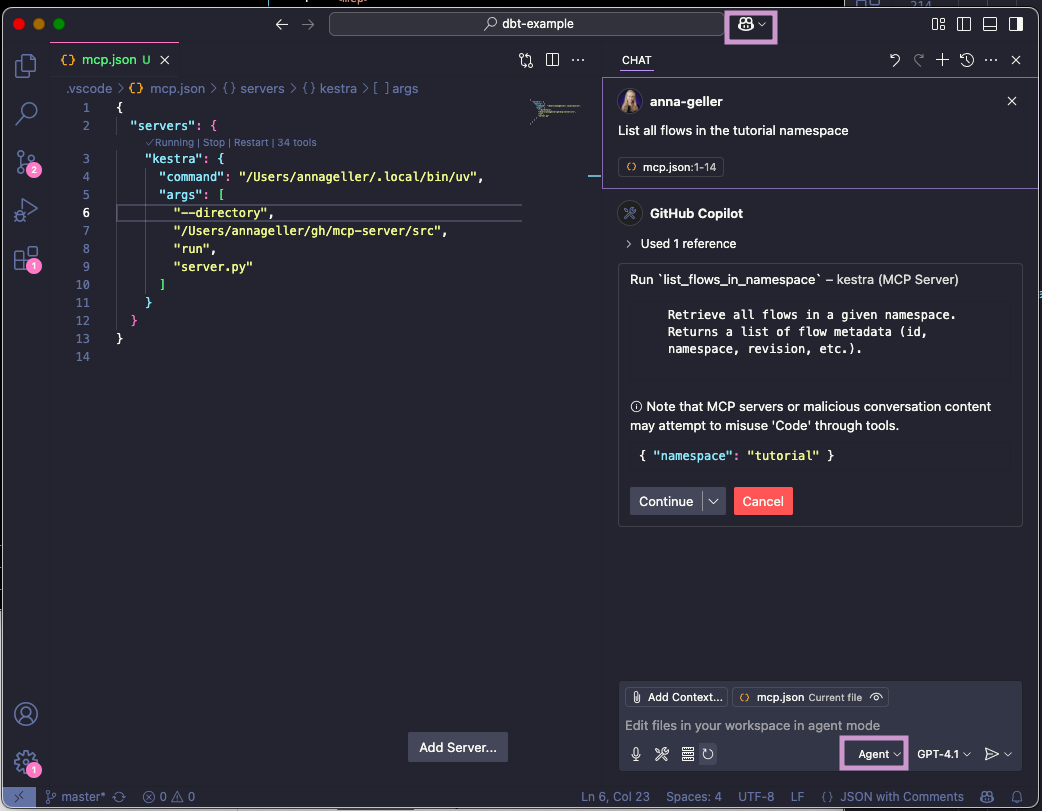
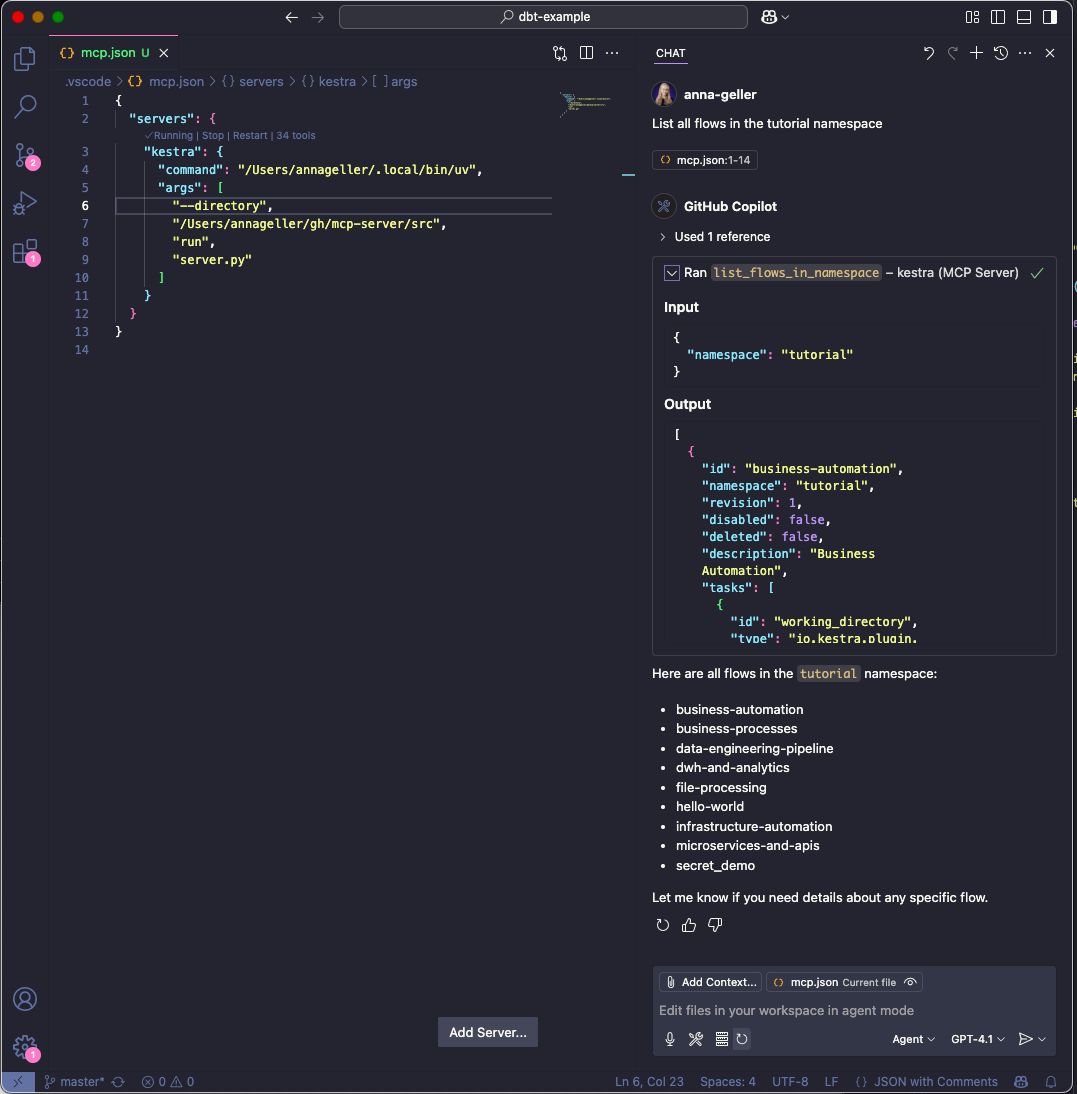
If you click on continue, you will see the result of the command in the output window.
FAQ
Question: Do I have to manually start the server as an always-on process?
No, you don't have to run the server manually, as when using the `stdio` transport, the AI IDEs/chat-interfaces (Cursor, Windsurf, VS Code or Claude Desktop) launch the MCP server as a subprocess. This subprocess communicates with AI IDEs via JSON-RPC messages over standard input and output streams. The server receives messages through stdin and sends responses through stdout.
Question: Do I have to manually activate the virtual environment for the MCP Server?
No, because we use `uv`. Unlike traditional Python package managers, where virtual environment activation modifies shell variables like `PATH`, `uv` directly uses the Python interpreter and packages from the `.venv` directory without requiring environment variables to be set first. Just make sure you have created a uv virtual environment with `uv venv` and installed the required packages with `uv pip install` as described in the previous section.
Frequently asked questions
What is mcp-server-python?
mcp-server-python is Python MCP Server for Kestra — you can use it as a tool in Kestra's AI Agents
How do I install mcp-server-python?
Open the GitHub repository and follow its README. Most MCP servers are added to your client's MCP config, then called by your agent.
Is mcp-server-python open source?
Yes — it is hosted on GitHub at https://github.com/kestra-io/mcp-server-python and has 31 stars.
Related MCP tools
 projectmem
Open-source coding agent memory. Records issues, attempts, fixes and decisions, then warns your agent before it repeats an approach that already failed. Native MCP server for Claude Code, Cursor, Antigravity and Codex. 100% local, no cloud, no telemetry. MIT.
 FinanceToolkit
Transparent and Efficient Financial Analysis
 pg-aiguide
MCP server and Claude plugin for Postgres skills and documentation. Helps AI coding tools generate better PostgreSQL code.
 OpenOSINT
AI-powered OSINT agent with interactive REPL, MCP server, and CLI. 19 tools. Works with Claude, GPT-4, or local models. For authorized security research only.
 tradememory-protocol
Decision audit trail + persistent memory for AI trading agents. Outcome-weighted recall, tamper-evident SHA-256 chain with RFC 3161 anchoring, 20 MCP tools.
idea-reality-mcpPre-build reality check for AI coding agents. Scans GitHub, HN, npm, PyPI, Product Hunt. MCP server. 290+ stars.
Run your own MCP server? See who uses it and what to fix.
Measure it with TrackMCP