
photoshop-python-api-mcp-server
A Model Context Protocol (MCP) server that interfaces with Adobe Photoshop's Python API. Enables LLMs to execute image editing operations, automate workflows, and manage Photoshop tasks through structured commands and context-aware interactions.
Documentation
Photoshop MCP Server









> ⚠️ WINDOWS ONLY: This server only works on Windows operating systems due to its dependency on Windows-specific COM interfaces.
A Model Context Protocol (MCP) server for Photoshop integration using photoshop-python-api.
English | 简体中文
Overview
This project provides a bridge between the Model Context Protocol (MCP) and Adobe Photoshop, allowing AI assistants and other MCP clients to control Photoshop programmatically.
What Can It Do?
With this MCP server, AI assistants can:
- Create, open, and save Photoshop documents
- Create and manipulate layers (text, solid color, etc.)
- Get information about the Photoshop session and documents
- Apply effects and adjustments to images
- And much more!
Requirements
System Requirements
- 🔴 WINDOWS OS ONLY: This server ONLY works on Windows operating systems
- The server relies on Windows-specific COM interfaces to communicate with Photoshop
- macOS and Linux are NOT supported and CANNOT run this software
Software Requirements
- Adobe Photoshop: Must be installed locally (tested with versions CC2017 through 2024)
- Python: Version 3.10 or higher
Installation
> Note: Remember that this package only works on Windows systems.
# Install using pip
pip install photoshop-mcp-server

# Or using uv
uv install photoshop-mcp-server
MCP Host Configuration
This server is designed to work with various MCP hosts. The `PS_VERSION` environment variable is used to specify which Photoshop version to connect to (e.g., "2024", "2023", "2022", etc.).
The recommended way to configure the server is using `uvx` as the command, which is the official standard format.
Standard Configuration (Recommended)
Add the following to your MCP host configuration (works with Claude Desktop, Windsurf, Cline, and other MCP hosts):
{
  "mcpServers": {
    "photoshop": {
      "command": "uvx",
      "args": ["--python", "3.10", "photoshop-mcp-server"],
      "env": {
        "PS_VERSION": "2024"
      }
    }
  }
}
Configuration Options
- PS_VERSION: Specify the Photoshop version to connect to (e.g., "2024", "2023", "2022", etc.)
- command: Use `uvx` for the standard approach
- args: Use `["photoshop-mcp-server"]` to run the Photoshop MCP server
- To specify a Python version explicitly, use `["--python", "3.10", "photoshop-mcp-server"]` (any version from 3.10 to 3.14 is supported)
Key Features
Available Resources
- `photoshop://info` - Get Photoshop application information
- `photoshop://document/info` - Get active document information
- `photoshop://document/layers` - Get layers in the active document
Available Tools
The server provides various tools for controlling Photoshop:
- Document Tools: Create, open, and save documents
- Layer Tools: Create text layers, solid color layers, etc.
- Session Tools: Get information about Photoshop session, active document, selection
Example Prompts for AI Assistants
Once configured in your MCP host, you can use the Photoshop MCP server in your AI assistant conversations. Here are some example prompts to get you started:
Basic Examples
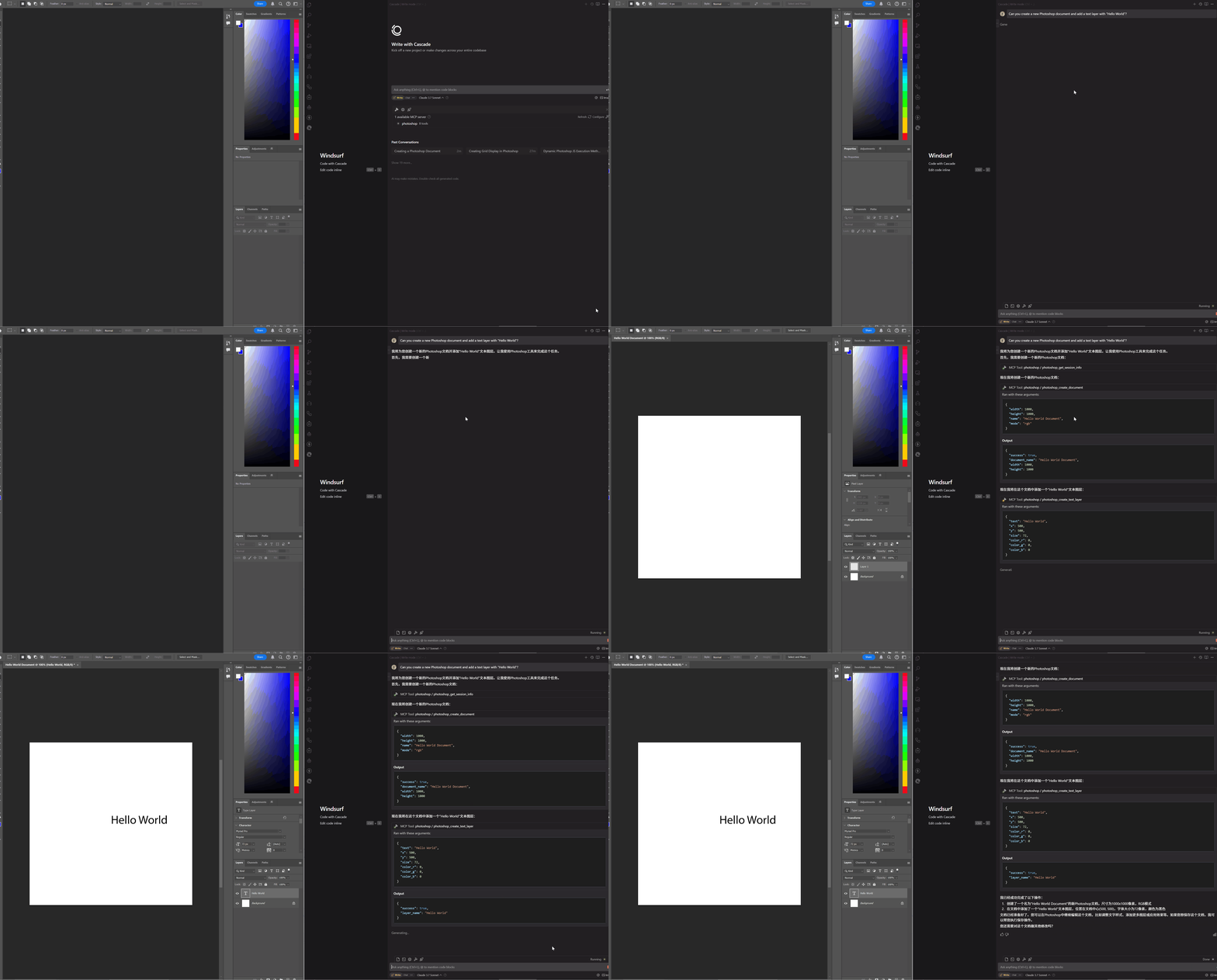
User: Can you create a new Photoshop document and add a text layer with "Hello World"?

AI Assistant: I'll create a new document and add the text layer for you.

[The AI uses the Photoshop MCP server to:
1. Create a new document using the `create_document` tool
2. Add a text layer using the `create_text_layer` tool with the text "Hello World"]

I've created a new Photoshop document and added a text layer with "Hello World".
More Advanced Examples
User: Open my latest PSD file and tell me how many layers it has.

AI Assistant: I'll check your latest PSD file and count the layers.

[The AI uses the Photoshop MCP server to:
1. Get information about open documents
2. If no document is open, it can browse and open a PSD file
3. Retrieve and analyze the layer structure]

Your document has 12 layers, including 3 group folders and 2 adjustment layers.User: Create a social media post with a gradient background and the text "Summer Sale" in a bold font.
AI Assistant: I'll create that social media post for you.
[The AI uses the Photoshop MCP server to:
1. Create a new document with appropriate dimensions for social media
2. Create a gradient fill layer with summer colors
3. Add a text layer with "Summer Sale" in a bold font
4. Position and style the text appropriately]
I've created your social media post with a gradient background and bold "Summer Sale" text.License
MIT
Acknowledgements
- photoshop-python-api - Python API for Photoshop
- Model Context Protocol - MCP Python SDK
Frequently asked questions
What is photoshop-python-api-mcp-server?
photoshop-python-api-mcp-server is A Model Context Protocol (MCP) server that interfaces with Adobe Photoshop's Python API. Enables LLMs to execute image editing operations, automate workflows, and manage Photoshop tasks through structured commands and context-aware interactions.
How do I install photoshop-python-api-mcp-server?
Open the GitHub repository and follow its README. Most MCP servers are added to your client's MCP config, then called by your agent.
Is photoshop-python-api-mcp-server open source?
Yes — it is hosted on GitHub at https://github.com/loonghao/photoshop-python-api-mcp-server and has 300 stars.
Related MCP tools
 cognee
Cognee is the open-source AI memory platform for agents. Give your AI agents persistent long-term memory across sessions with a self-hosted knowledge graph engine.
 skyvern
Automate browser based workflows with AI
 hindsight
Hindsight: Agent Memory That Learns
 watermarks-remover
A privacy-first app that strips AI watermarks from content you own.
 Qwen-Agent
Agent framework and applications built upon Qwen>=3.0, featuring Function Calling, MCP, Code Interpreter, RAG, Chrome extension, etc.
 pal-mcp-server
The power of Claude Code / GeminiCLI / CodexCLI + [Gemini / OpenAI / OpenRouter / Azure / Grok / Ollama / Custom Model / All Of The Above] working as one.
Run your own MCP server? See who uses it and what to fix.
Measure it with TrackMCP