
mcp-salesforce-lite
Simple and lightweight Salesforce MCP server for connecting AI assistants to Salesforce data. Ideal for prototyping and small projects.
Documentation
mcp-salesforce-lite
Simple and lightweight Salesforce MCP server for connecting AI assistants to Salesforce data. Ideal for prototyping and small projects.




📦 Install from PyPI: `pip install mcp-salesforce-lite`
🔗 PyPI Package: https://pypi.org/project/mcp-salesforce-lite/
📚 GitHub Repository: https://github.com/luvl/mcp-salesforce-lite
Demo
See the MCP Salesforce Lite server in action with Claude Desktop:
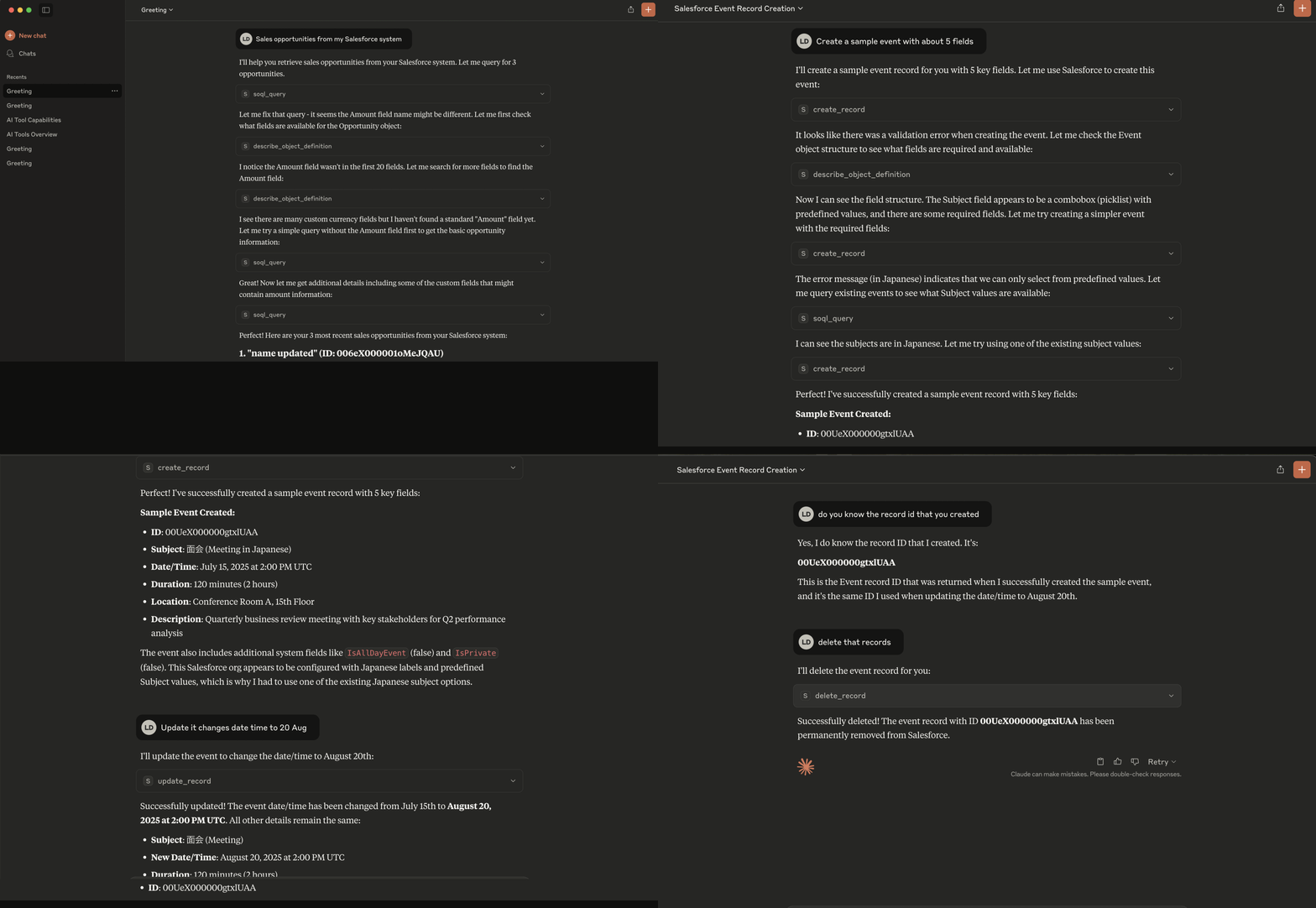
*The demo shows Claude Desktop using the MCP server to interact with Salesforce data - querying objects, retrieving records, and performing CRUD operations seamlessly.*
Overview
This MCP (Model Context Protocol) server provides AI assistants like Claude with secure access to Salesforce data and operations. It implements the MCP standard to enable seamless integration between AI applications and Salesforce CRM.
Features
- 🔐 Secure Salesforce authentication via OAuth 2.0
- 📊 Access to Salesforce objects (Accounts, Contacts, Opportunities, etc.)
- 🔍 SOQL query execution
- 📝 CRUD operations on Salesforce records
- 🛡️ Built-in security and rate limiting
- 🚀 Easy setup and configuration
Quick Usage
# Install the package
pip install mcp-salesforce-lite

# Use with Claude Desktop (recommended)
uvx --from mcp-salesforce-lite mcp-salesforce-lite

# Or run directly
mcp-salesforce-lite
Works with: Claude Desktop, any MCP-compatible AI assistant
Quick Start with Claude Desktop
Production Usage (Recommended)
The easiest way to use this MCP server is to install it directly from PyPI and configure it with Claude Desktop.
Step 1: Configure Claude Desktop
Add the following configuration to your Claude Desktop settings file:
Configuration File Location:
- macOS/Linux: `~/Library/Application Support/Claude/claude_desktop_config.json`
- Windows: `%APPDATA%\Claude\claude_desktop_config.json`
Configuration:
{
  "mcpServers": {
    "salesforce-lite": {
      "command": "uvx",
      "args": [
        "--from",
        "mcp-salesforce-lite",
        "mcp-salesforce-lite"
      ],
      "env": {
        "SALESFORCE_ACCESS_TOKEN": "your_access_token",
        "SALESFORCE_INSTANCE_URL": "your_instance_url"
      }
    }
  }
}
Step 2: Set Up Salesforce Credentials
Replace the environment variables in the configuration:
- `SALESFORCE_ACCESS_TOKEN`: Your Salesforce access token
- `SALESFORCE_INSTANCE_URL`: Your Salesforce instance URL (e.g., `https://yourcompany.my.salesforce.com`)
Step 3: Restart Claude Desktop
After saving the configuration, restart Claude Desktop. You should see a hammer icon indicating that tools are available.
Step 4: Test the Integration
Try asking Claude:
- "List available Salesforce objects"
- "Describe the Account object"
- "Execute a SOQL query to get recent leads"
Prerequisites
- Python 3.10 or higher
- Salesforce Developer/Production org
- Connected App configured in Salesforce
Development Setup
If you want to modify or contribute to this MCP server, follow these development setup instructions.
Installation
Option 1: Using uv (Recommended for development)
# Install uv if you haven't already
brew install uv  # macOS
# or
curl -LsSf https://astral.sh/uv/install.sh | sh  # Linux/macOS

# Clone and install the server
git clone https://github.com/luvl/mcp-salesforce-lite.git
cd mcp-salesforce-lite
uv sync
Option 2: Using Poetry
git clone https://github.com/luvl/mcp-salesforce-lite.git
cd mcp-salesforce-lite
poetry install
Salesforce Development Setup
Create a `.env` file in the project root:
SALESFORCE_ACCESS_TOKEN=your_access_token
SALESFORCE_INSTANCE_URL=your_instance_url
Usage
Development Mode
First, make sure you have your Salesforce credentials configured in your `.env` file.
Method 1: Direct Python Execution
# Run the server directly
python src/mcp_salesforce_lite/server.py
Method 2: Using Poetry
# Run with Poetry
poetry run python src/mcp_salesforce_lite/server.py
Method 3: Using UV (Recommended)
# Run with UV
uv run python src/mcp_salesforce_lite/server.py
Testing with MCP Inspector
If you have the MCP CLI installed, you can test your server:
# Test with MCP Inspector
mcp inspector

# Or run in development mode
mcp dev src/mcp_salesforce_lite/server.py
How to Release the Server as a Pip Package
The server can be packaged and distributed via PyPI using the included `pyproject.toml` configuration.
Available Tools
The server provides the following tools that AI assistants can use:
Query Tools
- `soql_query`: Execute SOQL queries (schema must be defined to carefully ask for confirmation of UPDATE and DELETE operations)
- `search_records`: Search records across multiple objects with limit and pagination
- `get_record`: Retrieve a specific record by ID with limit and pagination
CRUD Operations
- `create_record`: Create new records (make sure to describe_object first, and find the reference fields of the objects)
- `update_record`: Update existing records
- `delete_record`: Delete records
Metadata Tools
- `describe_object_definition`: Get object metadata and field information with pagination
- `list_avail_objects`: List available Salesforce objects with limit and pagination
Development Claude Desktop Integration
If you're developing or running the server from source, you can use these alternative configurations:
💡 Tip: Example configuration files are provided in the `examples/` directory:
- `examples/claude_config_direct.json` - Direct Python execution
- `examples/claude_config_poetry.json` - Poetry execution
- `examples/claude_config_uv.json` - UV execution (recommended)
Option 1: Direct Python Execution
{
  "mcpServers": {
    "salesforce-lite": {
      "command": "python",
      "args": ["/ABSOLUTE/PATH/TO/mcp-salesforce-lite/src/mcp_salesforce_lite/server.py"],
      "env": {
        "SALESFORCE_ACCESS_TOKEN": "your_access_token",
        "SALESFORCE_INSTANCE_URL": "your_instance_url"
      }
    }
  }
}
Option 2: Poetry Execution
{
  "mcpServers": {
    "salesforce-lite": {
      "command": "poetry",
      "args": [
        "--directory",
        "/ABSOLUTE/PATH/TO/mcp-salesforce-lite",
        "run",
        "python",
        "src/mcp_salesforce_lite/server.py"
      ],
      "env": {
        "SALESFORCE_ACCESS_TOKEN": "your_access_token",
        "SALESFORCE_INSTANCE_URL": "your_instance_url"
      }
    }
  }
}
Option 3: UV Execution (Recommended for Development)
{
  "mcpServers": {
    "salesforce-lite": {
      "command": "uv",
      "args": [
        "--directory",
        "/ABSOLUTE/PATH/TO/mcp-salesforce-lite",
        "run",
        "python",
        "src/mcp_salesforce_lite/server.py"
      ],
      "env": {
        "SALESFORCE_ACCESS_TOKEN": "your_access_token",
        "SALESFORCE_INSTANCE_URL": "your_instance_url"
      }
    }
  }
}
Project Structure
mcp-salesforce-lite/
├── src/
│   └── mcp_salesforce_lite/
│       ├── __init__.py
│       ├── server.py          # Main MCP server
│       ├── client.py          # Salesforce client wrapper
│       ├── config.py          # Configuration management
│       └── tools/
│           ├── __init__.py
│           ├── query.py       # SOQL query tools
│           ├── crud.py        # Create, Read, Update, Delete tools
│           └── metadata.py    # Object metadata tools
├── examples/
│   ├── basic_usage.py
│   └── claude_config.json
├── assets/
│   └── sf-demo.gif           # Demo GIF showing usage
├── .env.example
├── pyproject.toml
├── poetry.lock
└── uv.lock
Release
Prerequisites
1. Register for PyPI Production: Go to https://pypi.org/account/register/
2. Enable 2FA: Set up two-factor authentication in your account settings
3. Create API Token: Go to https://pypi.org/manage/account/token/ and create a token
4. Update .pypirc: Replace `pypi-YOUR_PRODUCTION_TOKEN_FROM_PYPI_ORG_HERE` with your actual token
Publishing Process
1. Test on TestPyPI first:
# Build the package
uv build
# or: poetry build

# Upload to TestPyPI
twine upload --repository testpypi --config-file .pypirc dist/*

# Test install from TestPyPI
pip install --index-url https://test.pypi.org/simple/ --extra-index-url https://pypi.org/simple/ mcp-salesforce-lite
2. Publish to Production PyPI:
# Upload to production PyPI
twine upload --repository pypi --config-file .pypirc dist/*

# Test install from production PyPI
pip install mcp-salesforce-lite
Version Management
To publish a new version:
1. Update the version in `pyproject.toml`
2. Rebuild: `uv build` or `poetry build`
3. Upload: `twine upload --repository pypi --config-file .pypirc dist/*`
Frequently asked questions
What is mcp-salesforce-lite?
mcp-salesforce-lite is Simple and lightweight Salesforce MCP server for connecting AI assistants to Salesforce data. Ideal for prototyping and small projects.
How do I install mcp-salesforce-lite?
Open the GitHub repository and follow its README. Most MCP servers are added to your client's MCP config, then called by your agent.
Is mcp-salesforce-lite open source?
Yes — it is hosted on GitHub at https://github.com/luvl/mcp-salesforce-lite and has 2 stars.
Related MCP tools
 cognee
Cognee is the open-source AI memory platform for agents. Give your AI agents persistent long-term memory across sessions with a self-hosted knowledge graph engine.
 skyvern
Automate browser based workflows with AI
 hindsight
Hindsight: Agent Memory That Learns
 watermarks-remover
A privacy-first app that strips AI watermarks from content you own.
 Qwen-Agent
Agent framework and applications built upon Qwen>=3.0, featuring Function Calling, MCP, Code Interpreter, RAG, Chrome extension, etc.
 pal-mcp-server
The power of Claude Code / GeminiCLI / CodexCLI + [Gemini / OpenAI / OpenRouter / Azure / Grok / Ollama / Custom Model / All Of The Above] working as one.
Run your own MCP server? See who uses it and what to fix.
Measure it with TrackMCP