
mcp_template
A template for building mcp servers in python
Documentation
MCP Server Template for Cursor IDE
A simple template for creating custom tools for Cursor IDE using Model Context Protocol (MCP). Create your own repository from this template, modify the tools, and connect them to your Cursor IDE.
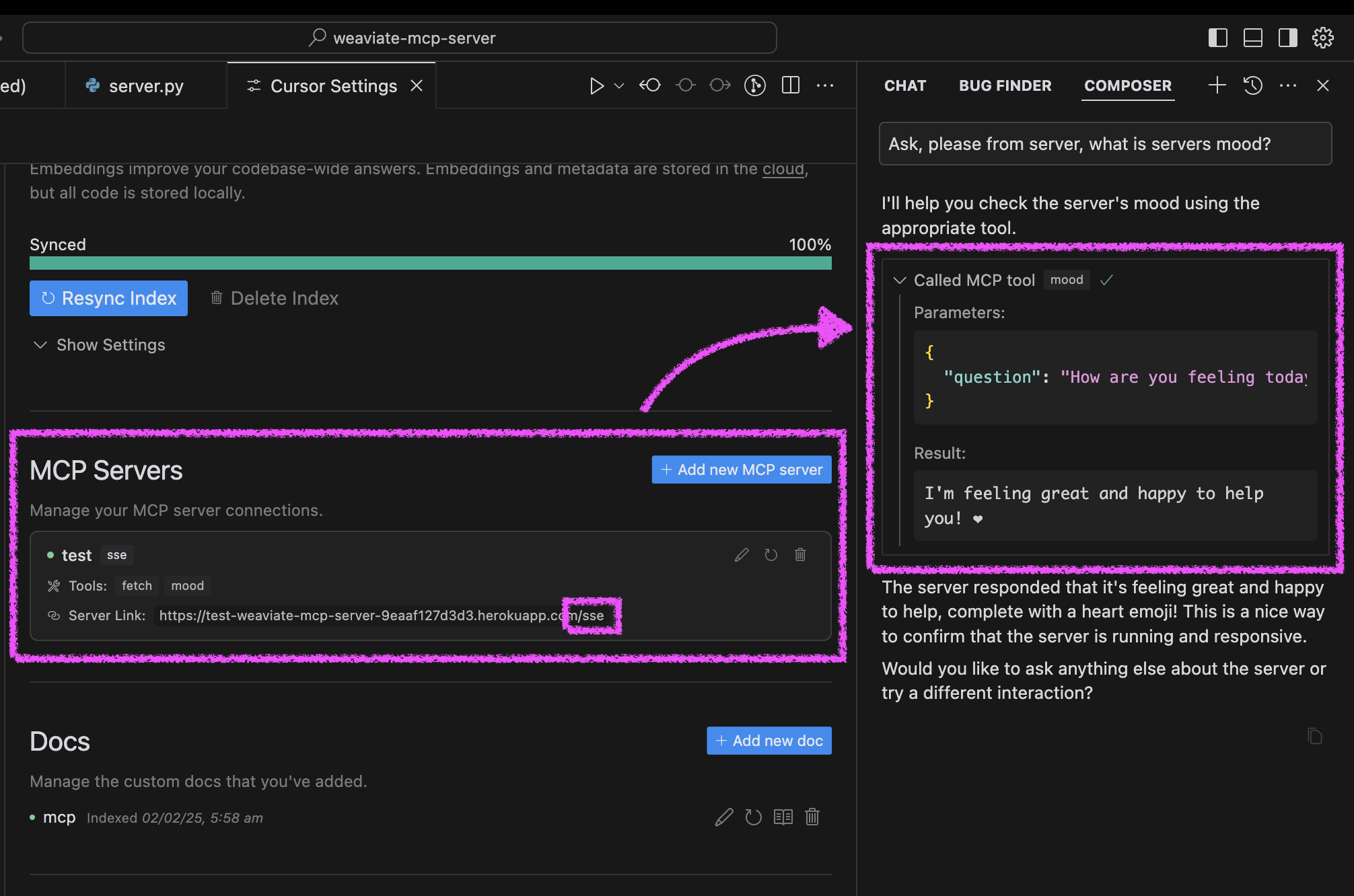
Quick Start
1. Click "Deploy to Heroku" button

2. After deployment, configure Cursor:
3. Test your agent's mood in Cursor:
Alternative Setup Methods
You can run the server in three ways: using Docker, traditional Python setup, or directly in Cursor IDE.
Docker Setup
The project includes Docker support for easy deployment:
1. Initial setup:
# Clone the repository
git clone https://github.com/kirill-markin/weaviate-mcp-server.git
cd weaviate-mcp-server

# Create environment file
cp .env.example .env
2. Build and run using Docker Compose:
# Build and start the server
docker compose up --build -d

# View logs
docker compose logs -f

# Check server status
docker compose ps

# Stop the server
docker compose down
3. The server will be available at:
4. Quick test:
# Test the server endpoint
curl -i http://localhost:8000/sse
5. Connect to Cursor IDE:
Traditional Setup
First, install the uv package manager:
# Install uv on macOS
brew install uv
# Or install via pip (any OS)
pip install uv
Start the server using either stdio (default) or SSE transport:
# Install the package with development dependencies
uv pip install -e ".[dev]"

# Using stdio transport (default)
uv run mcp-simple-tool

# Using SSE transport on custom port
uv run mcp-simple-tool --transport sse --port 8000

# Run tests
uv run pytest -v
After installation, you can connect the server directly to Cursor IDE:
1. Right-click on the `cursor-run-mcp-server.sh` file in Cursor
2. Select "Copy Path" to copy the absolute path
3. Open Cursor Settings (gear icon)
4. Navigate to Features tab
5. Scroll down to "MCP Servers"
6. Click "Add new MCP server"
7. Fill in the form:
Environment Variables
Available environment variables (can be set in `.env`):
- `MCP_SERVER_PORT` (default: 8000) - Port to run the server on
- `MCP_SERVER_HOST` (default: 0.0.0.0) - Host to bind the server to
- `DEBUG` (default: false) - Enable debug mode
- `MCP_USER_AGENT` - Custom User-Agent for website fetching
Additional options
Installing via Smithery
To install MCP Server Template for Cursor IDE for Claude Desktop automatically via Smithery:
npx -y @smithery/cli install @kirill-markin/example-mcp-server --client claudeGlama server review
Frequently asked questions
What is mcp_template?
mcp_template is A template for building mcp servers in python
How do I install mcp_template?
Open the GitHub repository and follow its README. Most MCP servers are added to your client's MCP config, then called by your agent.
Is mcp_template open source?
Yes — it is hosted on GitHub at https://github.com/chrisboden/mcp_template and has 3 stars.
Related MCP tools
 mcp
mcpAWS MCP Servers — helping you get the most out of AWS, wherever you use MCP. Python-based implementation. Trusted by 6900+ developers.
 mcpo
mcpoA simple, secure MCP-to-OpenAPI proxy server Python-based implementation. Trusted by 3500+ developers. Trusted by 3500+ developers.
 mcp-obsidian
MCP server that interacts with Obsidian via the Obsidian rest API community plugin Python-based implementation. Trusted by 2300+ developers.
 mcp-cli
Default Configuration: MCP CLI defaults to using Ollama with the gpt-oss reasoning model for local, privacy-focused operation without requiring API keys.
 minimax-mcp
Official MiniMax Model Context Protocol (MCP) server that enables interaction with powerful Text to Speech, image generation and video generation APIs.
 mcp-mem0
MCP server for long term agent memory with Mem0. Also useful as a template to get you started building your own MCP server with Python!
Run your own MCP server? See who uses it and what to fix.
Measure it with TrackMCP