
apsystems-mcp-server
A Model Context Protocol (MCP) server written in Go that wraps the APsystems OpenAPI, giving AI assistants like Claude direct access to your solar monitoring data. Includes an optional web dashboard for visual monitoring.
Documentation
APsystems MCP Server ☀️🛰️
A production-ready Model Context Protocol (MCP) server written in Go
that wraps the APsystems OpenAPI, giving AI assistants like Claude direct access to your solar monitoring data.
Includes an optional web dashboard for visual monitoring.






Table of Contents
- APsystems MCP Server ☀️🛰️
Features
- 16 MCP tools covering all APsystems API endpoints: system details, energy summaries, ECU/inverter/meter/storage data
- HMAC-SHA256 signature authentication — implements the APsystems signature protocol
- Built-in web dashboard — dark-themed single-page app with Chart.js energy visualizations
- Rate limiting — configurable request throttling to respect API limits
- Automatic retries — exponential back-off on transient errors and rate-limit responses
- Dual transport — stdio (default) or SSE over HTTP, selectable via environment variable
- Structured logging — JSON logs via `slog` with configurable levels
- Podman support — multi-stage Containerfile for minimal production images
- CI/CD — GitHub Actions for testing, linting, and cross-platform releases
Quick Start
🚀 Prerequisites
Before you get started, make sure you have:
🦫 Go (latest version recommended)
🔑 APsystems OpenAPI credentials (APP_ID & APP_SECRET)
🆔 System ID (SID) — Find it in the APsystems EMA app under Settings → Account Details
How to get your API credentials
✉️ Email APsystems support and include:
Who you are
Why you need API access
What you plan to do with the data
📱 Or grab them from the / APsystems EMA app:
Install & Run
git clone https://github.com/mjrgr/apsystems-mcp-server.git
cd mcp-server

# Install dependencies
go mod tidy

# Set credentials
export APS_SYS_ID="your_fake_sid_1234567890"
export APS_APP_ID="your_fake_app_id_32charslong1234567890abcd"
export APS_APP_SECRET="your_fake_secret12"

# Build and run
go run ./cmd/server
With SSE Transport
By default the server uses stdio (standard input/output) for MCP communication.
Set `APS_MCP_TRANSPORT=sse` to start an HTTP server with Server-Sent Events instead:
export APS_MCP_TRANSPORT=sse
export APS_MCP_SSE_ADDR=:8888     # optional, defaults to :8888
go run ./cmd/server
# SSE endpoint: http://localhost:8888/sse
# Message endpoint: http://localhost:8888/message
This is useful when you want to connect remote MCP clients over HTTP rather than running the server as a child process.
With Dashboard
export APS_DASHBOARD=true
export APS_DASH_ADDR=:8080
go run ./cmd/server
# Dashboard available at http://localhost:8080
Dashboard Demo
start with Podman
podman build -t apsystems-mcp -f Containerfile .
podman run --rm \
  -e APS_SYS_ID="your_fake_sid_1234567890" \
  -e APS_APP_ID="your_fake_app_id_32charslong1234567890abcd" \
  -e APS_APP_SECRET="your_fake_secret12" \
  -e APS_DASHBOARD=true \
  -p 8080:8080 \
  apsystems-mcp
To run with SSE transport instead of stdio:
podman run --rm \
  -e APS_SYS_ID="your_fake_sid_1234567890" \
  -e APS_APP_ID="your_fake_app_id_32charslong1234567890abcd" \
  -e APS_APP_SECRET="your_fake_secret12" \
  -e APS_MCP_TRANSPORT=sse \
  -e APS_MCP_SSE_ADDR=:8888 \
  -e APS_DASHBOARD=true \
  -p 8888:8888 -p 8080:8080 \
  apsystems-mcp
# SSE endpoint: http://localhost:8888/sse
Table of Environment Variables
| Variable | Required | Example Value | Description |
|---|---|---|---|
| `APS_APP_ID` | Yes | `your_fake_app_id_32charslong1234567890abcd` | 32-character APsystems App ID |
| `APS_APP_SECRET` | Yes | `your_fake_secret12` | 12-character APsystems App Secret |
| `APS_SYS_ID` | Yes | `your_fake_sid_1234567890` | System ID (SID) from EMA app, Settings → Account Details |
| `APS_BASE_URL` | No | `https://api.apsystemsema.com:9282` | API base URL override |
| `APS_MCP_TRANSPORT` | No | `stdio` | MCP transport: `stdio` (default) or `sse` |
| `APS_MCP_SSE_ADDR` | No | `:8888` | SSE server listen address (only when `APS_MCP_TRANSPORT=sse`) |
| `APS_DASHBOARD` | No | `true` | Set `true` to enable web dashboard |
| `APS_DASH_ADDR` | No | `:8080` | Dashboard listen address |
| `APS_LOG_LEVEL` | No | `info` | Log level: debug, info, warn, error |
Security
> 🔒 Security Best Practices
- Never commit real API credentials or secrets to version control. Use `.env.local` or environment variables for local development.
- Rotate your APP_SECRET and SID if you suspect they are compromised.
- Report vulnerabilities by opening a security issue or emailing the maintainers.
- For production, use a secrets manager or environment injection (not plaintext files).
| Variable | Required | Default | Description |
|---|---|---|---|
| `APS_APP_ID` | Yes | — | 32-character APsystems App ID |
| `APS_APP_SECRET` | Yes | — | 12-character APsystems App Secret |
| `APS_BASE_URL` | No | `https://api.apsystemsema.com:9282` | API base URL override |
| `APS_SYS_ID` | No | — | Default system identifier (`sid`) for all API calls if not provided in tool arguments |
| `APS_MCP_TRANSPORT` | No | `stdio` | MCP transport: `stdio` or `sse` |
| `APS_MCP_SSE_ADDR` | No | `:8888` | SSE server listen address (only when transport is `sse`) |
| `APS_DASHBOARD` | No | `false` | Set `true` to enable web dashboard |
| `APS_DASH_ADDR` | No | `:8080` | Dashboard listen address |
| `APS_LOG_LEVEL` | No | `info` | Log level: debug, info, warn, error |
MCP Tools Reference
System Tools
| Tool | Description |
|---|---|
| `get_system_details` | System info: capacity, timezone, ECUs, status |
| `get_inverters` | List all ECUs and connected micro-inverters |
| `get_meters` | List all meter IDs |
| `get_system_summary` | Energy totals: today, month, year, lifetime (kWh) |
| `get_system_energy` | Energy by period: hourly/daily/monthly/yearly |
ECU Tools
| Tool | Description |
|---|---|
| `get_ecu_summary` | Energy summary for a specific ECU |
| `get_ecu_energy` | Period energy for an ECU (supports minutely telemetry) |
Inverter Tools
| Tool | Description |
|---|---|
| `get_inverter_summary` | Per-channel energy for a single inverter |
| `get_inverter_energy` | Period/minutely data with DC power, current, voltage, AC telemetry |
| `get_inverter_batch_energy` | All inverters under an ECU in one call |
Meter Tools
| Tool | Description |
|---|---|
| `get_meter_summary` | Consumed/exported/imported/produced totals |
| `get_meter_period` | Period energy data for a meter |
Storage Tools
| Tool | Description |
|---|---|
| `get_storage_latest` | Live status: SOC, charge/discharge power |
| `get_storage_summary` | Energy summary for a storage ECU |
| `get_storage_period` | Period energy data for storage |
Using with Claude Desktop
Using with Claude CLI
You can also connect this MCP server to the Claude CLI for direct, scriptable access to your solar data from the terminal.
1. Start the MCP Server
Make sure your MCP server is running and accessible (locally or remotely):
go run ./cmd/server
# or with Podman/Docker as shown above
2. Configure Claude CLI
Add your MCP server to Claude CLI using the built-in command:
Podman/Docker (recommended for containerized use)
claude mcp add apsystems -s local -- podman run -i --rm -p 8888:8080 -e APS_DASHBOARD=true -e APS_SYS_ID=your_fake_sid_1234567890 -e APS_APP_ID=your_fake_app_id_32charslong1234567890abcd -e APS_APP_SECRET=your_fake_secret12 docker.io/mehdijrgr/apsystems-mcp-server 2>&1Or for Docker:
claude mcp add apsystems -s local -- docker run -i --rm -p 8888:8080 -e APS_DASHBOARD=true -e APS_SYS_ID=your_fake_sid_1234567890 -e APS_APP_ID=your_fake_app_id_32charslong1234567890abcd -e APS_APP_SECRET=your_fake_secret12 docker.io/mehdijrgr/apsystems-mcp-server 2>&1Replace the environment variables with your actual credentials.
This will automatically update your Claude CLI configuration to include the apsystems MCP server.
3. Example Usage
Ask Claude CLI to query your solar data via the MCP server:
claude ask "Show me my solar production for today"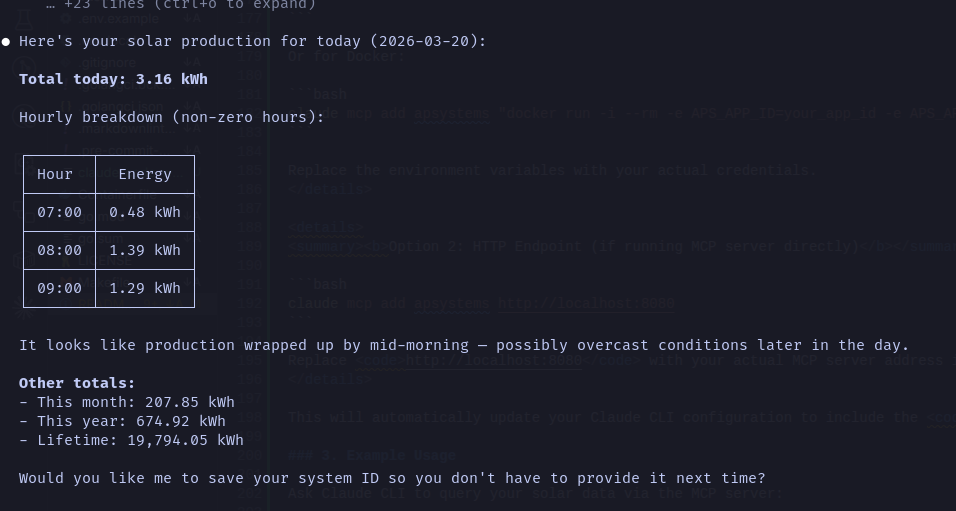
Or use any supported MCP tool, e.g.:
claude ask "List all my inverters"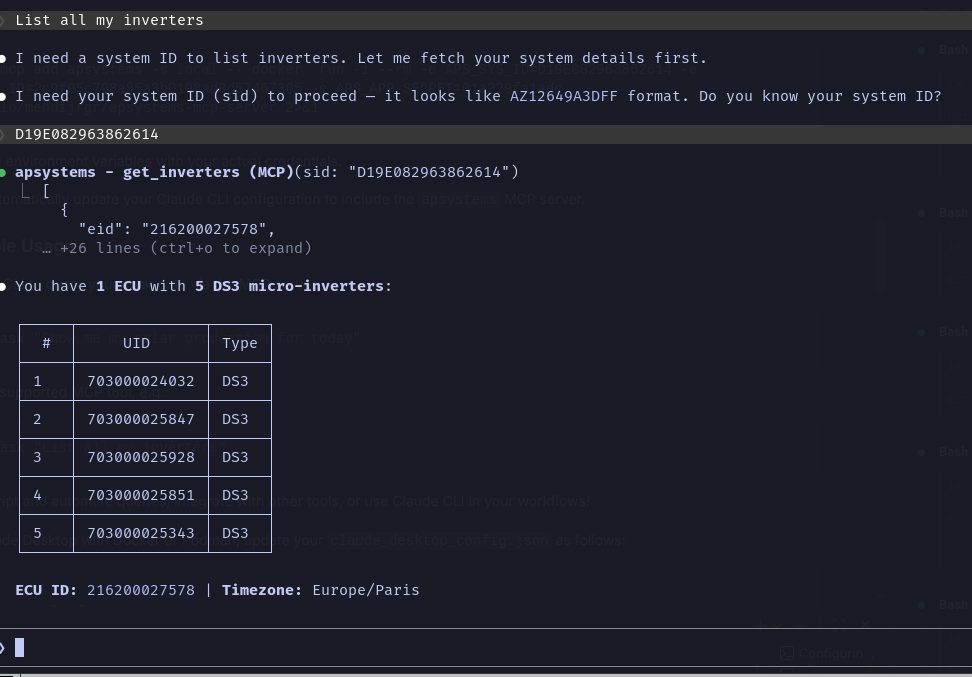
claude ask "what's the average monthly solar production?"You can script and automate queries, integrate with other tools, or use Claude CLI in your workflows!
To use Claude Desktop with Docker or Podman, update your `claude_desktop_config.json` as follows:
{
  "inputs": [
    {
      "type": "promptString",
      "id": "aps_sys_id",
      "description": "APsystems System ID"
    },
    {
      "type": "promptString",
      "id": "aps_app_id",
      "description": "APsystems App ID"
    },
    {
      "type": "promptString",
      "id": "aps_app_secret",
      "description": "APsystems App Secret",
      "password": true
    }
  ],
  "mcpServers": {
    "apsystems": {
      "command": "podman",
      "args": [
        "run", "-i", "--rm", "-p", "8888:8080",
        "-e", "APS_DASHBOARD=true",
        "-e", "APS_SYS_ID=${input:aps_sys_id}",
        "-e", "APS_APP_ID=${input:aps_app_id}",
        "-e", "APS_APP_SECRET=${input:aps_app_secret}",
        "docker.io/mehdijrgr/apsystems-mcp-server"
      ]
    }
  }
}
Or for Docker:
{
  "inputs": [
    {
      "type": "promptString",
      "id": "aps_sys_id",
      "description": "APsystems System ID"
    },
    {
      "type": "promptString",
      "id": "aps_app_id",
      "description": "APsystems App ID"
    },
    {
      "type": "promptString",
      "id": "aps_app_secret",
      "description": "APsystems App Secret",
      "password": true
    }
  ],
  "mcpServers": {
    "apsystems": {
      "command": "docker",
      "args": [
        "run", "-i", "--rm", "-p", "8888:8080",
        "-e", "APS_DASHBOARD=true",
        "-e", "APS_SYS_ID=${input:aps_sys_id}",
        "-e", "APS_APP_ID=${input:aps_app_id}",
        "-e", "APS_APP_SECRET=${input:aps_app_secret}",
        "docker.io/mehdijrgr/apsystems-mcp-server"
      ]
    }
  }
}
For SSE transport (remote/network mode), use the `url` field instead of `command`:
{
  "mcpServers": {
    "apsystems": {
      "url": "http://localhost:8888/sse"
    }
  }
}
You can also mount a config file or credentials as needed:
{
  "mcpServers": {
    "apsystems": {
      "command": "podman run -i --rm --env-file /path/to/env.local mehdijrgr/apsystems-mcp-server 2>&1",
      "env": {}
    }
  }
}
Then ask Claude things like:
- "Show me my solar production for today"
- "How much energy did my system produce this month?"
- "What's the status of my inverters?"
- "Compare my daily production this week"
Project Structure
├── cmd/server/          # CLI entry point
├── internal/
│   ├── api/             # HTTP client with auth, retries, rate limiting
│   ├── auth/            # HMAC-SHA256 signature implementation
│   ├── dashboard/       # Optional web UI (embedded HTML)
│   ├── mcp/             # MCP tool definitions and handlers
│   └── models/          # Go structs for API responses
├── .devcontainer/       # VS Code dev container config
├── .github/workflows/   # CI/CD pipelines
├── .vscode/             # Editor settings and launch configs
├── Containerfile        # Multi-stage Podman/OCI build
├── Makefile             # Build, test, lint targets
└── go.mod
Authentication Details
The APsystems API uses HMAC signature authentication. Every request includes five custom headers:
1. X-CA-AppId — your application identifier
2. X-CA-Timestamp — Unix timestamp in milliseconds
3. X-CA-Nonce — unique 32-character hex string (UUID without dashes)
4. X-CA-Signature-Method — `HmacSHA256`
5. X-CA-Signature — `Base64(HMAC-SHA256(stringToSign, appSecret))`
The string to sign is composed as:
timestamp/nonce/appId/requestPath/HTTPMethod/HmacSHA256where `requestPath` is the last segment of the URL path.
Development
# Run tests
make test

# Lint
make lint

# Build for all platforms
make build
API Error Codes
| Code | Description |
|---|---|
| 0 | Success |
| 1000 | Data exception |
| 1001 | No data |
| 2001 | Invalid application account |
| 2002 | Not authorized |
| 2005 | Access limit exceeded |
| 4001 | Invalid request parameter |
| 5000 | Internal server error |
| 7002 | Too many requests (auto-retried) |
| 7003 | System busy (auto-retried) |
Troubleshooting
> ℹ️ Note: If you encounter API errors, check that your credentials (APP_ID, APP_SECRET, SID) are correct and that your account has API access enabled. If you see rate limit errors, try again later or adjust your request frequency.
- Q: I get 'Not authorized' or 'Invalid application account' errors.
- A: Double-check your APP_ID, APP_SECRET, and SID. Make sure your account is approved for API access by APsystems.
- Q: Claude CLI can't connect to the MCP server.
- A: Ensure the server is running and the address/port matches your CLI config. Check firewall or container port mappings.
- Q: The dashboard doesn't load.
- A: Make sure APS_DASHBOARD is set to true and the server is running. Visit the correct port in your browser.
Community & Support
- GitHub Issues — for bug reports and feature requests
- Discussions — for Q&A, ideas, and community help
- Email: support@apsystems.com (for API credential requests)
Contributing
Contributions are welcome! To get started:
1. Fork the repository
2. Create a new branch for your feature or fix
3. Make your changes and add tests if needed
4. Open a pull request with a clear description
Please see CONTRIBUTING.md if available, or open an issue to discuss major changes first.
Quick Links
Frequently asked questions
What is apsystems-mcp-server?
apsystems-mcp-server is A Model Context Protocol (MCP) server written in Go that wraps the APsystems OpenAPI, giving AI assistants like Claude direct access to your solar monitoring data. Includes an optional web dashboard for visual monitoring.
How do I install apsystems-mcp-server?
Open the GitHub repository and follow its README. Most MCP servers are added to your client's MCP config, then called by your agent.
Is apsystems-mcp-server open source?
Yes — it is hosted on GitHub at https://github.com/mjrgr/apsystems-mcp-server.
Related MCP tools
 kubeshark
eBPF-powered network observability for Kubernetes. Indexes L4/L7 traffic with full K8s context, decrypts TLS without keys. Queryable by AI agents via MCP and humans via dashboard.
 go-whatsapp-web-multidevice
GOWA - WhatsApp REST API with support for UI, Multi Account, Webhooks, and MCP, and Chatwoot. Built with Golang for efficient memory use.
 radar
radarThe missing open-source Kubernetes UI with a built-in MCP server for AI agents. See what's broken, why, and what changed. Issues, Topology, event timeline, Helm, GitOps, live service traffic, and cluster audits - all in one Go binary.
 mcp-language-server
mcp-language-server gives MCP enabled clients access semantic tools like get definition, references, rename, and diagnostics.
 terraform-mcp-server
The Terraform MCP Server provides seamless integration with Terraform ecosystem, enabling advanced automation and interaction capabilities for Infrastructure as Code (IaC) development.
 matlab-mcp-server
Run MATLAB® using AI applications with the official MATLAB MCP Server from MathWorks®. This MCP server for MATLAB supports a wide range of coding agents like Claude Code® and Visual Studio® Code.
Run your own MCP server? See who uses it and what to fix.
Measure it with TrackMCP