
multi-ai-advisor-mcp
council of models for decision
Documentation
Multi-Model Advisor
(锵锵四人行)
A Model Context Protocol (MCP) server that queries multiple Ollama models and combines their responses, providing diverse AI perspectives on a single question. This creates a "council of advisors" approach where Claude can synthesize multiple viewpoints alongside its own to provide more comprehensive answers.
graph TD
    A[Start] --> B[Worker Local AI 1 Opinion]
    A --> C[Worker Local AI 2 Opinion]
    A --> D[Worker Local AI 3 Opinion]
    B --> E[Manager AI]
    C --> E
    D --> E
    E --> F[Decision Made]
Features
- Query multiple Ollama models with a single question
- Assign different roles/personas to each model
- View all available Ollama models on your system
- Customize system prompts for each model
- Configure via environment variables
- Integrate seamlessly with Claude for Desktop
Prerequisites
- Node.js 16.x or higher
- Ollama installed and running (see Ollama installation)
- Claude for Desktop (for the complete advisory experience)
Installation
Installing via Smithery
To install multi-ai-advisor-mcp for Claude Desktop automatically via Smithery:
npx -y @smithery/cli install @YuChenSSR/multi-ai-advisor-mcp --client claudeManual Installation
1. Clone this repository:
git clone https://github.com/YuChenSSR/multi-ai-advisor-mcp.git
   cd multi-ai-advisor-mcp
2. Install dependencies:
npm install3. Build the project:
npm run build4. Install required Ollama models:
ollama pull gemma3:1b
   ollama pull llama3.2:1b
   ollama pull deepseek-r1:1.5b
Configuration
Create a `.env` file in the project root with your desired configuration:
# Server configuration
SERVER_NAME=multi-model-advisor
SERVER_VERSION=1.0.0
DEBUG=true

# Ollama configuration
OLLAMA_API_URL=http://localhost:11434
DEFAULT_MODELS=gemma3:1b,llama3.2:1b,deepseek-r1:1.5b

# System prompts for each model
GEMMA_SYSTEM_PROMPT=You are a creative and innovative AI assistant. Think outside the box and offer novel perspectives.
LLAMA_SYSTEM_PROMPT=You are a supportive and empathetic AI assistant focused on human well-being. Provide considerate and balanced advice.
DEEPSEEK_SYSTEM_PROMPT=You are a logical and analytical AI assistant. Think step-by-step and explain your reasoning clearly.
Connect to Claude for Desktop
1. Locate your Claude for Desktop configuration file:
2. Edit the file to add the Multi-Model Advisor MCP server:
{
  "mcpServers": {
    "multi-model-advisor": {
      "command": "node",
      "args": ["/absolute/path/to/multi-ai-advisor-mcp/build/index.js"]
    }
  }
}
3. Replace `/absolute/path/to/` with the actual path to your project directory
4. Restart Claude for Desktop
Usage
Once connected to Claude for Desktop, you can use the Multi-Model Advisor in several ways:
List Available Models
You can see all available models on your system:
Show me which Ollama models are available on my systemThis will display all installed Ollama models and indicate which ones are configured as defaults.
Basic Usage
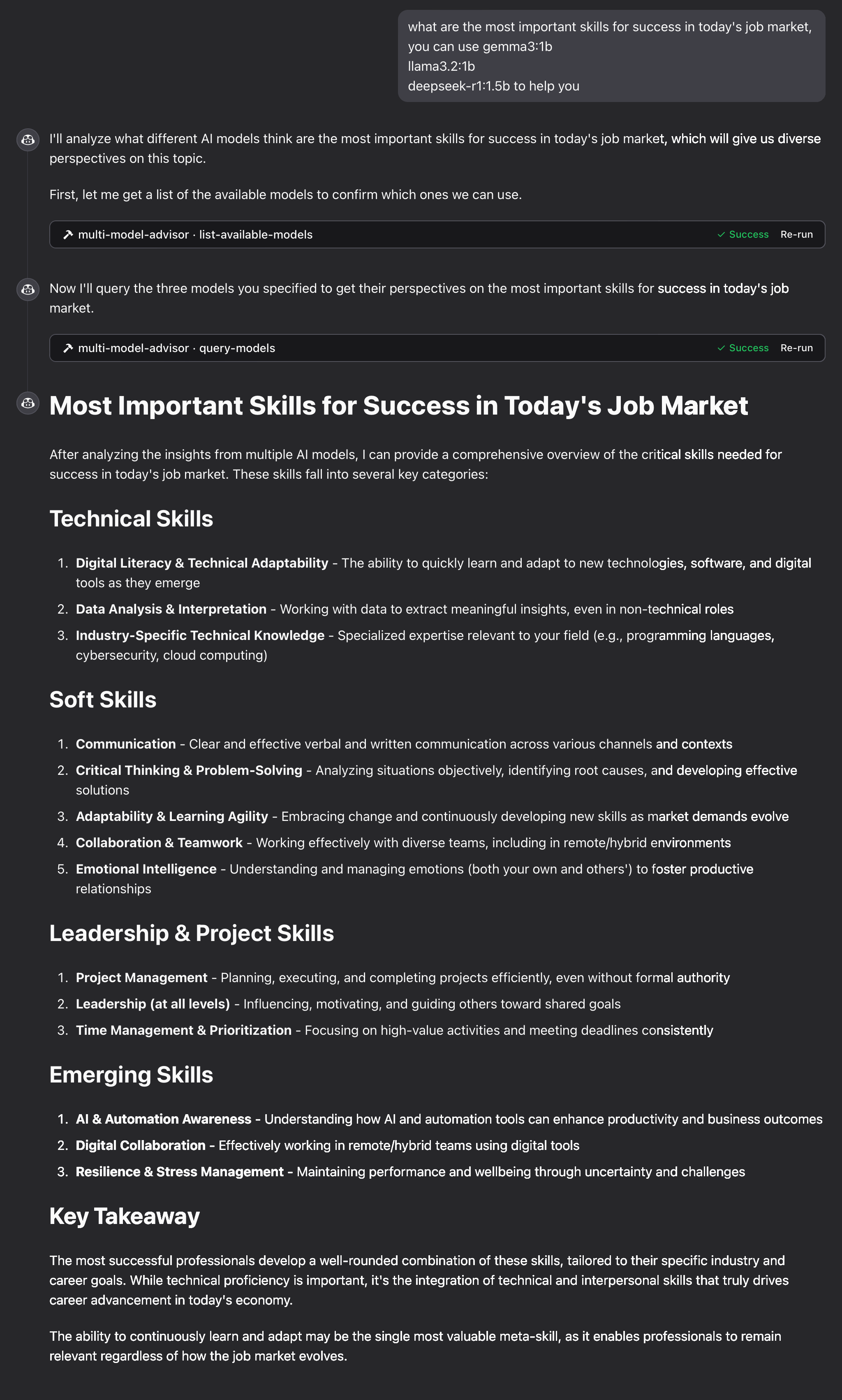
Simply ask Claude to use the multi-model advisor:
what are the most important skills for success in today's job market,
you can use gemma3:1b, llama3.2:1b, deepseek-r1:1.5b to help you
Claude will query all default models and provide a synthesized response based on their different perspectives.
How It Works
1. The MCP server exposes two tools:
2. When you ask Claude a question referring to the multi-model advisor:
3. Each model can have a different "persona" or role assigned, encouraging diverse perspectives.
Troubleshooting
Ollama Connection Issues
If the server can't connect to Ollama:
- Ensure Ollama is running (`ollama serve`)
- Check that the OLLAMA_API_URL is correct in your .env file
- Try accessing http://localhost:11434 in your browser to verify Ollama is responding
Model Not Found
If a model is reported as unavailable:
- Check that you've pulled the model using `ollama pull `
- Verify the exact model name using `ollama list`
- Use the `list-available-models` tool to see all available models
Claude Not Showing MCP Tools
If the tools don't appear in Claude:
- Ensure you've restarted Claude after updating the configuration
- Check the absolute path in claude_desktop_config.json is correct
- Look at Claude's logs for error messages
RAM is not enough
Some managers' AI models may have chosen larger models, but there is not enough memory to run them. You can try specifying a smaller model (see the Basic Usage) or upgrading the memory.
License
MIT License
For more details, please see the LICENSE file in this project repository
Contributing
Contributions are welcome! Please feel free to submit a Pull Request.
Frequently asked questions
What is multi-ai-advisor-mcp?
multi-ai-advisor-mcp is council of models for decision
How do I install multi-ai-advisor-mcp?
Open the GitHub repository and follow its README. Most MCP servers are added to your client's MCP config, then called by your agent.
Is multi-ai-advisor-mcp open source?
Yes — it is hosted on GitHub at https://github.com/YuChenSSR/multi-ai-advisor-mcp and has 66 stars.
Related MCP tools
 dive
diveDive is an open-source MCP Host Desktop Application that seamlessly integrates with any LLMs supporting function calling capabilities. ✨
 cherry-studio
🍒 Cherry Studio is a desktop client that supports for multiple LLM providers. Built for the Model Context Protocol to enhance AI capabilities.
 librechat
Enhanced ChatGPT Clone: Features Agents, MCP, DeepSeek, Anthropic, AWS, OpenAI, Responses API, Azure, Groq, o1, GPT-5, Mistral, OpenRouter, Vertex AI, Gemini...
 fastgpt
FastGPT is a knowledge-based platform built on the LLMs, offers a comprehensive suite of out-of-the-box capabilities such as data processing, RAG retrieval, ...
 composio
Composio equips your AI agents & LLMs with 100+ high-quality integrations via function calling for the Model Context Protocol. Enhance AI assistants with powerf
 repomix
📦 Repomix is a powerful tool that packs your entire repository into a single, AI-friendly file. Perfect for when you need to feed your codebase to Large Lan...
Run your own MCP server? See who uses it and what to fix.
Measure it with TrackMCP