
financial_mcp_server
Financial MCP Server
Documentation
Financial MCP Server
Azure / Render / GCP Cloud Run host the MCP backend · Cloudflare deploys the optional HTTPS proxy
A custom Model Context Protocol (MCP) server for advanced financial analysis, stock monitoring, and real-time market intelligence. This server provides a suite of tools and API endpoints for portfolio management, market summaries, stock alerts, and contextual financial insights, designed for seamless integration with Claude Desktop and other MCP-compatible clients.
One-Click Cloud Deploy
Use the buttons at the top of this page or the full guide in `DEPLOY.md`
to launch a remote MCP endpoint at `https:///mcp`.
| Platform | Deploys | Default auth | OAuth setup |
|---|---|---|---|
| Azure Container Apps | Python MCP backend (`azuredeploy.json`) | `mcpAuthMode=static` | Set `mcpAuthMode=oauth` + Entra settings in the portal — see OAuth (Entra ID) |
| Render | Python MCP backend (`render.yaml`) | `MCP_AUTH_MODE=static` | Set `MCP_ACCESS_TOKEN` (required in static mode), then add OAuth env vars in Render dashboard if needed |
| Google Cloud Run | Python MCP backend (`Dockerfile` / GHCR) | `MCP_AUTH_MODE=static` | Set OAuth env vars in Cloud Run → Variables & secrets — see `gcp/README.md` |
| Cloudflare Worker | HTTPS proxy only (`cloudflare-worker/`) | `WORKER_AUTH_MODE=static` | Use `WORKER_AUTH_MODE=passthrough` when the backend uses OAuth JWTs |
- Local default: `MCP_TRANSPORT=stdio` (Claude Desktop / local MCP clients)
- Cloud default: `MCP_TRANSPORT=streamable-http`
- Auth modes: `MCP_AUTH_MODE=static|oauth|none` — OAuth client ID/secret go in Claude, not on the server
Key Features
- Core Stock Toolkit: Quotes, company overview, and price history tools for practical analysis workflows.
- Portfolio With Live Values: Maintain a watchlist/positions store and return portfolio-level valuation context.
- Configurable Price Alerts: Set per-ticker `above` / `below` thresholds and evaluate triggered alert events.
- News + Context Layer: Retrieve market news and optional sentiment-rich context summaries for research workflows.
- Secure Streamable HTTP: Static bearer (`MCP_ACCESS_TOKEN`) or OAuth JWT validation (`MCP_AUTH_MODE=oauth`) for public deployments.
- Cloud-Ready Deployment: Docker + one-click deploys for Azure Container Apps, Render, Google Cloud Run, and Cloudflare Worker proxy.
System Overview
Core Endpoints & Tools
- get_stock_quote(ticker: str)
- Returns normalized live quote data (price, change, market cap, volume, exchange, timestamp).
- get_price_history(ticker: str, period: str, interval: str)
- Returns chart-ready OHLCV history points for backtesting and trend analysis.
- get_company_overview(ticker: str)
- Returns company profile metadata and key valuation fields when available.
- get_portfolio()
- Returns positions/watchlist plus live quote enrichment and portfolio market value summary.
- add_stock(...) / remove_stock(...)
- Add or remove symbols in the persistent portfolio store.
- set_stock_alert(ticker, above=None, below=None) / get_portfolio_alerts(ticker=None)
- Configure and evaluate price-threshold alerts from portfolio-backed rules.
- get_stock_news(ticker_or_query, max_results=5) and financial_context(query)
- Provide raw financial headlines and optional LLM-ready context summaries.
Automated Alerting
- Telegram Integration: Sends formatted alerts and summaries to a configured Telegram chat.
- Trading Opportunities: Detects and notifies about actionable trading signals.
Contextual Summarization
- News Summarizer: Uses configurable LLM backends (`ollama`, `openai`, or `auto`) to generate detailed, sentiment-tagged summaries.
- Prompt Builder: Constructs a market-aware prompt for use in downstream LLMs or assistants.
File Structure
config/
  alerts_config.json         # Main alert configuration (sector/ticker/thresholds)
  tech_alerts_config.json    # Tech sector-specific alerts
services/
  alerts.py                  # Core alert logic
  tech_alerts.py             # Tech sector alert logic
  telegram_alerts.py         # Telegram integration
  market_summary.py          # Market data and news
  summarizer.py              # News summarization (LLM)
  fetcher.py                 # Web data fetching
  context_builder.py         # Prompt/context construction
  intent_parser.py           # Financial entity extraction
  portfolio.py               # Portfolio management
server.py                    # MCP server entry point and API definitions
requirements.txt             # Python dependencies
Configuration & Customization
Alert Configuration (`config/alerts_config.json`)
- Organize stocks by sector, with customizable upper/lower price thresholds and descriptions.
- Example structure:
{
  "Tech Giants": {
    "AAPL": {"above": 200, "below": 180, "description": "Apple Inc."}
  },
  "Financial": {
    "JPM": {"above": 160, "below": 140, "description": "JPMorgan Chase"}
  }
}
Environment Variables
Set these in a `.env` file or your system environment:
MCP_TRANSPORT=stdio
HOST=0.0.0.0
PORT=8000
LOG_LEVEL=INFO
MCP_AUTH_MODE=static
# Used when MCP_AUTH_MODE=static
MCP_ACCESS_TOKEN=replace_with_strong_secret_for_http
# Used when MCP_AUTH_MODE=oauth
OAUTH_ISSUER_URL=
# Optional additional issuers (space/comma-separated), e.g. sts.windows.net tenant issuer
# OAUTH_ISSUER_URLS=
# Optional JWKS override (otherwise discovered from issuer metadata)
# OAUTH_JWKS_URL=
OAUTH_AUDIENCE=
OAUTH_REQUIRED_SCOPES=mcp.tools
# Optional metadata scopes advertised to clients (use full Entra scope if needed):
# OAUTH_SCOPES_SUPPORTED=api:///mcp.tools
MCP_RESOURCE_SERVER_URL=
# Optional: built-in OAuth broker for Claude + Entra resource/scope translation
# OAUTH_BROKER_ENABLED=false
# OAUTH_BROKER_SCOPE=api:///mcp.tools
# OAUTH_BROKER_CLIENT_ID=
# OAUTH_BROKER_CLIENT_SECRET=
TELEGRAM_BOT_TOKEN=your_bot_token
TELEGRAM_USER_ID=your_chat_id
SERPAPI_API_KEY=your_serpapi_key
# Optional (deploy templates support it; quotes currently use yfinance)
# ALPHA_VANTAGE_API_KEY=
SUMMARIZER_PROVIDER=ollama
OLLAMA_HOST=http://localhost:11434
OLLAMA_MODEL=mistral
OPENAI_API_KEY=
OPENAI_MODEL=gpt-4o-mini
# Optional custom OpenAI-compatible base URL
# OPENAI_BASE_URL=
# Optional: set true only for local streamable-http tests
# ALLOW_UNAUTHENTICATED_HTTP=false
# Optional: send Telegram notifications when alerts trigger
# ENABLE_TELEGRAM_ALERTS=false
# Optional persistent path for portfolio file in cloud
# PORTFOLIO_FILE=/data/user_portfolio.json
HTTP Authentication Modes
- `static`: validates a single bearer token (`MCP_ACCESS_TOKEN`). Leave
`MCP_RESOURCE_SERVER_URL` unset so the server does not publish OAuth protected-resource
metadata (recommended for Postman and simple Claude bearer setup).
- `oauth`: validates JWT access tokens from an external OIDC provider using
`OAUTH_ISSUER_URL` + `OAUTH_AUDIENCE` (+ optional `OAUTH_JWKS_URL`).
Optional `OAUTH_ISSUER_URLS` allows additional trusted issuers (for example
`sts.windows.net` when Entra returns v1 issuer claims).
Client ID and client secret belong in the connector / IdP app, not on this server.
- `none`: only for local tests with `ALLOW_UNAUTHENTICATED_HTTP=true`.
Microsoft Entra ID (Azure AD)
For Claude OAuth connectors, register an Entra API app and a separate client app, deploy the
backend with `MCP_AUTH_MODE=oauth`, then configure Claude with the client app credentials.
Step-by-step Entra and Claude setup: **`DEPLOY.md` — OAuth (Entra ID)**.
If Claude keeps failing with Entra `AADSTS9010010` while Postman works with the
same token, enable the built-in broker described in
**`DEPLOY.md` — OAuth Broker For Claude + Entra**.
Installation & Running from Claude Desktop
Prerequisites
- Python 3.7+
- Claude Desktop (or any MCP-compatible client)
- Telegram bot credentials (for alerting)
- Internet connection (for market/news data)
Step-by-Step Guide
1. Clone the Repository
git clone
   cd Finance_MCP_Server
2. Create and Activate a Virtual Environment
python -m venv .venv
   source .venv/bin/activate  # On Windows: .venv\Scripts\activate
3. Install Dependencies
pip install -r requirements.txt4. Configure Environment Variables
TELEGRAM_BOT_TOKEN=your_bot_token
     TELEGRAM_USER_ID=your_chat_id
     SERPAPI_API_KEY=your_serpapi_key
     MCP_AUTH_MODE=static
     MCP_ACCESS_TOKEN=replace_with_strong_secret_for_http
     SUMMARIZER_PROVIDER=ollama
     OLLAMA_HOST=http://localhost:11434
     OLLAMA_MODEL=mistral
     OPENAI_API_KEY=
     OPENAI_MODEL=gpt-4o-mini
5. Edit Alert Configurations
6. Install the MCP Server with the CLI
mcp install server.py --name "Financial MCP Server"7. Run the MCP Server via MCP CLI
mcp run server.py8. Connect from Claude Desktop
Example: Claude Desktop MCP Server Configuration
After installing and registering the Financial MCP Server, you can add it to your Claude Desktop configuration. Here is a sample `claude_desktop_config.json` snippet:
{
  "mcpServers": {
    "Financial-MCP-Server": {
      "command": "uv",
      "args": [
        "run",
        "--with",
        "mcp[cli]",
        "mcp",
        "run",
        "server.py"
      ],
      "env": {
        "SERPAPI_API_KEY": "",
        "TELEGRAM_BOT_TOKEN": "",
        "TELEGRAM_USER_ID": "",
        "OPENAI_API_KEY": ""
      }
    }
  }
}- Update the `env` section with your actual API keys and tokens as needed.
- This configuration ensures Claude Desktop can launch and communicate with your Financial MCP Server using the correct environment and command-line arguments.
Using Your Tools in Claude Desktop
After installing and connecting your custom Financial MCP Server, all available tools will automatically appear in Claude Desktop's tool menu. You can enable or disable each tool individually, making it easy to access functionalities such as financial context analysis, market summaries, portfolio management, and stock alerts directly from the Claude interface.
Below is a screenshot showing how the tools from your MCP server will be listed and toggled in Claude Desktop:
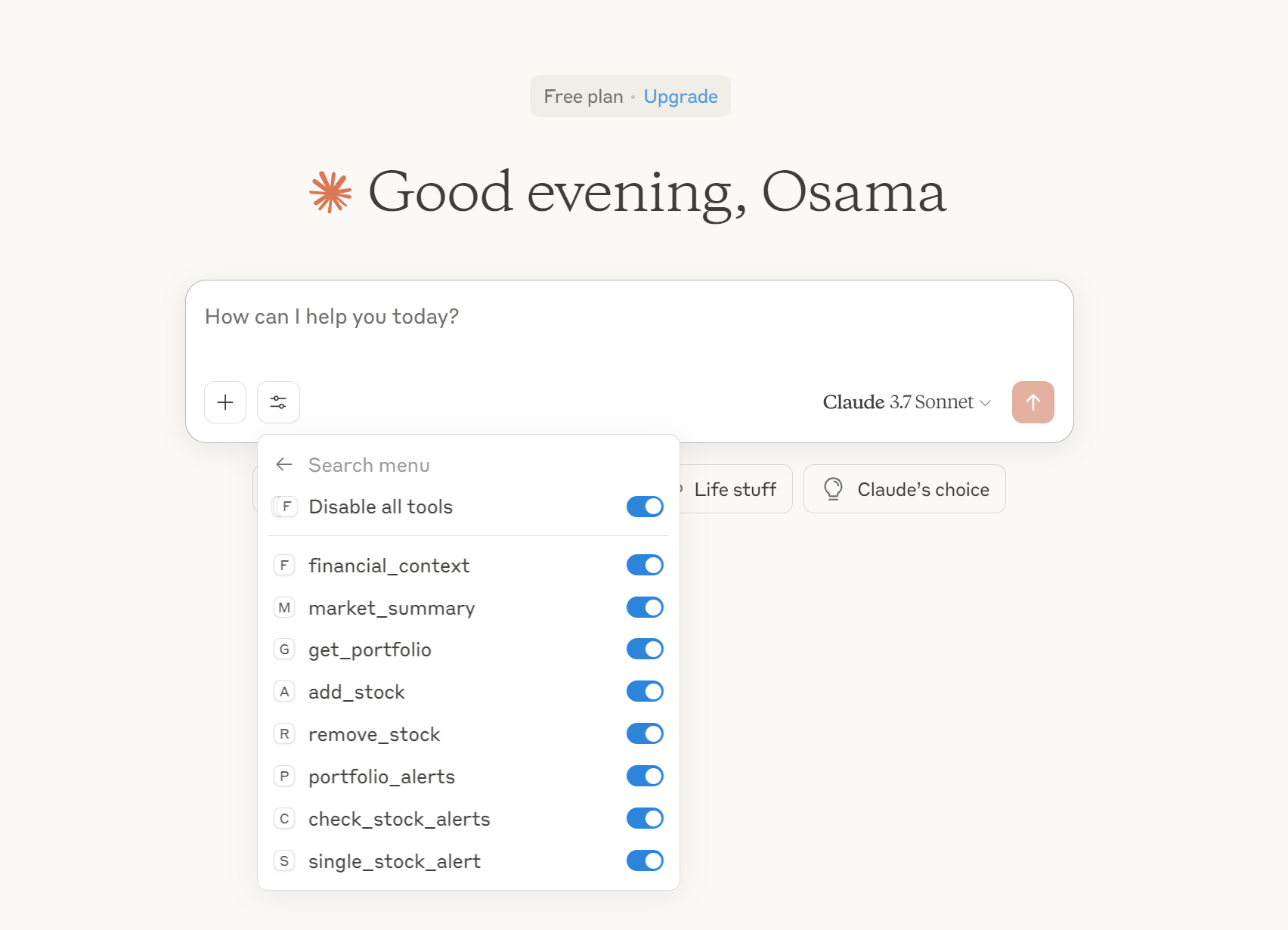
- Each tool (e.g., `financial_context`, `market_summary`, `add_stock`, etc.) can be enabled or disabled as needed.
- This seamless integration allows you to interact with your financial analysis server using natural language and tool-based workflows within Claude Desktop.
Usage Examples
- Get Live Quotes: Use `get_stock_quote` and `get_company_overview` for practical stock checks.
- Track Portfolio: Use `add_stock`, `remove_stock`, and `get_portfolio` to maintain and value your watchlist.
- Evaluate Alerts: Use `set_stock_alert` and `get_portfolio_alerts` for threshold-based signals.
- Contextual Analysis: Use `financial_context` to fetch and summarize market context for a query.
Troubleshooting & Logs
- All logs are written to `financial_mcp.log` in the project root.
- For debugging, check the log file and ensure your environment variables and configuration files are correct.
- If you encounter issues with Telegram or news fetching, verify your API keys and internet connection.
Frequently asked questions
What is financial_mcp_server?
financial_mcp_server is Financial MCP Server
How do I install financial_mcp_server?
Open the GitHub repository and follow its README. Most MCP servers are added to your client's MCP config, then called by your agent.
Is financial_mcp_server open source?
Yes — it is hosted on GitHub at https://github.com/osamadev/financial_mcp_server and has 1 stars.
Related MCP tools
 cognee
Cognee is the open-source AI memory platform for agents. Give your AI agents persistent long-term memory across sessions with a self-hosted knowledge graph engine.
 skyvern
Automate browser based workflows with AI
 hindsight
Hindsight: Agent Memory That Learns
 watermarks-remover
A privacy-first app that strips AI watermarks from content you own.
 Qwen-Agent
Agent framework and applications built upon Qwen>=3.0, featuring Function Calling, MCP, Code Interpreter, RAG, Chrome extension, etc.
 pal-mcp-server
The power of Claude Code / GeminiCLI / CodexCLI + [Gemini / OpenAI / OpenRouter / Azure / Grok / Ollama / Custom Model / All Of The Above] working as one.
Run your own MCP server? See who uses it and what to fix.
Measure it with TrackMCP