
piapi-mcp-server
A TypeScript implementation of a Model Context Protocol (MCP) server that integrates with PiAPI's API. PiAPI makes user able to generate media content with Midjourney/Flux/Kling/LumaLabs/Udio/Chrip/Trellis directly from Claude or any other MCP-compatible apps.
Documentation
piapi-mcp-server



A TypeScript implementation of a Model Context Protocol (MCP) server that integrates with PiAPI's API. PiAPI makes user able to generate media content with Midjourney/Flux/Kling/LumaLabs/Udio/Chrip/Trellis directly from Claude or any other MCP-compatible apps.
Features (more coming soon)
Note: Time-consuming tools like video generation may not complete due to Claude's timeout limitations
- [x] Base Image toolkit
- [x] Base Video toolkit
- [x] Flux Image generation from text/image prompt
- [x] Hunyuan Video generation from text/image prompt
- [x] Skyreels Video generation from image prompt
- [x] Wan Video generation from text/image prompt
- [x] MMAudio Music generation from video
- [x] TTS Zero-Shot voice generation
- [ ] Midjourney Image generation
- [x] imagine
- [ ] other
- [x] Kling Video and Effects generation
- [x] Luma Dream Machine video generation
- [x] Suno Music generation
- [ ] Suno Lyrics generation
- [ ] Udio Music and Lyrics generation
- [x] Trellis 3D model generation from image
- [ ] Workflow planning inside LLMs
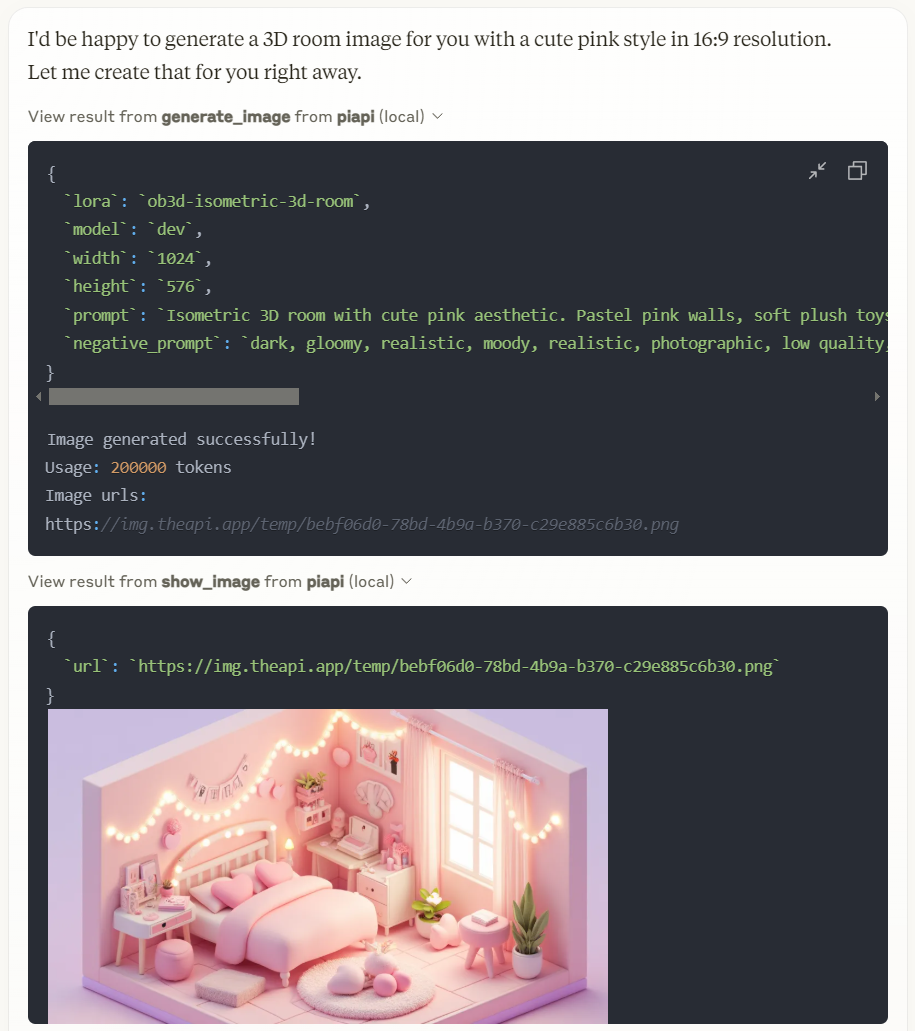
Working with Claude Desktop Example
Prerequisites
- Node.js 16.x or higher
- npm or yarn
- A PiAPI API key (get one at piapi.ai)
Installation
Installing via Smithery
To install PiAPI MCP Server for Claude Desktop automatically via Smithery:
npx -y @smithery/cli install piapi-mcp-server --client claudeManual Installation
1. Clone the repository:
git clone https://github.com/apinetwork/piapi-mcp-server
cd piapi-mcp-server
2. Install dependencies:
npm install3. Build the project:
npm run buildAfter building, a `dist/index.js` file will be generated. You can then configure this file with Claude Desktop and other applications. For detailed configuration instructions, please refer to the Usage section.
4. (Optional) Test server with MCP Inspector:
First, create a `.env` file in the project root directory with your API key:
PIAPI_API_KEY=your_api_key_hereThen run the following command to start the MCP Inspector:
npm run inspectAfter running the command, MCP Inspector will be available at http://localhost:5173 (default port: 5173). Open this URL in your browser to start testing. The default timeout for inspector operations is 10000ms (10 seconds), which may not be sufficient for image generation tasks. It's recommended to increase the timeout when testing image generation or other time-consuming operations. You can adjust the timeout by adding a timeout parameter to the URL, for example: http://localhost:5173?timeout=60000 (sets timeout to 60 seconds)
The MCP Inspector is a powerful development tool that helps you test and debug your MCP server implementation. Key features include:
- Interactive Testing: Test your server's functions directly through a web interface
- Real-time Feedback: See immediate results of your function calls and any errors that occur
- Request/Response Inspection: View detailed information about requests and responses
- Function Documentation: Browse available functions and their parameters
- Custom Parameters: Set custom timeout values and other configuration options
- History Tracking: Keep track of your previous function calls and their results
For detailed information about using the MCP Inspector and its features, visit the official MCP documentation.
Usage
Connecting to Claude Desktop
Add this to your Claude Desktop configuration file (`~/Library/Application Support/Claude/claude_desktop_config.json` on macOS or `%APPDATA%\Claude\claude_desktop_config.json` on Windows):
{
  "mcpServers": {
    "piapi": {
      "command": "node",
      "args": ["/absolute/path/to/piapi-mcp-server/dist/index.js"],
      "env": {
        "PIAPI_API_KEY": "your_api_key_here"
      }
    }
  }
}
After updating your configuration file, you need to restart Claude for Desktop. Upon restarting, you should see a hammer icon in the bottom right corner of the input box.
For more detailed information, visit the official MCP documentation
Connecting to Cursor
Note: Following guide is based on Cursor 0.47.5. Features and behaviors may vary in different versions.
To configure the MCP server:
1. Navigate to: File > Preferences > Cursor Settings, or use the shortcut key `Ctrl+Shift+J`
2. Select "MCP" tab on the left panel
3. Click "Add new global MCP server" button in the top right
4. Add your configuration in the opened mcp.json file
{
  "mcpServers": {
    "piapi": {
      "command": "node",
      "args": ["/absolute/path/to/piapi-mcp-server/dist/index.js"],
      "env": {
        "PIAPI_API_KEY": "your_api_key_here"
      }
    }
  }
}
5. After configuration, you'll see a "piapi" entry in MCP Servers page
6. Click the Refresh button on the entry or restart Cursor to connect to the piapi server
To test the piapi image generation:
1. Open and select "Agent mode" in Cursor Chat, or use the shortcut key `Ctrl+I`
2. Enter a test prompt, for example: "generate image of a dog"
3. The image will be generated based on your prompt using piapi server
To disable the piapi server:
1. Navigate to the MCP Servers page in Cursor Settings
2. Find the "piapi" entry in the server list
3. Click the "Enabled" toggle button to switch it to "Disabled"
Keeping tools in sync with PiAPI (sync task)
`src/index.ts` registers a contract-backed MCP tool for every committed
PiAPI `(model, task_type)` capability. Tool names are deterministic:
`piapi__` (for example,
`piapi_qubico_flux1_schnell_txt2img`), and their input schemas are generated
from the committed catalog. The existing hand-written convenience tools remain
available; the contract-backed tools ensure the exposed surface stays complete
as the Manager catalog changes.
The legacy convenience tools in `src/index.ts` remain hand-written, but the
complete contract-backed surface is generated from the committed catalog. This
repository includes a repeatable drift detector that compares that catalog
baseline with PiAPI Manager's versioned API contract. It detects new APIs,
deprecated APIs, parameter changes, and description changes.
Source of truth: the `Go API.postman_collection.json` contract in the PiAPI
Manager GitHub repository (`Gocyber-world/midjourney-http-v2`). The task fetches
that versioned contract directly from GitHub and extracts the
`POST /api/v1/task` examples into `(model, task_type)` capabilities. If the
Manager repository is private, set the CI secret `MCP_SYNC_GITHUB_TOKEN` with
least-privilege `contents: read` on that source repository (and only the
separate approved write permissions needed for MCP update automation). It has
no Apidog dependency and deliberately does not inspect or report pricing.
Commands
npm run build          # compile the MCP server and sync task
npm run test:sync      # offline sync-engine tests (no network or credentials)
npm run sync           # fetch contract and diff baseline; exit 0 = in sync, 2 = drift
npm run sync:snapshot  # print the normalized current contract catalog
npm run sync:report    # write the Markdown drift report to sync-report.md
npm run sync:accept    # after updating src/index.ts, refresh the baseline
By default, `npm run sync` uses the Manager GitHub contract. For recovery or
local development, an exported OpenAPI JSON file can be supplied instead:
node dist/sync/cli.js diff --file ./piapi-openapi.jsonWhen a drift report is produced, a new capability is already represented by its
contract-backed MCP tool after the baseline is accepted. Validate the MCP
server, run `npm run sync:accept`, and commit the refreshed baseline. Update a
hand-written convenience tool only when a curated model-specific UX is useful.
Automation
`.github/workflows/sync-piapi.yml` is retained for manual dispatch only.
Periodic synchronization is run from the approved local automation environment,
which holds the separately owner-approved MCP credential and can validate,
accept, and push catalog updates after its sensitive-information gate passes.
Development
Project Structure
piapi-mcp-server/
├── assets/
├── src/
│   ├── index.ts        # Main server entry point
│   └── sync/           # PiAPI -> MCP sync task
│       ├── cli.ts          # CLI: snapshot / diff / accept / report-file
│       ├── fetchers.ts     # GitHub Postman contract + local-file sources
│       ├── normalize.ts    # OpenAPI -> (model, task_type) catalog
│       ├── diff.ts         # catalog diff + Markdown report
│       ├── catalog.ts      # baseline load/save
│       ├── mcp_tools.ts    # catalog -> contract-backed FastMCP tool schemas
│       ├── selftest.ts     # offline engine test (npm run test:sync)
│       ├── types.ts
│       └── baseline.piapi-catalog.json  # committed baseline
├── .github/workflows/sync-piapi.yml     # weekly drift check
├── package.json
├── tsconfig.json
└── .env.example
License
MIT
Frequently asked questions
What is piapi-mcp-server?
piapi-mcp-server is A TypeScript implementation of a Model Context Protocol (MCP) server that integrates with PiAPI's API. PiAPI makes user able to generate media content with Midjourney/Flux/Kling/LumaLabs/Udio/Chrip/Trellis directly from Claude or any other MCP-compatible apps.
How do I install piapi-mcp-server?
Open the GitHub repository and follow its README. Most MCP servers are added to your client's MCP config, then called by your agent.
Is piapi-mcp-server open source?
Yes — it is hosted on GitHub at https://github.com/apinetwork/piapi-mcp-server and has 62 stars.
Related MCP tools
 cherry-studio
🍒 Cherry Studio is a desktop client that supports for multiple LLM providers. Built for the Model Context Protocol to enhance AI capabilities.
 librechat
Enhanced ChatGPT Clone: Features Agents, MCP, DeepSeek, Anthropic, AWS, OpenAI, Responses API, Azure, Groq, o1, GPT-5, Mistral, OpenRouter, Vertex AI, Gemini...
 fastgpt
FastGPT is a knowledge-based platform built on the LLMs, offers a comprehensive suite of out-of-the-box capabilities such as data processing, RAG retrieval, ...
 composio
Composio equips your AI agents & LLMs with 100+ high-quality integrations via function calling for the Model Context Protocol. Enhance AI assistants with powerf
 repomix
📦 Repomix is a powerful tool that packs your entire repository into a single, AI-friendly file. Perfect for when you need to feed your codebase to Large Lan...
 activepieces
AI Agents & MCPs & AI Workflow Automation • (~400 MCP servers for AI agents) • AI Automation / AI Agent with MCPs • AI Workflows & AI Agents • MCPs for AI Ag...
Run your own MCP server? See who uses it and what to fix.
Measure it with TrackMCP