
forge-mcp-server
Documentation
Forge MCP Server
This is a Model Context Protocol (MCP) server for Laravel Forge integration. It provides comprehensive access to Laravel Forge's official API through MCP-compliant tools, enabling seamless server and site management.
For more information about the Laravel Forge API, see the official API documentation.
Features
- MCP-compliant server
- Comprehensive Laravel Forge API integration
- Health check tool: `test_connection`
- Extensive tool coverage for server and site management
- Built on Laravel Forge's official API
Prerequisites
- Node.js (v18+ recommended)
- npm (v9+ recommended)
Configuration & Usage
A Forge API key is required for all Forge tool invocations. You must provide it as either:
- the `FORGE_API_KEY` environment variable, or
- the `--api-key` command-line argument
Usage with Claude Desktop
Add the following to your `claude_desktop_config.json`. See here for more details.
Option 1: Using npx (Recommended)
Using environment variable:
{
  "mcpServers": {
    "forge-mcp": {
      "command": "npx",
      "args": [
        "-y",
        "@ranium/forge-mcp"
      ],
      "env": {
        "FORGE_API_KEY": "your_forge_api_key_here"
      }
    }
  }
}
Using command-line argument:
{
  "mcpServers": {
    "forge-mcp": {
      "command": "npx",
      "args": [
        "-y",
        "@ranium/forge-mcp",
        "--api-key=your_forge_api_key_here"
      ]
    }
  }
}
Option 2: Using node directly
First, clone the repository and build the project:
git clone https://github.com/ranium/forge-mcp-server
cd forge_mcp
npm install
npm run build
Then add the following to your `claude_desktop_config.json`:
Using environment variable:
{
  "mcpServers": {
    "forge-mcp": {
      "command": "node",
      "args": [
        "/path/to/forge_mcp/dist/server.js"
      ],
      "env": {
        "FORGE_API_KEY": "your_forge_api_key_here"
      }
    }
  }
}
Using command-line argument:
{
  "mcpServers": {
    "forge-mcp": {
      "command": "node",
      "args": [
        "/path/to/forge_mcp/dist/server.js",
        "--api-key=your_forge_api_key_here"
      ]
    }
  }
}
Note: You can use either the `FORGE_API_KEY` environment variable or the `--api-key` argument. If both are provided, the command-line argument takes precedence. Never commit your real API keys to version control. Use environment variables or secrets management in production.
Tool Categories & Access Control
All tools are grouped into two categories:
- Readonly: Safe, non-modifying operations (e.g., listing, viewing, status checks).
- Write: Operations that create or modify resources (e.g., create, update, reboot, enable/disable features).
By default, only readonly tools are enabled. To enable write tools, use the `--tools` flag:
- `--tools=readonly` (default)
- `--tools=readonly,write` (enables readonly and write tools)
Example:
npx -y @ranium/forge-mcp --api-key=your_forge_api_key_here --tools=readonly,writeOr in `claude_desktop_config.json`:
{
  "mcpServers": {
    "forge-mcp": {
      "command": "npx",
      "args": [
        "-y",
        "@ranium/forge-mcp",
        "--api-key=your_forge_api_key_here",
        "--tools=readonly,write"
      ]
    }
  }
}
Available Tools (by Category)
Readonly Tools
- `list_servers` - List all servers
- `list_static_php_versions` - List static PHP versions
- `list_php_versions` - List PHP versions
- `get_user` - Get user information
- `show_server` - Get detailed information about a specific server
- `list_sites` - List all sites on a server
- `show_site` - Get detailed information about a specific site
- `list_daemons` - List daemons
- `show_daemon` - Get daemon details
- `list_deployments` - List deployments
- `get_deployment_log` - Get deployment logs
- `get_deployment` - Get deployment details
- `get_deployment_output` - Get deployment output
- `get_server_logs` - Get server logs
- `list_providers` - List cloud providers
- `list_database_types` - List database types
- `list_credentials` - List credentials
- `list_regions` - List available regions
- `list_ubuntu_versions` - List Ubuntu versions
- `get_composer_packages_auth` - Get Composer authentication
- `check_laravel_maintenance_status` - Check Laravel maintenance mode
- `check_pulse_daemon_status` - Check Pulse daemon status
- `check_inertia_daemon_status` - Check Inertia daemon status
- `check_laravel_scheduler_status` - Check Laravel scheduler status
- `list_sizes` - List server sizes
- `list_project_types` - List project types
- `list_databases` - List all databases
- `get_database` - Get database details
- `list_database_users` - List database users
- `get_database_user` - Get database user details
- `list_certificates` - List SSL certificates
- `get_certificate` - Get certificate details
- `get_site_env` - Get site environment file (.env)
- `get_site_log` - Get site logs
Write Tools
- `create_server` - Create a new server
- `create_database` - Create a new database
- `sync_database` - Sync database
- `create_database_user` - Create a new database user
- `reboot_server` - Reboot a server
- `reboot_nginx` - Reboot Nginx service
- `reboot_php` - Reboot PHP service
- `reboot_mysql` - Reboot MySQL service
- `reboot_postgres` - Reboot PostgreSQL service
- `create_site` - Create a new site
- `install_or_update_site_git` - Install or update Git repository
- `enable_quick_deployment` - Enable quick deployment
- `disable_quick_deployment` - Disable quick deployment
- `deploy_now` - Deploy immediately
- `change_site_php_version` - Change site PHP version
- `add_site_aliases` - Add site aliases
- `clear_site_log` - Clear site logs
- `create_lets_encrypt_certificate` - Create Let's Encrypt certificate
- `activate_certificate` - Activate a certificate
Screenshots
Creating a Server
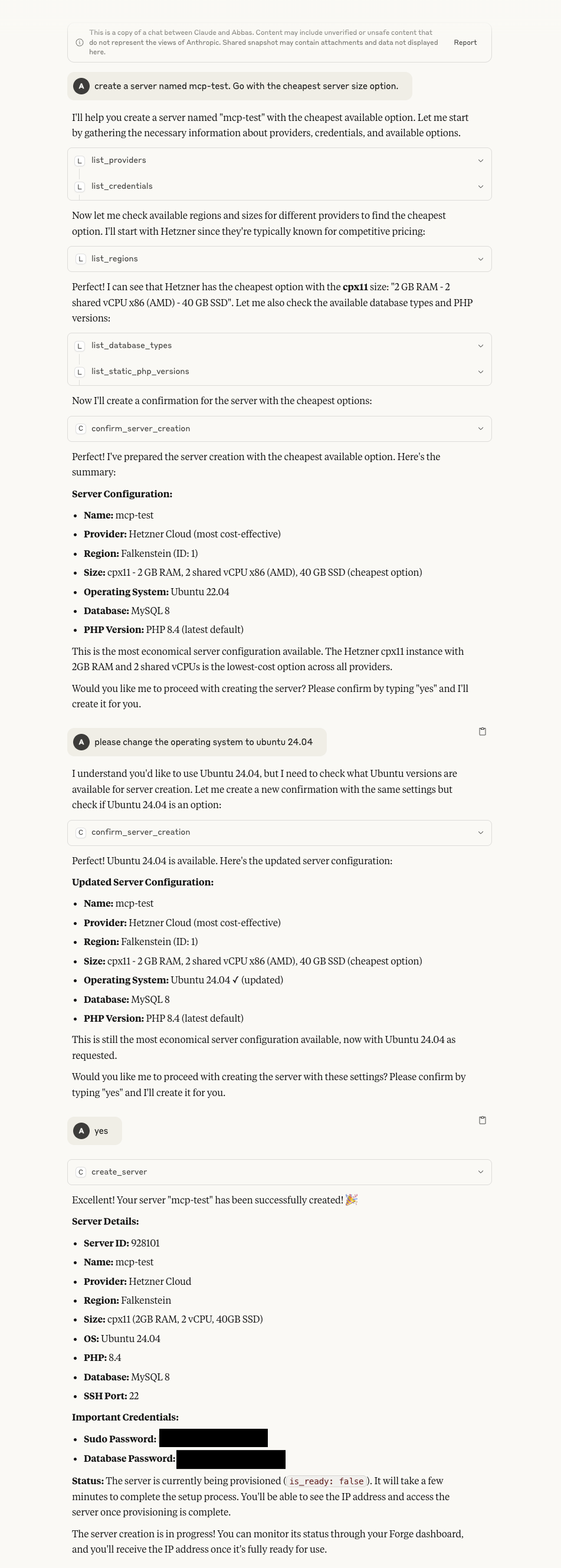
*Demonstrates the server creation process through the MCP interface*
Creating a Site
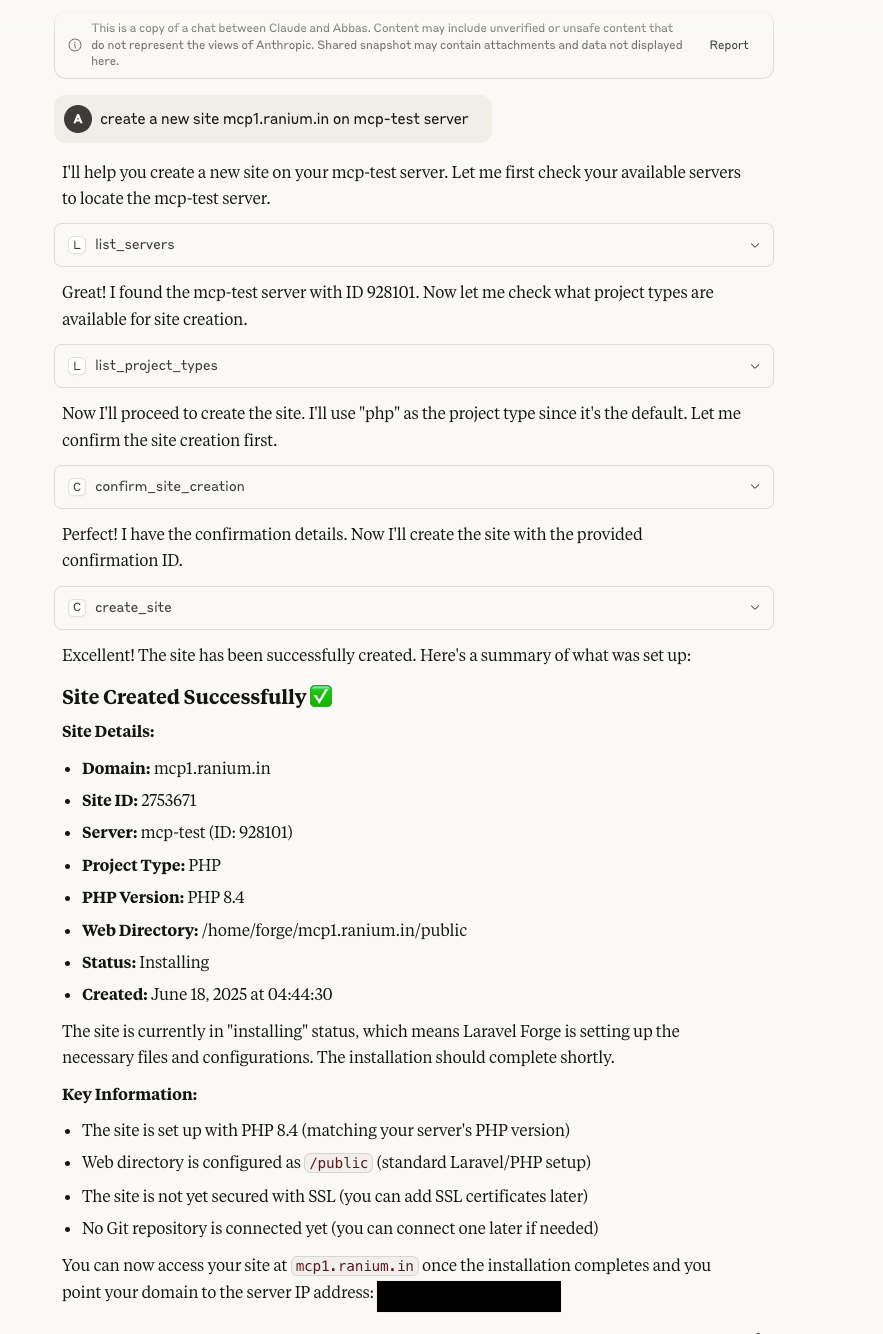
*Shows how to create a new site on an existing server*
Rebooting a Server
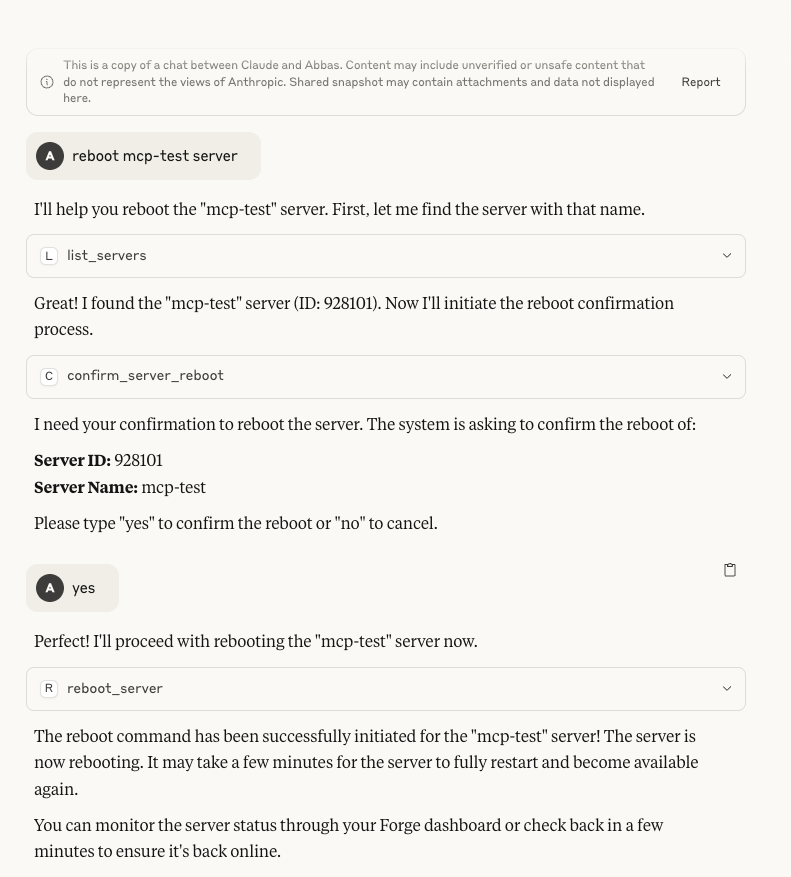
*Illustrates the server reboot functionality*
Project Structure
- `src/server.ts` — Main MCP server entry point
- `src/tools/forge/` — All Forge tool definitions and registry
- `src/core/types/` — Type definitions and protocols
- `package.json` — Scripts and dependencies
- `.gitignore` — Ignores build, env, and dependency files
Extending (Adding New Tools)
1. Export a `ForgeToolDefinition` from the new file.
2. Import and add the tool to the `forgeTools` array in `src/tools/forge/index.ts`.
3. The tools will be registered when the server starts.
For more information on MCP, see the Model Context Protocol documentation.
Disclaimer
Forge MCP server is an independent product and not officially affiliated with, endorsed by, or sponsored by Laravel or Taylor Otwell. 'Laravel' is a registered trademark owned by Taylor Otwell. Forge MCP server is developed and maintained independently from the official Laravel project.
License
This project is licensed under the MIT License - see the LICENSE file for details.
Frequently asked questions
What is forge-mcp-server?
forge-mcp-server is a Model Context Protocol (MCP) server listed in the TrackMCP directory.
How do I install forge-mcp-server?
Open the GitHub repository and follow its README. Most MCP servers are added to your client's MCP config, then called by your agent.
Is forge-mcp-server open source?
Yes — it is hosted on GitHub at https://github.com/ranium/forge-mcp-server and has 1 stars.
Related MCP tools
 playwright-mcp
Playwright MCP server TypeScript-based implementation. Trusted by 22000+ developers. Trusted by 22000+ developers. Trusted by 22000+ developers.
 notion-mcp-server
Official Notion MCP Server TypeScript-based implementation. Trusted by 3400+ developers. Trusted by 3400+ developers. Trusted by 3400+ developers.
 mcpso
mcpsoDirectory for Awesome MCP Servers TypeScript-based implementation. Trusted by 1900+ developers. Trusted by 1900+ developers.
 unla
unla🧩 MCP Gateway - A lightweight gateway service that instantly transforms existing MCP Servers and APIs into MCP servers with zero code changes.
 metamcp
MCP Aggregator, Orchestrator, Middleware, Gateway in one docker TypeScript-based implementation. Trusted by 1400+ developers.
 mcp-server-kubernetes
MCP Server for kubernetes management commands TypeScript-based implementation. Trusted by 1100+ developers. Trusted by 1100+ developers.
Run your own MCP server? See who uses it and what to fix.
Measure it with TrackMCP