
scrapegraph-mcp
ScapeGraph MCP Server
Documentation
ScrapeGraph MCP Server


A production-ready Model Context Protocol (MCP) server that provides seamless integration with the ScrapeGraph AI API. This server enables language models to leverage advanced AI-powered web scraping capabilities with enterprise-grade reliability.
Table of Contents
- Key Features
- Quick Start
- Available Tools
- Setup Instructions
- Remote Server Usage
- Local Usage
- Google ADK Integration
- Example Use Cases
- Error Handling
- Common Issues
- Development
- Contributing
- Documentation
- Technology Stack
- License
API v2
This MCP server targets ScrapeGraph API v2 (`https://v2-api.scrapegraphai.com/api`), aligned 1:1 with
scrapegraph-py PR #84. Auth uses the
`SGAI-APIKEY` header. Environment variables mirror the Python SDK:
- `SGAI_API_URL` — override the base URL (default `https://v2-api.scrapegraphai.com/api`)
- `SGAI_TIMEOUT` — request timeout in seconds (default `120`)
- `SGAI_API_KEY` — API key (can also be passed via MCP `scrapegraphApiKey` or `X-API-Key` header)
> Legacy aliases (still honored): `SCRAPEGRAPH_API_BASE_URL` for `SGAI_API_URL`, `SGAI_TIMEOUT_S` for `SGAI_TIMEOUT`.
Key Features
- Scrape & extract: `scrape` (POST /scrape, multi-format), `extract` (POST /extract, URL + prompt)
- Search: `search` (POST /search; `num_results` clamped 3–20)
- Crawl: Async multi-page crawl with `crawl_start` / `crawl_get_status` / `crawl_stop` / `crawl_resume`
- Schema: `schema` (POST /schema) — generate or augment a JSON Schema from a prompt
- Monitors: Scheduled jobs via `monitor_create`, `monitor_list`, `monitor_get`, pause/resume/delete, `monitor_activity` (paginated tick history)
- Account: `credits`, `history`
- Easy integration: Claude Desktop, Cursor, Smithery, HTTP transport
- Developer docs: `.agent/` folder
Migration: v2 → v3
v3 renames every MCP tool that diverged from the v2 API docs. Hard rename, no aliases.
| v2 (old) | v3 (new) |
|---|---|
| `smartscraper` | `extract` |
| `searchscraper` | `search` |
| `smartcrawler_initiate` | `crawl_start` |
| `smartcrawler_fetch_results` | `crawl_get_status` |
| `sgai_history` | `history` |
| `generate_schema` | `schema` |
| `markdownify` | removed — use `scrape` with `output_format="markdown"` |
Quick Start
1. Get Your API Key
Sign up and get your API key from the ScrapeGraph Dashboard
2. Install with Smithery (Recommended)
npx -y @smithery/cli install @ScrapeGraphAI/scrapegraph-mcp --client claude3. Start Using
Ask Claude or Cursor:
- "Convert https://scrapegraphai.com to markdown"
- "Extract all product prices from this e-commerce page"
- "Research the latest AI developments and summarize findings"
That's it! The server is now available to your AI assistant.
Available Tools
| Tool | Role | |
|---|---|---|
| `scrape` | POST /scrape (`output_format`: markdown, html, screenshot, branding, links, images, summary) | |
| `extract` | POST /extract (requires `website_url` + `user_prompt`; optional `output_schema`) | |
| `search` | POST /search (`num_results` 1–20; supports `country_search`, `time_range`, `output_schema`) | |
| `crawl_start` | POST /crawl — `extraction_mode` markdown / html / links / images / summary / branding / screenshot | |
| `crawl_get_status` | GET /crawl/:id (poll until `status: completed`) | |
| `crawl_stop`, `crawl_resume` | POST /crawl/:id/stop \ | resume |
| `schema` | POST /schema (generate or augment a JSON Schema from a prompt) | |
| `credits` | GET /credits | |
| `history` | GET /history (paginated, `service` filter) | |
| `monitor_create`, `monitor_list`, `monitor_get`, `monitor_pause`, `monitor_resume`, `monitor_delete` | /monitor API | |
| `monitor_activity` | GET /monitor/:id/activity (paginated tick history: `id`, `createdAt`, `status`, `changed`, `elapsedMs`, `diffs`) |
Removed: `sitemap`, `agentic_scrapper`, async-status polling, and (in v3) `markdownify` — use `scrape` with `output_format="markdown"`.
Setup Instructions
To utilize this server, you'll need a ScrapeGraph API key. Follow these steps to obtain one:
1. Navigate to the ScrapeGraph Dashboard
2. Create an account and generate your API key
Automated Installation via Smithery
For automated installation of the ScrapeGraph API Integration Server using Smithery:
npx -y @smithery/cli install @ScrapeGraphAI/scrapegraph-mcp --client claudeClaude Desktop Configuration
Update your Claude Desktop configuration file with the following settings (located on the top rigth of the Cursor page):
(remember to add your API key inside the config)
{
    "mcpServers": {
        "@ScrapeGraphAI-scrapegraph-mcp": {
            "command": "npx",
            "args": [
                "-y",
                "@smithery/cli@latest",
                "run",
                "@ScrapeGraphAI/scrapegraph-mcp",
                "--config",
                "\"{\\\"scrapegraphApiKey\\\":\\\"YOUR-SGAI-API-KEY\\\"}\""
            ]
        }
    }
}
The configuration file is located at:
- Windows: `%APPDATA%/Claude/claude_desktop_config.json`
- macOS: `~/Library/Application\ Support/Claude/claude_desktop_config.json`
Cursor Integration
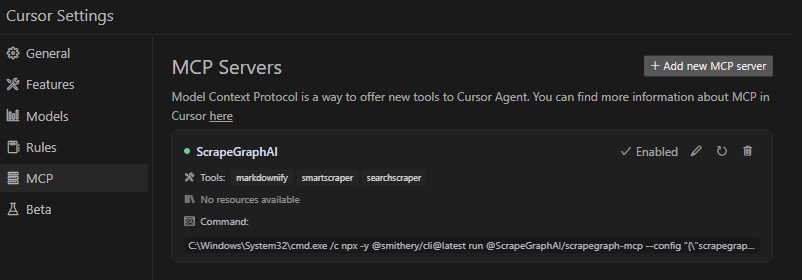
Add the ScrapeGraphAI MCP server on the settings:
Remote Server Usage
Connect to our hosted MCP server - no local installation required!
> [!WARNING]
> The legacy MCP endpoint at `https://mcp.scrapegraphai.com/mcp` will be
> deprecated soon. New integrations should use the replacement MCP endpoint:
> `https://sgai-mcp-main.onrender.com`.
Claude Desktop Configuration (Remote)
Add this to your Claude Desktop config (`~/Library/Application Support/Claude/claude_desktop_config.json` on macOS):
{
  "mcpServers": {
    "scrapegraph-mcp": {
      "command": "npx",
      "args": [
        "mcp-remote@0.1.25",
        "https://sgai-mcp-main.onrender.com",
        "--header",
        "X-API-Key:YOUR_API_KEY"
      ]
    }
  }
}
Cursor Configuration (Remote)
Cursor supports native HTTP MCP connections. Add to your Cursor MCP settings (`~/.cursor/mcp.json`):
{
  "mcpServers": {
    "scrapegraph-mcp": {
      "url": "https://sgai-mcp-main.onrender.com",
      "headers": {
        "X-API-Key": "YOUR_API_KEY"
      }
    }
  }
}
Benefits of Remote Server
- No local setup - Just configure and start using
- Always up-to-date - Automatically receives latest updates
- Cross-platform - Works on any OS with Node.js
Local Usage
To run the MCP server locally for development or testing, follow these steps:
Prerequisites
- Python 3.13 or higher
- pip or uv package manager
- ScrapeGraph API key
Installation
1. Clone the repository (if you haven't already):
git clone https://github.com/ScrapeGraphAI/scrapegraph-mcp
cd scrapegraph-mcp
2. Install the package:
# Using pip
pip install -e .

# Or using uv (faster)
uv pip install -e .
3. Set your API key:
# macOS/Linux
export SGAI_API_KEY=your-api-key-here

# Windows (PowerShell)
$env:SGAI_API_KEY="your-api-key-here"

# Windows (CMD)
set SGAI_API_KEY=your-api-key-here
Running the Server Locally
You can run the server directly:
# Using the installed command
scrapegraph-mcp

# Or using Python module
python -m scrapegraph_mcp.server
The server will start and communicate via stdio (standard input/output), which is the standard MCP transport method.
Testing with MCP Inspector
Test your local server using the MCP Inspector tool:
npx @modelcontextprotocol/inspector python -m scrapegraph_mcp.serverThis provides a web interface to test all available tools interactively.
Configuring Claude Desktop for Local Server
To use your locally running server with Claude Desktop, update your configuration file:
macOS/Linux (`~/Library/Application Support/Claude/claude_desktop_config.json`):
{
    "mcpServers": {
        "scrapegraph-mcp-local": {
            "command": "python",
            "args": [
                "-m",
                "scrapegraph_mcp.server"
            ],
            "env": {
                "SGAI_API_KEY": "your-api-key-here"
            }
        }
    }
}
Windows (`%APPDATA%\Claude\claude_desktop_config.json`):
{
    "mcpServers": {
        "scrapegraph-mcp-local": {
            "command": "python",
            "args": [
                "-m",
                "scrapegraph_mcp.server"
            ],
            "env": {
                "SGAI_API_KEY": "your-api-key-here"
            }
        }
    }
}Note: Make sure Python is in your PATH. You can verify by running `python --version` in your terminal.
Configuring Cursor for Local Server
In Cursor's MCP settings, add a new server with:
- Command: `python`
- Args: `["-m", "scrapegraph_mcp.server"]`
- Environment Variables: `{"SGAI_API_KEY": "your-api-key-here"}`
Troubleshooting Local Setup
Server not starting:
- Verify Python is installed: `python --version`
- Check that the package is installed: `pip list | grep scrapegraph-mcp`
- Ensure API key is set: `echo $SGAI_API_KEY` (macOS/Linux) or `echo %SGAI_API_KEY%` (Windows)
Tools not appearing:
- Check Claude Desktop logs:
- macOS: `~/Library/Logs/Claude/`
- Windows: `%APPDATA%\Claude\Logs\`
- Verify the server starts without errors when run directly
- Check that the configuration JSON is valid
Import errors:
- Reinstall the package: `pip install -e . --force-reinstall`
- Verify dependencies: `pip install -r requirements.txt` (if available)
Google ADK Integration
The ScrapeGraph MCP server can be integrated with Google ADK (Agent Development Kit) to create AI agents with web scraping capabilities.
Prerequisites
- Python 3.13 or higher
- Google ADK installed
- ScrapeGraph API key
Installation
1. Install Google ADK (if not already installed):
pip install google-adk2. Set your API key:
export SGAI_API_KEY=your-api-key-hereBasic Integration Example
Create an agent file (e.g., `agent.py`) with the following configuration:
import os
from google.adk.agents import LlmAgent
from google.adk.tools.mcp_tool.mcp_toolset import MCPToolset
from google.adk.tools.mcp_tool.mcp_session_manager import StdioConnectionParams
from mcp import StdioServerParameters

# Path to the scrapegraph-mcp server directory
SCRAPEGRAPH_MCP_PATH = "/path/to/scrapegraph-mcp"

# Path to the server.py file
SERVER_SCRIPT_PATH = os.path.join(
    SCRAPEGRAPH_MCP_PATH,
    "src",
    "scrapegraph_mcp",
    "server.py"
)

root_agent = LlmAgent(
    model='gemini-2.0-flash',
    name='scrapegraph_assistant_agent',
    instruction='Help the user with web scraping and data extraction using ScrapeGraph AI. '
                'You can convert webpages to markdown, extract structured data using AI, '
                'perform web searches, crawl multiple pages, and automate complex scraping workflows.',
    tools=[
        MCPToolset(
            connection_params=StdioConnectionParams(
                server_params=StdioServerParameters(
                    command='python3',
                    args=[
                        SERVER_SCRIPT_PATH,
                    ],
                    env={
                        'SGAI_API_KEY': os.getenv('SGAI_API_KEY'),
                    },
                ),
                timeout=300.0,)
            ),
            # Optional: Filter which tools from the MCP server are exposed
            # tool_filter=['scrape', 'extract', 'search']
        )
    ],
)
Configuration Options
Timeout Settings:
- Default timeout is 5 seconds, which may be too short for web scraping operations
- Recommended: Set `timeout=300.0
- Adjust based on your use case (crawling operations may need even longer timeouts)
Tool Filtering:
- By default, all registered MCP tools are exposed to the agent (see Available Tools)
- Use `tool_filter` to limit which tools are available:
tool_filter=['scrape', 'extract', 'search']API Key Configuration:
- Set via environment variable: `export SGAI_API_KEY=your-key`
- Or pass directly in `env` dict: `'SGAI_API_KEY': 'your-key-here'`
- Environment variable approach is recommended for security
Usage Example
Once configured, your agent can use natural language to interact with web scraping tools:
# The agent can now handle queries like:
# - "Convert https://example.com to markdown"
# - "Extract all product prices from this e-commerce page"
# - "Search for recent AI research papers and summarize them"
# - "Crawl this documentation site and extract all API endpoints"
For more information about Google ADK, visit the official documentation.
Example Use Cases
The server enables sophisticated queries across various scraping scenarios:
Single Page Scraping
- Markdownify: "Convert the ScrapeGraph documentation page to markdown"
- Extract: "Extract all product names, prices, and ratings from this e-commerce page"
- Extract with scrolling: "Scrape this infinite scroll page with 5 scrolls and extract all items"
- Basic Scrape: "Fetch the HTML content of this JavaScript-heavy page with full rendering"
Search and Research
- Search: "Research and summarize recent developments in AI-powered web scraping"
- Search: "Search for the top 5 articles about machine learning frameworks and extract key insights"
- Search: "Find recent news about GPT-4 and provide a structured summary"
- Search: v2 does not apply `time_range`; phrase queries to bias recency in natural language instead
Website analysis
- Use `crawl_start` plus `crawl_get_status` to map and capture multi-page content; there is no separate sitemap tool on v2.
Multi-page crawling
- Crawl: "Crawl the blog in markdown mode and poll until complete"
- For structured fields per page, run `extract` on individual URLs (or `monitor_create` on a schedule)
Monitors and account
- Monitor: "Run this extract prompt on https://example.com every day at 9am" (`monitor_create` with interval)
- Credits / history: `credits`, `history`
- Agentic Scraper: "Execute a complex workflow: login, navigate to reports, download data, and extract summary statistics"
Error Handling
The server implements robust error handling with detailed, actionable error messages for:
- API authentication issues
- Malformed URL structures
- Network connectivity failures
- Rate limiting and quota management
Common Issues
Windows-Specific Connection
When running on Windows systems, you may need to use the following command to connect to the MCP server:
C:\Windows\System32\cmd.exe /c npx -y @smithery/cli@latest run @ScrapeGraphAI/scrapegraph-mcp --config "{\"scrapegraphApiKey\":\"YOUR-SGAI-API-KEY\"}"This ensures proper execution in the Windows environment.
Other Common Issues
"ScrapeGraph client not initialized"
- Cause: Missing API key
- Solution: Set `SGAI_API_KEY` environment variable or provide via `--config`
"Error 401: Unauthorized"
- Cause: Invalid API key
- Solution: Verify your API key at the ScrapeGraph Dashboard
"Error 402: Payment Required"
- Cause: Insufficient credits
- Solution: Add credits to your ScrapeGraph account
Crawl not returning results
- Cause: Still processing (asynchronous operation)
- Solution: Keep polling `crawl_get_status()` until status is "completed"
Tools not appearing in Claude Desktop
- Cause: Server not starting or configuration error
- Solution: Check Claude logs at `~/Library/Logs/Claude/` (macOS) or `%APPDATA%\Claude\Logs\` (Windows)
For detailed troubleshooting, see the .agent documentation.
Development
Prerequisites
- Python 3.13 or higher
- pip or uv package manager
- ScrapeGraph API key
Installation from Source
# Clone the repository
git clone https://github.com/ScrapeGraphAI/scrapegraph-mcp
cd scrapegraph-mcp

# Install dependencies
pip install -e ".[dev]"

# Set your API key
export SGAI_API_KEY=your-api-key

# Run the server
scrapegraph-mcp
# or
python -m scrapegraph_mcp.server
Testing with MCP Inspector
Test your server locally using the MCP Inspector tool:
npx @modelcontextprotocol/inspector scrapegraph-mcpThis provides a web interface to test all available tools.
Code Quality
Linting:
ruff check src/Type Checking:
mypy src/Format Checking:
ruff format --check src/Project Structure
scrapegraph-mcp/
├── src/
│   └── scrapegraph_mcp/
│       ├── __init__.py      # Package initialization
│       └── server.py        # Main MCP server (all code in one file)
├── .agent/                  # Developer documentation
│   ├── README.md           # Documentation index
│   └── system/             # System architecture docs
├── assets/                  # Images and badges
├── pyproject.toml          # Project metadata & dependencies
├── smithery.yaml           # Smithery deployment config
└── README.md               # This file
Contributing
We welcome contributions! Here's how you can help:
Adding a New Tool
1. Add method to `ScapeGraphClient` class in server.py:
def new_tool(self, param: str) -> Dict[str, Any]:
    """Tool description."""
    url = f"{self.BASE_URL}/new-endpoint"
    data = {"param": param}
    response = self.client.post(url, headers=self.headers, json=data)
    if response.status_code != 200:
        raise Exception(f"Error {response.status_code}: {response.text}")
    return response.json()
2. Add MCP tool decorator:
@mcp.tool()
def new_tool(param: str) -> Dict[str, Any]:
    """
    Tool description for AI assistants.

    Args:
        param: Parameter description

    Returns:
        Dictionary containing results
    """
    if scrapegraph_client is None:
        return {"error": "ScrapeGraph client not initialized. Please provide an API key."}

    try:
        return scrapegraph_client.new_tool(param)
    except Exception as e:
        return {"error": str(e)}
3. Test with MCP Inspector:
npx @modelcontextprotocol/inspector scrapegraph-mcp4. Update documentation:
5. Submit a pull request
Development Workflow
1. Fork the repository
2. Create a feature branch (`git checkout -b feature/amazing-feature`)
3. Make your changes
4. Run linting and type checking
5. Test with MCP Inspector and Claude Desktop
6. Update documentation
7. Commit your changes (`git commit -m 'Add amazing feature'`)
8. Push to the branch (`git push origin feature/amazing-feature`)
9. Open a Pull Request
Code Style
- Line length: 100 characters
- Type hints: Required for all functions
- Docstrings: Google-style docstrings
- Error handling: Return error dicts, don't raise exceptions in tools
- Python version: Target 3.13+
For detailed development guidelines, see the .agent documentation.
Documentation
For comprehensive developer documentation, see:
- **.agent/README.md** - Complete developer documentation index
- **.agent/system/project_architecture.md** - System architecture and design
- **.agent/system/mcp_protocol.md** - MCP protocol integration details
Technology Stack
Core Framework
- Python 3.13+ - Modern Python with type hints
- FastMCP - Lightweight MCP server framework
- httpx 0.24.0+ - Modern async HTTP client
Development Tools
- Ruff - Fast Python linter and formatter
- mypy - Static type checker
- Hatchling - Modern build backend
Deployment
- Smithery - Automated MCP server deployment
- Docker - Container support with Alpine Linux
- stdio transport - Standard MCP communication
API Integration
- ScrapeGraph AI API - Enterprise web scraping service
- Base URL: `https://v2-api.scrapegraphai.com/api`
- Authentication: API key-based
License
This project is distributed under the MIT License. For detailed terms and conditions, please refer to the LICENSE file.
Acknowledgments
Special thanks to tomekkorbak for his implementation of oura-mcp-server, which served as starting point for this repo.
Resources
Official Links
- ScrapeGraph AI Homepage
- ScrapeGraph Dashboard - Get your API key
- ScrapeGraph API Documentation
- GitHub Repository
MCP Resources
- Model Context Protocol - Official MCP specification
- FastMCP Framework - Framework used by this server
- MCP Inspector - Testing tool
- Smithery - MCP server distribution
- mcp-name: io.github.ScrapeGraphAI/scrapegraph-mcp
AI Assistant Integration
- Claude Desktop - Desktop app with MCP support
- Cursor - AI-powered code editor
Support
- GitHub Issues - Report bugs or request features
- Developer Documentation - Comprehensive dev docs
Made with ❤️ by ScrapeGraphAI Team
Frequently asked questions
What is scrapegraph-mcp?
scrapegraph-mcp is ScapeGraph MCP Server
How do I install scrapegraph-mcp?
Open the GitHub repository and follow its README. Most MCP servers are added to your client's MCP config, then called by your agent.
Is scrapegraph-mcp open source?
Yes — it is hosted on GitHub at https://github.com/ScrapeGraphAI/scrapegraph-mcp and has 102 stars.
Related MCP tools
 semble
Fast and Accurate Code Search for Agents. Uses 99% fewer tokens than grep+read
 FinanceToolkit
Transparent and Efficient Financial Analysis
 tradingview-mcp
TradingView MCP server — real-time market data, technical analysis, screeners & backtesting for Claude, ChatGPT, Cursor & any MCP client. Stocks, crypto, forex & futures across global exchanges. Hosted or self-host.
 openshorts
Open source AI clip generator: turns long videos into viral 9:16 shorts with AI moment detection, face tracking, subtitles and dubbing. Self-host free with Docker (MIT), or use the cloud with GPU speed from $12/mo. MCP server and API for AI agents.
 google_workspace_mcp
Control Gmail, Google Calendar, Docs, Sheets, Slides, Chat, Forms, Tasks, Search & Drive with AI - Comprehensive Google Workspace MCP Server & CLI Tool
 jcodemunch-mcp
Cut AI token costs 95%+ on code exploration. The leading MCP server for precise, symbol-level GitHub code retrieval via tree-sitter AST. Works with Claude Code, Cursor & any MCP client. 313B+ tokens saved.
Run your own MCP server? See who uses it and what to fix.
Measure it with TrackMCP