
skydeckai-code
Documentation

SkyDeckAI Code
An MCP server that provides a comprehensive set of tools for AI-driven development workflows. Features include file system operations, code analysis using tree-sitter for multiple programming languages, code execution, web content fetching with HTML-to-markdown conversion, multi-engine web search, code content searching, and system information retrieval. Designed to enhance AI's capability to assist in software development tasks by providing direct access to both local and remote resources.
Formerly Known As MCP-Server-AIDD
This mcp server was formerly known as `mcp-server-aidd`. It was renamed to `skydeckai-code` to credit the team at SkyDeck.ai with creating this application along with East Agile. But more importantly we realized that the term AI Driven Development (AIDD) was just not catching on. People did not understand at a glance what it was about. And nor did LLMs. "Code" was far more intuitive. And linguistically intuitive is important in the world of agentic AI.

Installation
# Using uvx
uvx skydeckai-code
Claude Desktop Setup
Add to your `claude_desktop_config.json`:
{
    "mcpServers": {
        "skydeckai-code": {
            "command": "uvx",
            "args": ["skydeckai-code"]
        }
    }
}
SkyDeck AI Helper App
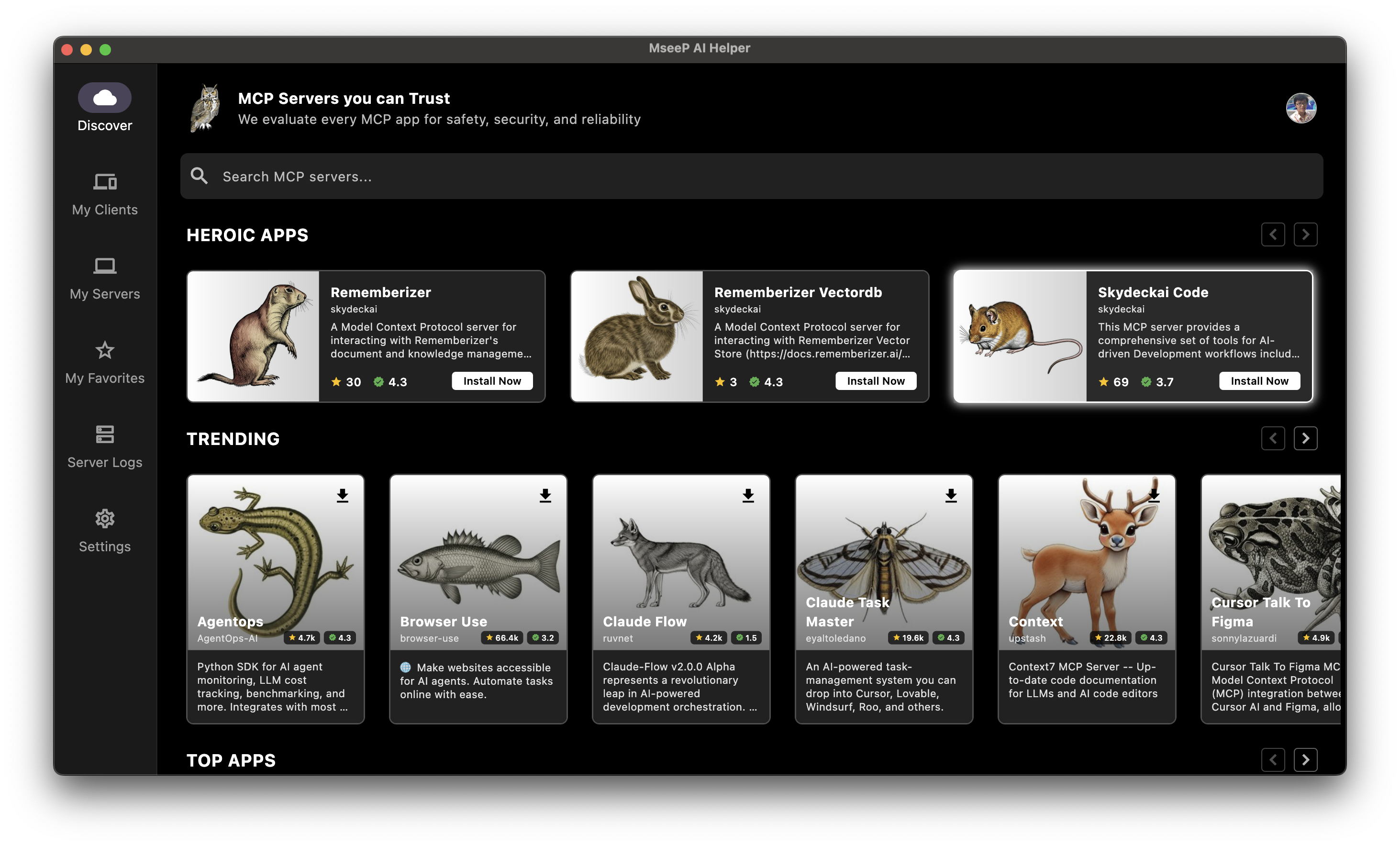
If you're using MseeP AI Helper app, you can search for "SkyDeckAI Code" and install it.
Key Features
- File system operations (read, write, edit, move, copy, delete)
- Directory management and traversal
- Multi-language code analysis using tree-sitter
- Code content searching with regex pattern matching
- Multi-language code execution with safety measures
- Web content fetching from APIs and websites with HTML-to-markdown conversion
- Multi-engine web search with reliable fallback mechanisms
- Batch operations for parallel and serial tool execution
- Security controls with configurable workspace boundaries
- Screenshot and screen context tools
- Image handling tools
Available Tools (29)
| Category | Tool Name | Description |
|---|---|---|
| File System | `get_allowed_directory` | Get the current working directory path |
| `update_allowed_directory` | Change the working directory | |
| `create_directory` | Create a new directory or nested directories | |
| `write_file` | Create or overwrite a file with new content | |
| `edit_file` | Make line-based edits to a text file | |
| `read_file` | Read the contents of one or more files | |
| `list_directory` | Get listing of files and directories | |
| `move_file` | Move or rename a file or directory | |
| `copy_file` | Copy a file or directory to a new location | |
| `search_files` | Search for files matching a name pattern | |
| `delete_file` | Delete a file or empty directory | |
| `get_file_info` | Get detailed file metadata | |
| `directory_tree` | Get a recursive tree view of directories | |
| `read_image_file` | Read an image file as base64 data | |
| Code Tools | `codebase_mapper` | Analyze code structure across files |
| `search_code` | Find text patterns in code files | |
| `execute_code` | Run code in various languages | |
| `execute_shell_script` | Run shell/bash scripts | |
| Web Tools | `web_fetch` | Get content from a URL |
| `web_search` | Perform a web search | |
| Screen Tools | `capture_screenshot` | Take a screenshot of screen or window |
| `get_active_apps` | List running applications | |
| `get_available_windows` | List all open windows | |
| System | `get_system_info` | Get detailed system information |
| Utility | `batch_tools` | Run multiple tool operations together |
| `think` | Document reasoning without making changes | |
| Todo | `todo_read` | Read current workspace todo list |
| `todo_write` | Replace entire todo list with validation | |
| `todo_update` | Update specific todo item by ID |
Detailed Tool Documentation
Basic File Operations
| Tool | Parameters | Returns |
|---|---|---|
| read_file | files: [{path: string, offset?: integer, limit?: integer}] | File content (single or multiple files) |
| write_file | path: string, content: string | Success confirmation |
| move_file | source: string, destination: string | Success confirmation |
| copy_file | source: string, destination: string, recursive?: boolean | Success confirmation |
| delete_file | path: string | Success confirmation |
| get_file_info | path: string | File metadata (size, timestamps, permissions) |
Complex File Operations
edit_file
Pattern-based file editing with preview support:
{
    "path": "src/main.py",
    "edits": [
        {
            "oldText": "def old_function():",
            "newText": "def new_function():"
        }
    ],
    "dryRun": false,
    "options": {
        "partialMatch": true
    }
}
Returns: Diff of changes or preview in dry run mode.
Directory Operations
| Tool | Parameters | Returns |
|---|---|---|
| get_allowed_directory | none | Current allowed directory path |
| update_allowed_directory | directory: string (absolute path) | Success confirmation |
| list_directory | path: string | Directory contents list |
| create_directory | path: string | Success confirmation |
| search_files | pattern: string, path?: string, include_hidden?: boolean | Matching files list |
The `search_files` tool searches for files by name pattern, while the `search_code` tool searches within file contents using regex. Use `search_files` when looking for files with specific names or extensions, and `search_code` when searching for specific text patterns inside files.
directory_tree
Generates complete directory structure:
{
    "path": "src",
    "include_hidden": false
}
Returns: JSON tree structure of directory contents.
Code Analysis
codebase_mapper
Analyzes source code structure:
{
    "path": "src"
}
Returns:
- Classes and their methods
- Functions and parameters
- Module structure
- Code organization statistics
- Inheritance relationships
Supported Languages:
- Python (.py)
- JavaScript (.js/.jsx, .mjs, .cjs)
- TypeScript (.ts/.tsx)
- Java (.java)
- C++ (.cpp, .hpp, .cc)
- Ruby (.rb, .rake)
- Go (.go)
- Rust (.rs)
- PHP (.php)
- C# (.cs)
- Kotlin (.kt, .kts)
search_code
Fast content search tool using regular expressions:
{
    "patterns": ["function\\s+\\w+", "class\\s+\\w+"],
    "include": "*.js",
    "exclude": "node_modules/**",
    "max_results": 50,
    "case_sensitive": false,
    "path": "src"
}
Parameters:
| Parameter | Type | Required | Description |
|---|---|---|---|
| patterns | array of strings | Yes | List of regular expression patterns to search for in file contents |
| include | string | No | File pattern to include (glob syntax, default: "\*") |
| exclude | string | No | File pattern to exclude (glob syntax, default: "") |
| max_results | integer | No | Maximum results to return per pattern (default: 100) |
| case_sensitive | boolean | No | Whether search is case-sensitive (default: false) |
| path | string | No | Base directory to search from (default: ".") |
Returns:
Matching lines grouped by file with line numbers, sorted by file modification time with newest files first.
This tool uses ripgrep when available for optimal performance, with a Python fallback implementation. It's ideal for finding specific code patterns like function declarations, imports, variable usages, or error handling.
System Information
| Tool | Parameters | Returns |
|---|---|---|
| get_system_info | none | Comprehensive system details |
Returns:
{
  "working_directory": "/path/to/project",
  "system": {
    "os", "os_version", "architecture", "python_version"
  },
  "wifi_network": "MyWiFi",
  "cpu": {
    "physical_cores", "logical_cores", "total_cpu_usage"
  },
  "memory": { "total", "available", "used_percentage" },
  "disk": { "total", "free", "used_percentage" },
  "mac_details": {  // Only present on macOS
    "model": "Mac mini",
    "chip": "Apple M2",
    "serial_number": "XXX"
  }
}
Provides essential system information in a clean, readable format.
Screen Context and Image Tools
get_active_apps
Returns a list of currently active applications on the user's system.
{
    "with_details": true
}
Parameters:
| Parameter | Type | Required | Description |
|---|---|---|---|
| with_details | boolean | No | Whether to include additional details about each application (default: false) |
Returns:
{
    "success": true,
    "platform": "macos",
    "app_count": 12,
    "apps": [
        {
            "name": "Firefox",
            "has_windows": true,
            "window_count": 3,
            "visible_windows": [
                { "name": "GitHub - Mozilla Firefox", "width": 1200, "height": 800 }
            ]
        },
        {
            "name": "VSCode",
            "has_windows": true
        }
    ]
}
This tool provides valuable context about applications currently running on the user's system, which can help with providing more relevant assistance.
get_available_windows
Returns detailed information about all available windows currently displayed on the user's screen.
{}Returns:
{
    "success": true,
    "platform": "macos",
    "count": 8,
    "windows": [
        {
            "id": 42,
            "title": "Document.txt - Notepad",
            "app": "Notepad",
            "visible": true
        },
        {
            "title": "Terminal",
            "app": "Terminal",
            "visible": true,
            "active": true
        }
    ]
}
This tool helps understand what's visible on the user's screen and can be used for context-aware assistance.
capture_screenshot
Captures a screenshot of the user's screen or a specific window.
{
    "output_path": "screenshots/capture.png",
    "capture_mode": {
        "type": "named_window",
        "window_name": "Visual Studio Code"
    }
}
Parameters:
| Parameter | Type | Required | Description |
|---|---|---|---|
| output_path | string | No | Path where the screenshot should be saved (default: generated path) |
| capture_mode | object | No | Specifies what to capture |
| capture_mode.type | string | No | Type of screenshot: 'full', 'active_window', or 'named_window' (default: 'full') |
| capture_mode.window_name | string | No | Name of window to capture (required when type is 'named_window') |
Returns:
{
    "success": true,
    "path": "/path/to/screenshots/capture.png"
}
This tool captures screenshots for visualization, debugging, or context-aware assistance.
read_image_file
Reads an image file from the file system and returns its contents as a base64-encoded string.
{
    "path": "images/logo.png"
}
Parameters:
| Parameter | Type | Required | Description |
|---|---|---|---|
| path | string | Yes | Path to the image file to read |
| max_size | integer | No | Maximum file size in bytes (default: 100MB) |
Returns:
Base64-encoded image data that can be displayed or processed.
This tool supports common image formats like PNG, JPEG, GIF, and WebP, and automatically resizes images for optimal viewing.
Web Tools
web_fetch
Fetches content from a URL and optionally saves it to a file.
{
    "url": "https://api.github.com/users/octocat",
    "headers": {
        "Accept": "application/json"
    },
    "timeout": 15,
    "save_to_file": "downloads/octocat.json",
    "convert_html_to_markdown": true
}
Parameters:
| Parameter | Type | Required | Description |
|---|---|---|---|
| url | string | Yes | URL to fetch content from (http/https only) |
| headers | object | No | Optional HTTP headers to include in the request |
| timeout | integer | No | Maximum time to wait for response (default: 10s) |
| save_to_file | string | No | Path to save response content (within allowed directory) |
| convert_html_to_markdown | boolean | No | When true, converts HTML content to markdown for better readability (default: true) |
Returns:
Response content as text with HTTP status code and size information. For binary content, returns metadata and saves to file if requested. When convert_html_to_markdown is enabled, HTML content is automatically converted to markdown format for better readability.
This tool can be used to access web APIs, fetch documentation, or download content from the web while respecting size limits (10MB max) and security constraints.
web_search
Performs a robust web search using multiple search engines and returns concise, relevant results.
{
    "query": "latest python release features",
    "num_results": 8,
    "convert_html_to_markdown": true,
    "search_engine": "bing"
}
Parameters:
| Parameter | Type | Required | Description |
|---|---|---|---|
| query | string | Yes | The search query to process. Be specific for better results. |
| num_results | integer | No | Maximum number of search results to return (default: 10, max: 20) |
| convert_html_to_markdown | boolean | No | When true, content will be converted from HTML to markdown for better readability (default: true) |
| search_engine | string | No | Specifies which search engine to use: "auto" (default), "bing", or "duckduckgo" |
Returns:
A list of search results formatted in markdown, including titles, URLs, and snippets for each result. Results are deduplicated and organized hierarchically for easy reading.
This tool uses a multi-engine approach that tries different search engines with various parsing strategies to ensure reliable results. You can specify a preferred engine, but some engines may block automated access, in which case the tool will fall back to alternative engines when "auto" is selected.
Utility Tools
batch_tools
Execute multiple tool invocations in a single request with parallel execution when possible.
{
    "description": "Setup new project",
    "sequential": true,
    "invocations": [
        {
            "tool": "create_directory",
            "arguments": {
                "path": "src"
            }
        },
        {
            "tool": "write_file",
            "arguments": {
                "path": "README.md",
                "content": "# New Project\n\nThis is a new project."
            }
        },
        {
            "tool": "execute_shell_script",
            "arguments": {
                "script": "git init"
            }
        }
    ]
}
Parameters:
| Parameter | Type | Required | Description |
|---|---|---|---|
| description | string | Yes | Short description of the batch operation |
| sequential | boolean | No | Whether to run tools in sequence (default: false) |
| invocations | array | Yes | List of tool invocations to execute |
| invocations[].tool | string | Yes | Name of the tool to invoke |
| invocations[].arguments | object | Yes | Arguments for the specified tool |
Returns:
Combined results from all tool invocations, grouped by tool with success/error status for each. Results are presented in the original invocation order with clear section headers.
This tool provides efficient execution of multiple operations in a single request. When `sequential` is false (default), tools are executed in parallel for better performance. When `sequential` is true, tools are executed in order, and if any tool fails, execution stops.
IMPORTANT: All tools in the batch execute in the same working directory context. If a tool creates a directory and a subsequent tool needs to work inside that directory, you must either:
1. Use paths relative to the current working directory (e.g., "project/src" rather than just "src"), or
2. Include an explicit tool invocation to change directories using `update_allowed_directory`
think
A tool for complex reasoning and brainstorming without making changes to the repository.
{
    "thought": "Let me analyze the performance issue in the codebase:\n\n## Root Cause Analysis\n\n1. The database query is inefficient because:\n   - It doesn't use proper indexing\n   - It fetches more columns than needed\n   - The JOIN operation is unnecessarily complex\n\n## Potential Solutions\n\n1. **Add database indexes**:\n   - Create an index on the user_id column\n   - Create a composite index on (created_at, status)\n\n2. **Optimize the query**:\n   - Select only necessary columns\n   - Rewrite the JOIN using a subquery\n   - Add LIMIT clause for pagination\n\n3. **Add caching layer**:\n   - Cache frequent queries using Redis\n   - Implement cache invalidation strategy\n\nAfter weighing the options, solution #2 seems to be the simplest to implement with the highest impact."
}
Parameters:
| Parameter | Type | Required | Description |
|---|---|---|---|
| thought | string | Yes | Your detailed thoughts, analysis or reasoning process |
Returns:
Your thoughts formatted as markdown, with a note indicating this was a thinking exercise.
This tool is useful for thinking through complex problems, brainstorming solutions, or laying out implementation plans without making any actual changes. It's a great way to document your reasoning process, evaluate different approaches, or plan out a multi-step strategy before taking action.
Code Execution
execute_code
Executes code in various programming languages with safety measures and restrictions.
{
    "language": "python",
    "code": "print('Hello, World!')",
    "timeout": 5
}
Supported Languages:
- Python (python3)
- JavaScript (Node.js)
- Ruby
- PHP
- Go
- Rust
Parameters:
| Parameter | Type | Required | Description |
|---|---|---|---|
| language | string | Yes | Programming language to use |
| code | string | Yes | Code to execute |
| timeout | integer | No | Maximum execution time (default: 5s) |
Requirements:
- Respective language runtimes must be installed
- Commands must be available in system PATH
- Proper permissions for temporary file creation
⚠️ Security Warning:
This tool executes arbitrary code on your system. Always:
1. Review code thoroughly before execution
2. Understand the code's purpose and expected outcome
3. Never execute untrusted code
4. Be aware of potential system impacts
5. Monitor execution output
execute_shell_script
Executes shell scripts (bash/sh) with safety measures and restrictions.
{
    "script": "echo \"Current directory:\" && pwd",
    "timeout": 300
}
Parameters:
| Parameter | Type | Required | Description |
|---|---|---|---|
| script | string | Yes | Shell script to execute |
| timeout | integer | No | Maximum execution time (default: 300s, max: 600s) |
Features:
- Uses /bin/sh for maximum compatibility across systems
- Executes within the allowed directory
- Separate stdout and stderr output
- Proper error handling and timeout controls
⚠️ Security Warning:
This tool executes arbitrary shell commands on your system. Always:
1. Review the script thoroughly before execution
2. Understand the script's purpose and expected outcome
3. Never execute untrusted scripts
4. Be aware of potential system impacts
5. Monitor execution output
Todo Tools
The todo tools provide sequential task management capabilities for workspace-first development workflows. Tasks are executed in order without priority systems, ensuring structured progress through development phases.
todo_read
Read the current todo list for the workspace.
{}Returns:
{
  "todos": [
    {
      "id": "abc123",
      "content": "Implement user authentication",
      "status": "in_progress",
      "metadata": {
        "custom_key": "custom_value"
      },
      "created_at": "2023-10-01T10:00:00Z",
      "updated_at": "2023-10-01T11:30:00Z"
    }
  ],
  "count": 1,
  "workspace": "/path/to/workspace"
}
todo_write
Replace the entire todo list for sequential execution workflow. Tasks are executed in array order, building upon previous work.
{
  "todos": [
    {
      "id": "task1",
      "content": "Set up database schema",
      "status": "pending"
    },
    {
      "id": "task2",
      "content": "Create API endpoints",
      "status": "pending",
      "metadata": {
        "custom_key": "custom_value"
      }
    }
  ]
}
Sequential Workflow Rules:
- Each todo must have unique ID
- Only one task can be "in_progress" at a time (sequential execution)
- Tasks execute in array order - no priority system
- Required fields: id, content, status
- Status values: "pending", "in_progress", "completed"
- Workspace-first: Todo management is mandatory for all workspace operations
todo_update
Update a specific todo item by ID for sequential workflow progression.
{
  "todo_id": "task1",
  "updates": {
    "status": "in_progress",
    "metadata": {
        "new_key": "new_value"
    }
  }
}
Returns:
{
  "success": true,
  "updated_todo": {
    "id": "task1",
    "content": "Set up database schema",
    "status": "in_progress",
    "updated_at": "2023-10-01T12:00:00Z",
    "metadata": {
        "new_key": "new_value"
    }
  },
  "counts": {
    "pending": 1,
    "in_progress": 1,
    "completed": 0,
    "total": 2
  },
  "workspace": "/path/to/workspace"
}
The todo system maintains separate sequential task lists for each workspace, enforcing mandatory usage for all workspace operations. Tasks execute in order, building upon previous work without priority-based scheduling.
Configuration
Configuration file: `~/.skydeckai_code/config.json`
{
    "allowed_directory": "/path/to/workspace"
}
Debugging
Use MCP Inspector for debugging:
npx @modelcontextprotocol/inspector runSecurity
- Operations restricted to configured allowed directory
- Path traversal prevention
- File permission preservation
- Safe operation handling
Upcoming Features
- GitHub tools:
- Pivotal Tracker tools:
Development Status
Currently in active development. Features and API may change.
License
Apache License 2.0 - see LICENSE
Frequently asked questions
What is skydeckai-code?
skydeckai-code is a Model Context Protocol (MCP) server listed in the TrackMCP directory.
How do I install skydeckai-code?
Open the GitHub repository and follow its README. Most MCP servers are added to your client's MCP config, then called by your agent.
Is skydeckai-code open source?
Yes — it is hosted on GitHub at https://github.com/skydeckai/mcp-server-aidd and has 74 stars.
Related MCP tools
 openhands
🙌 OpenHands: Code Less, Make More for the Model Context Protocol. Enhance AI assistants with powerful integrations. Python-based implementation.
 mem0
mem0Universal memory layer for AI Agents; Announcing OpenMemory MCP - local and secure memory management. Python-based implementation.
 chatgpt-on-wechat
基于大模型搭建的聊天机器人,同时支持 微信公众号、企业微信应用、飞书、钉钉 等接入,可选择ChatGPT/Claude/DeepSeek/文心一言/讯飞星火/通义千问/ Gemini/GLM-4/Kimi/LinkAI,能处理文本、语音和图片,访问操作系统和互联网,支持基于自有知识库进行定制企业智能客服。
 gpt-researcher
An LLM agent that conducts deep research (local and web) on any given topic and generates a long report with citations. Built for the Model Context Protocol to
 fastmcp
🚀 The fast, Pythonic way to build MCP servers and clients Trusted by 19900+ developers. Trusted by 19900+ developers. Trusted by 19900+ developers.
 maxkb
maxkb🔥 MaxKB is an open-source platform for building enterprise-grade agents. MaxKB 是强大易用的开源企业级智能体平台。 for the Model Context Protocol. Enhance AI assistants with po
Run your own MCP server? See who uses it and what to fix.
Measure it with TrackMCP