
cal2prompt
✨ Fetches your schedule (Google Calendar) and outputs it as a single LLM prompt, with an optional MCP server mode.
Documentation
*⚠️ This project is still experimental. Features may change without notice. Use with caution! ⚠️*
cal2prompt
cal2prompt is a command-line tool that fetches your schedule (e.g., from Google Calendar) and converts it into a custom prompt or text snippet via a template engine. It can output directly to your stdout, or run as an experimental MCP (Model Context Protocol) server.
cal2prompt uses the Google Calendar API version 3.
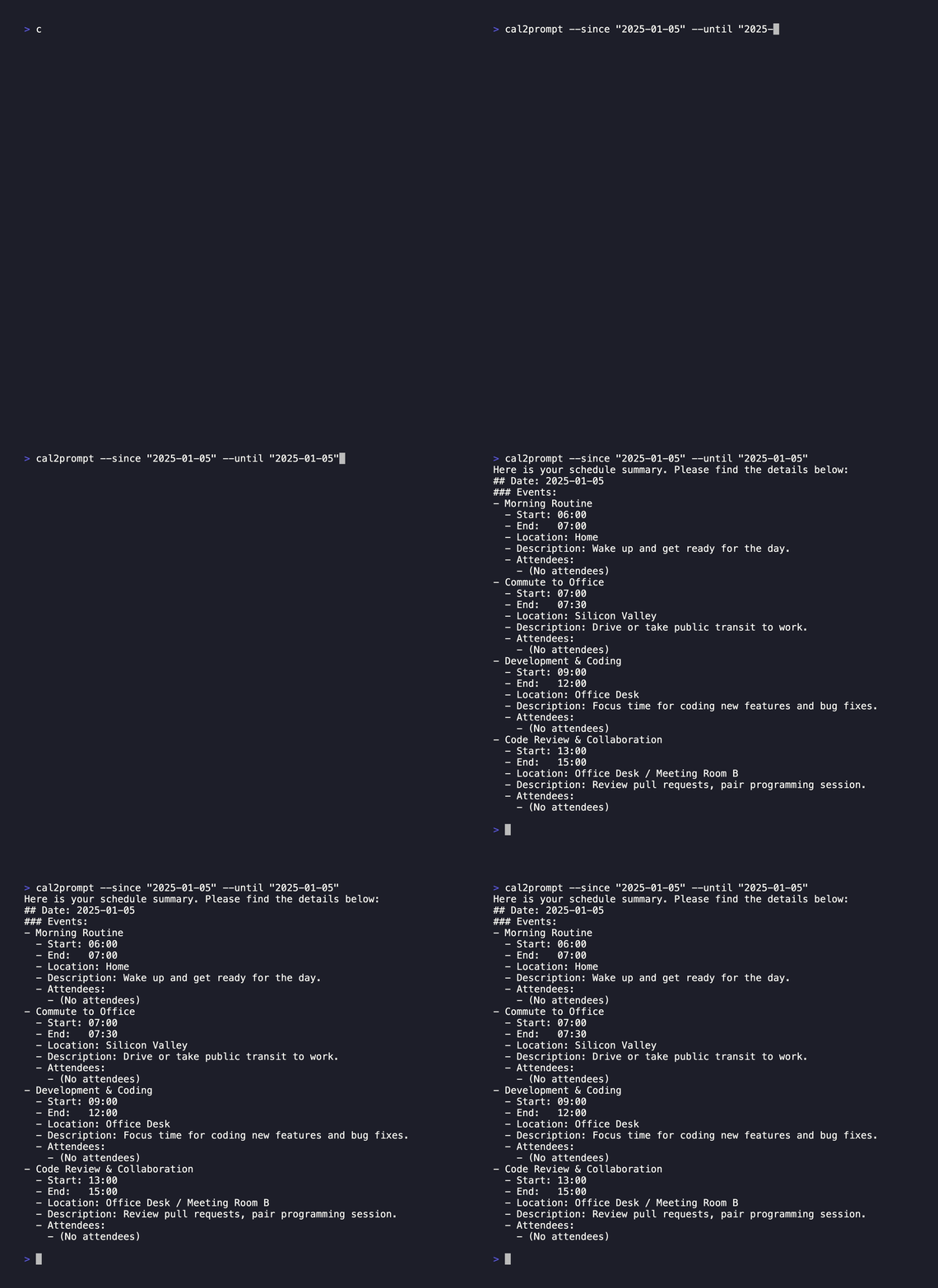
*CLI Example*
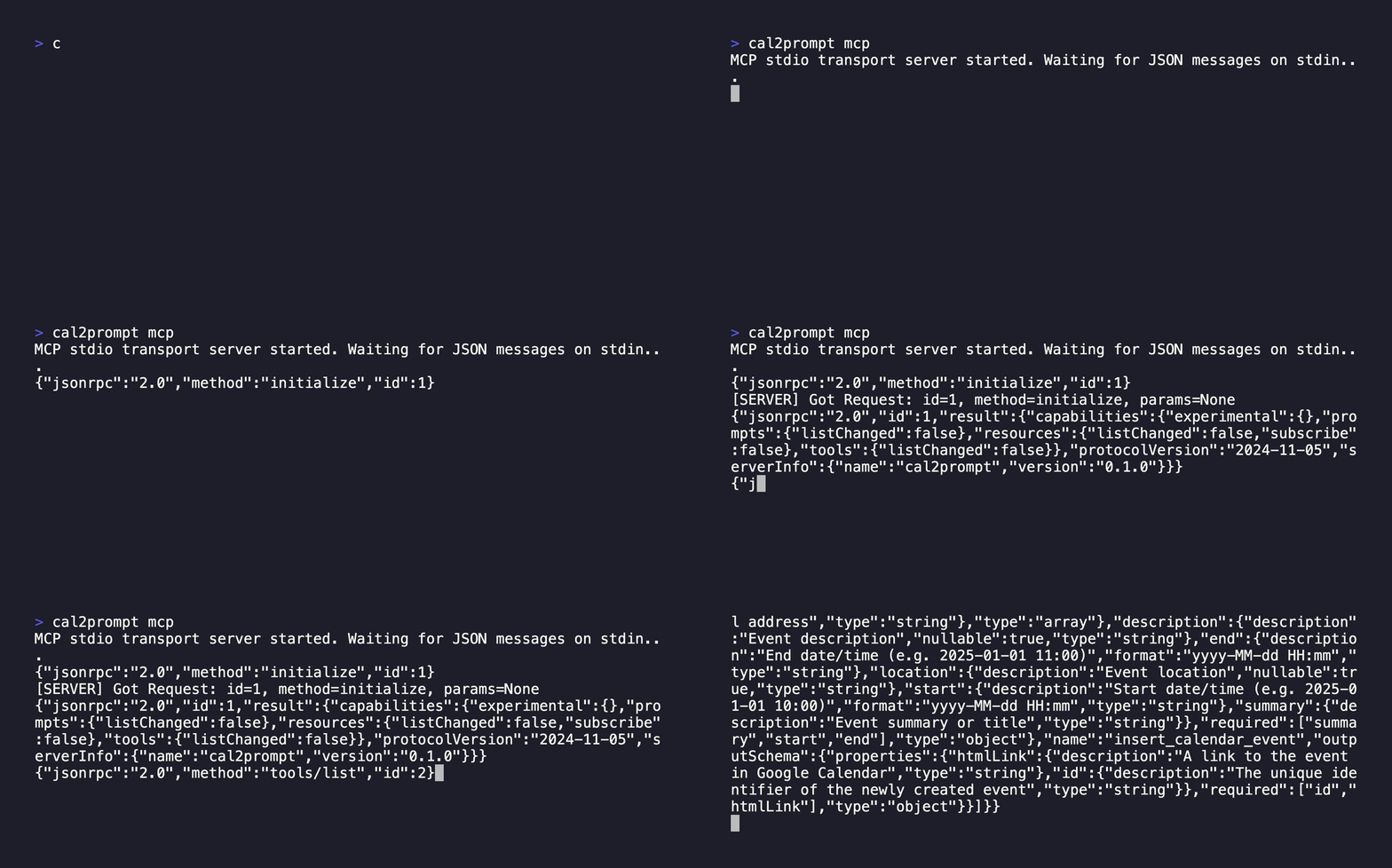
*Model Context Protocol(MCP) Example(experimental)*
Features
- 🚀 Google Calendar Integration
Utilizes the Google Calendar API v3 to fetch your schedule.
- 📄 Flexible LLM Prompt Customization with a Template Engine
Customize the generated prompts using the Jinja2 template engine.
- ⚡️ Blazing fast
High-speed Processing Powered by the Rust Ecosystem.
- 🔧 Experimental MCP Mode
Run cal2prompt as a Model Context Protocol server.
Installation
Brew (MacOS)
brew install shuntaka9576/tap/cal2promptCargo (git)
git clone https://github.com/shuntaka9576/cal2prompt
cd cal2prompt
cargo install --path .
Usage
$ cal2prompt --help
✨ Fetches your schedule (e.g., from Google Calendar) and converts it into a single LLM prompt. It can also run as an MCP (Model Context Protocol) server.

Usage: cal2prompt [OPTIONS] [COMMAND]

Commands:
  mcp   Launch cal2prompt as an MCP server (experimental).
  help  Print this message or the help of the given subcommand(s)

Options:
      --since   Start date (YYYY-MM-DD). Requires --until.
      --until   End date (YYYY-MM-DD). Requires --since.
      --today         Fetch events for today only.
      --this-week     Fetch events for the current week (Mon-Sun).
      --this-month    Fetch events for the current month (1st - end).
      --next-week     Fetch events for the upcoming week (Mon-Sun).
  -h, --help          Print help
  -V, --version       Print version
Initial setup
1. Setup Google OAuth2.0 Client
We use OAuth2 for authenticating with your Google account. After authentication, the generated token is stored in the `oauth` file located in your platform’s data directory (e.g., `~/.local/share/cal2prompt/oauth` on Linux). When you launch cal2prompt for the first time, the authentication process will begin automatically—simply follow the on-screen instructions.
Currently, you must use your own Calendar API token. The Calendar API token is only granted to a limited number of users and requires Google’s approval. Even if I, as the project owner, were to provide a Google-approved client, there would inevitably be security risks. Therefore, you need to create and manage your own token.
Please follow the steps in docs/setup-oauth to create your own Google “project” and obtain an OAuth token.
2. Setup configuration
Configuration is written in Lua. Below is an example of the configuration. You can separate public and private information into separate files if you prefer—simply customize it to suit your needs.
Create `~/.config/cal2prompt/secrets.lua` and add the following contents. The file name can be any name as long as it matches the require statement in the config.lua mentioned later.
Please specify the clientID, clientSecret, and Calendar ID you created earlier. You can find the Calendar ID in the Google Calendar web UI.
local M = {}

M.google = {
  clientID = "***.apps.googleusercontent.com",
  clientSecret = "***",
  calendarIDs = {
    "example@gmail.com"
  },
}

return M
Create `~/.config/cal2prompt/config.lua` and add the following contents:
local cal2prompt = require("cal2prompt") -- builtin module
local os = require("os") -- stdlib
local secrets = require("secrets")

return {
  settings = {
    -- see https://en.wikipedia.org/wiki/List_of_tz_database_time_zones
    -- TZ = "Etc/UTC",
    TZ = "Asia/Tokyo",
    -- TZ = "America/Los_Angeles"
    -- TZ - "Asia/Shanghai"
  },
  source = {
    google = {
      oauth2 = {
        clientID = secrets.google.clientID,
        clientSecret = secrets.google.clientSecret,
      },
      calendar = {
        getEvents = {
          calendarIDs = secrets.google.calendarIDs,
        },
      },
    },
  },
  output = {
    -- template = cal2prompt.template.google.standard
    template = [[
Here is your schedule summary. Please find the details below:
{% for day in days %}
## Date: {{ day.date }}
--------------------------------------

### All-Day Events:
{% if day.all_day_events|length == 0 %}
  (No all-day events)
{% else %}
  {% for ev in day.all_day_events %}
  - {{ ev.summary }}
    - (All Day)
    - Location: {{ ev.location or "N/A" }}
    - Description: {{ ev.description or "No description." }}
    - Attendees:
      {% if ev.attendees|length > 0 %}
        {% for a in ev.attendees %}
        - {{ a }}
        {% endfor %}
      {% else %}
      - (No attendees)
      {% endif %}
  {% endfor %}
{% endif %}

### Timed Events:
{% if day.timed_events|length == 0 %}
  (No timed events)
{% else %}
  {% for ev in day.timed_events %}
  - {{ ev.summary }}
    - Start: {{ ev.start }}
    - End:   {{ ev.end }}
    - Location: {{ ev.location or "N/A" }}
    - Description: {{ ev.description or "No description." }}
    - Attendees:
      {% if ev.attendees|length > 0 %}
        {% for a in ev.attendees %}
        - {{ a }}
        {% endfor %}
      {% else %}
      - (No attendees)
      {% endif %}
  {% endfor %}
{% endif %}
{% endfor %}
]],
  },
}
3. CLI Authentication
cal2prompt executes the OAuth 2.0 flow to obtain authentication credentials. For detailed step-by-step flow instructions, please refer to docs/setup-cli-auth
cal2promptIntegrating Claude Desktop with MCP
Please add the following configuration to `~/Library/Application\ Support/Claude/claude_desktop_config.json`:
- For `mcpServers.cal2prompt.command`: You must specify the full path obtained by running `which cal2prompt`.
- For `mcpServers.cal2prompt.env.HOME`: Since Claude Desktop may not inherit the HOME environment variable, so it needs to be set explicitly.
{
  "mcpServers": {
    "cal2prompt": {
      "command": "/Users/username/.cargo/bin/cal2prompt",
      "args": ["mcp"],
      "env": {
        "HOME": "/Users/username"
      }
    }
  }
}
Configuration
Config Options
| Variable Name | Required | Description | Default Value |
|---|---|---|---|
| `settings.TZ` | true | IANA time zone format. (e.g. `America/Los_Angeles` `Asia/Tokyo`) | `UTC` |
| `settings.oauthFilePath` | false | Path where OAuth2.0 tokens are temporarily stored. Typically, users do not need to change this unless they have a custom setup. | `~/.local/share/cal2prompt/oauth` |
| `source.google.oauth2.clientID` | true | Your Google OAuth2 Client ID used for authenticating with the Google Calendar API. | *(No default; must be specified)* |
| `source.google.oauth2.clientSecret` | true | Your Google OAuth2 Client Secret used for authenticating with the Google Calendar API. | *(No default; must be specified)* |
| `source.google.oauth2.scopes` | false | Scopes to grant to Google OAuth 2.0 client. Please refer to here for the types of scopes. | [`https://www.googleapis.com/auth/calendar.events`] |
| `source.google.oauth2.redirectURL` | false | The OAuth2 callback URL to which Google will send responses. | `"http://127.0.0.1:9004"` |
| `source.google.calendar.getEvents.calendarIDs` | true | A list of one or more Google Calendar IDs from which cal2prompt will fetch events. Each ID can typically be found in your Google Calendar settings. If multiple IDs are provided, events from each calendar will be fetched and combined in chronological order. | *(No default; must be specified)* |
| `output.template` | true | A string that defines how the fetched calendar data should be formatted/output. | *(No default; must be specified)* |
| `experimental.mcp.insertCalendarEvent.calendarID` | false | The ID of the Google Calendar to which new events will be inserted when using the experimental MCP feature. | None |
Environment
| Variable Name | Description | Default Value |
|---|---|---|
| `CAL2_PROMPT_CONFIG_FILE_PATH` | Path to a custom Lua configuration file if you do not want to use the default. | `~/.config/cal2prompt/config.lua` |
Frequently asked questions
What is cal2prompt?
cal2prompt is ✨ Fetches your schedule (Google Calendar) and outputs it as a single LLM prompt, with an optional MCP server mode.
How do I install cal2prompt?
Open the GitHub repository and follow its README. Most MCP servers are added to your client's MCP config, then called by your agent.
Is cal2prompt open source?
Yes — it is hosted on GitHub at https://github.com/shuntaka9576/cal2prompt and has 14 stars.
Related MCP tools
 goose
gooseAn open source, extensible AI agent that goes beyond code suggestions - install, execute, edit, and test with any LLM for the Model Context Protocol. Enhance AI
 rust-sdk
The official Rust SDK for the Model Context Protocol Trusted by 2500+ developers. Trusted by 2500+ developers. Trusted by 2500+ developers.
 tfmcp
tfmcp🌍 Terraform Model Context Protocol (MCP) Tool - An experimental CLI tool that enables AI assistants to manage and operate Terraform environments.
 mcp-shrimp-task-manager
Shrimp Task Manager is a task tool built for AI Agents, emphasizing chain-of-thought, reflection, and style consistency.
 todoist-mcp-server
MCP server for Todoist integration enabling natural language task management with Claude JavaScript-based implementation.
 vibe-check-mcp-server
Vibe Check is a tool that provides mentor-like feedback to AI Agents, preventing tunnel-vision, over-engineering and reasoning lock-in for complex and long-h...
Run your own MCP server? See who uses it and what to fix.
Measure it with TrackMCP