
iodapp
discover and install MCP servers
Documentation
IOD App
IOD App is a desktop application enabling one-click install of MCP servers in your Claude Desktop Application.
Usage
Prerequisites
1. Install the Claude Desktop Application from here.
2. Install the IOD Application from here.
Instructions
1. Open the IOD App and click on the "go to website" button.

this will open the IOD website in another window.
2. In the IOD website window search for the MCP server you are interested in.
3. Click on the "Install" button next to it.

Some servers requires some configuration to be provided. A form will be displayed for you to complete any missing information.
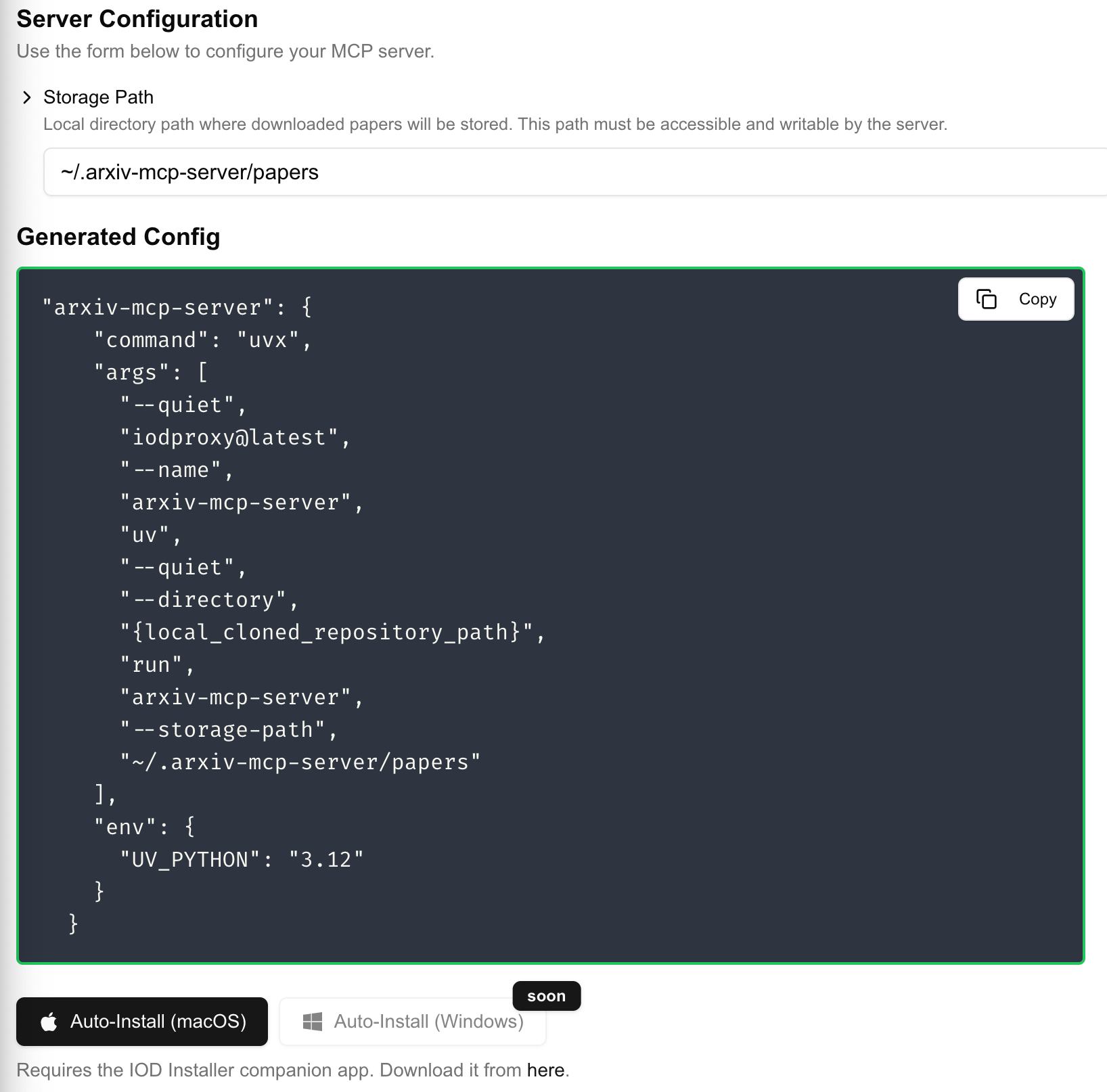
In that instance for the arxiv mcp server a storage path to a folder is required. Note that a default value is provided and works in most cases.
4. Finally click on the 'Auto-Install' button at the bottom of the form. This will trigger the iod application to install the MCP server for you in your Claude Desktop Application.
Once the server is installed by iod, the application should show a success notification. The Claude Desktop App will restart to complete the installation.
Contributions
We welcome contributions to this project. Please feel free to open a PR or an issue if you have any suggestions or improvements.
Frequently asked questions
What is iodapp?
iodapp is discover and install MCP servers
How do I install iodapp?
Open the GitHub repository and follow its README. Most MCP servers are added to your client's MCP config, then called by your agent.
Is iodapp open source?
Yes — it is hosted on GitHub at https://github.com/iodmcp/iodapp and has 7 stars.
Related MCP tools
 playwright-mcp
Playwright MCP server TypeScript-based implementation. Trusted by 22000+ developers. Trusted by 22000+ developers. Trusted by 22000+ developers.
 notion-mcp-server
Official Notion MCP Server TypeScript-based implementation. Trusted by 3400+ developers. Trusted by 3400+ developers. Trusted by 3400+ developers.
 mcpso
mcpsoDirectory for Awesome MCP Servers TypeScript-based implementation. Trusted by 1900+ developers. Trusted by 1900+ developers.
 unla
unla🧩 MCP Gateway - A lightweight gateway service that instantly transforms existing MCP Servers and APIs into MCP servers with zero code changes.
 metamcp
MCP Aggregator, Orchestrator, Middleware, Gateway in one docker TypeScript-based implementation. Trusted by 1400+ developers.
 mcp-server-kubernetes
MCP Server for kubernetes management commands TypeScript-based implementation. Trusted by 1100+ developers. Trusted by 1100+ developers.
Run your own MCP server? See who uses it and what to fix.
Measure it with TrackMCP