
mcp-server-cortex
MCP Server for Cortex
Documentation
MCP Server for Cortex
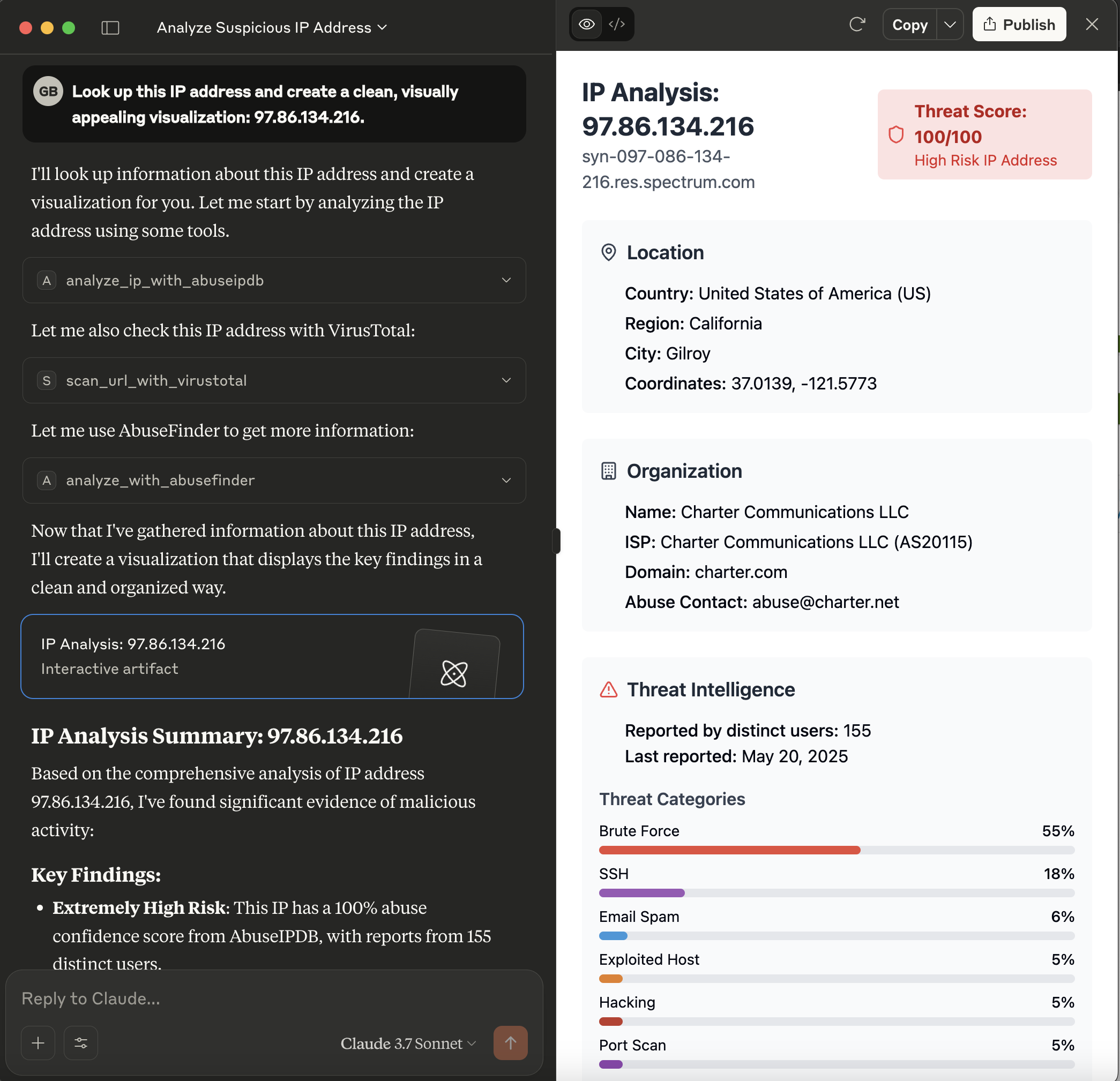
This server acts as a bridge, exposing the powerful analysis capabilities of a Cortex instance as tools consumable by Model Context Protocol (MCP) clients, such as large language models like Claude. It allows these clients to leverage Cortex analyzers for threat intelligence tasks.
What is Cortex?
Cortex is a powerful, free, and open-source observable analysis and active response engine. It allows you to analyze observables (like IPs, URLs, domains, files, etc.) using a variety of "analyzers" – modular pieces of code that connect to external services or perform local analysis.
Benefits of using Cortex (and this MCP server):
- Centralized Analysis: Run various analyses from a single point.
- Extensibility: Easily add new analyzers for different threat intelligence feeds and tools.
- Automation: Automate the process of enriching observables.
- Integration: Designed to work closely with TheHive, a Security Incident Response Platform (SIRP), but can also be used standalone.
- Security: API-key based access to protect your Cortex instance.
This MCP server makes these benefits accessible to MCP-compatible clients, enabling them to request analyses and receive structured results.
Prerequisites
1. Rust Toolchain: Ensure you have Rust installed (visit rustup.rs).
2. Cortex Instance: A running Cortex instance is required.
3. Configured Analyzers: The specific analyzers you intend to use (e.g., `AbuseIPDB_1_0`, `Abuse_Finder_3_0`, `VirusTotal_Scan_3_1`, `Urlscan_io_Scan_0_1_0`) must be enabled and correctly configured within your Cortex instance.
Installation
The recommended way to install the MCP Server for Cortex is to download a pre-compiled binary for your operating system.
1. Go to the Releases Page:
Navigate to the GitHub Releases page.
2. Download the Binary:
Find the latest release and download the appropriate binary for your operating system (e.g., `mcp-server-cortex-linux-amd64`, `mcp-server-cortex-macos-amd64`, `mcp-server-cortex-windows-amd64.exe`).
3. Place and Prepare the Binary:
chmod +x /path/to/your/mcp-server-cortexAlternatively, you can build the server from source (see the Building section below).
Configuration
The server is configured using the following environment variables:
- `CORTEX_ENDPOINT`: The full URL to your Cortex API.
- `CORTEX_API_KEY`: Your API key for authenticating with the Cortex instance.
- `RUST_LOG` (Optional): Controls the logging level for the server.
Cortex Analyzer Configuration
For the tools provided by this MCP server to function correctly, the corresponding analyzers must be enabled and properly configured within your Cortex instance. The server relies on these Cortex analyzers to perform the actual analysis tasks.
The tools currently use the following analyzers by default (though these can often be overridden via tool parameters):
- `analyze_ip_with_abuseipdb`: Uses an analyzer like `AbuseIPDB_1_0`.
- `analyze_with_abusefinder`: Uses an analyzer like `Abuse_Finder_3_0`.
- `scan_url_with_virustotal`: Uses an analyzer like `VirusTotal_Scan_3_1`.
- `analyze_url_with_urlscan_io`: Uses an analyzer like `Urlscan_io_Scan_0_1_0`.
Key Points:
- Enable Analyzers: Make sure the analyzers you intend to use are enabled in your Cortex instance's "Organization" -> "Analyzers" section.
- Configure Analyzers: Each analyzer will have its own configuration page within Cortex where you'll need to input API keys, set thresholds, or define other operational parameters. Refer to the documentation for each specific Cortex analyzer.
- Test in Cortex: It's a good practice to test the analyzers directly within the Cortex UI first to ensure they are working as expected before trying to use them via this MCP server.
If an analyzer is not configured, not enabled, or misconfigured (e.g., invalid API key), the corresponding tool call from the MCP client will likely fail or return an error from Cortex.
Example: Claude Desktop Configuration
For MCP clients like Claude Desktop, you typically configure them by specifying the command to launch the MCP server and any necessary environment variables for that server.
1. Build or Download the Server Binary:
Ensure you have the `mcp-server-cortex` executable. If you've built it from source, it will be in `target/debug/mcp_server_cortex` or `target/release/mcp_server_cortex`.
2. Configure Your LLM Client (e.g., Claude Desktop):
You would modify your Claude Desktop configuration file (usually `claude_desktop_config.json`) to include an entry for this server.
For instance, if your `mcp-server-cortex` binary is located at `/opt/mcp-servers/mcp-server-cortex`, your configuration might look like this:
{
          "mcpServers": {
            // ... other server configurations ...
            "cortex": {
              "command": "/opt/mcp-servers/mcp-server-cortex",
              "args": [],
              "env": {
                "CORTEX_ENDPOINT": "http://your-cortex-instance:9000/api",
                "CORTEX_API_KEY": "your_cortex_api_key_here",
              }
            }
            // ... other server configurations ...
          }
        }

## Available Tools

The server provides the following tools, which can be called by an MCP client:

1.  **`analyze_ip_with_abuseipdb`**
    *   **Description**: Analyzes an IP address using an AbuseIPDB analyzer (or a similarly configured IP reputation analyzer) via Cortex. Returns the job report if successful.
    *   **Parameters**:
        *   `ip` (string, required): The IP address to analyze.
        *   `analyzer_name` (string, optional): The specific name of the AbuseIPDB analyzer instance in Cortex. Defaults to `AbuseIPDB_1_0`.
        *   `max_retries` (integer, optional): Maximum number of times to poll for the analyzer job to complete. Defaults to 5.

2.  **`analyze_with_abusefinder`**
    *   **Description**: Analyzes various types of data (IP, domain, FQDN, URL, or email) using an AbuseFinder analyzer via Cortex. Returns the job report if successful.
    *   **Parameters**:
        *   `data` (string, required): The data to analyze (e.g., "1.1.1.1", "example.com", "http://evil.com/malware", "test@example.com").
        *   `data_type` (string, required): The type of the data. Must be one of: `ip`, `domain`, `fqdn`, `url`, `mail`.
        *   `analyzer_name` (string, optional): The specific name of the AbuseFinder analyzer instance in Cortex. Defaults to `Abuse_Finder_3_0`.
        *   `max_retries` (integer, optional): Maximum number of times to poll for the analyzer job to complete. Defaults to 5.

3.  **`scan_url_with_virustotal`**
    *   **Description**: Scans a URL using a VirusTotal_Scan analyzer (e.g., `VirusTotal_Scan_3_1`) via Cortex. Returns the job report if successful.
    *   **Parameters**:
        *   `url` (string, required): The URL to scan.
        *   `analyzer_name` (string, optional): The specific name of the VirusTotal_Scan analyzer instance in Cortex. Defaults to `VirusTotal_Scan_3_1`.
        *   `max_retries` (integer, optional): Maximum number of times to poll for the analyzer job to complete. Defaults to 5.

4.  **`analyze_url_with_urlscan_io`**
    *   **Description**: Analyzes a URL using a Urlscan.io analyzer (e.g., `Urlscan_io_Scan_0_1_0`) via Cortex. Returns the job report if successful.
    *   **Parameters**:
        *   `url` (string, required): The URL to analyze.
        *   `analyzer_name` (string, optional): The specific name of the Urlscan.io analyzer instance in Cortex. Defaults to `Urlscan_io_Scan_0_1_0`.
        *   `max_retries` (integer, optional): Maximum number of times to poll for the analyzer job to complete. Defaults to 5.

## Building

To build the server from source, ensure you have the Rust toolchain installed (as mentioned in the "Prerequisites" section).

1.  **Clone the repository (if you haven't already):**
git clone https://github.com/gbrigandi/mcp-server-cortex.git
cd mcp-server-cortex
If you are already working within a cloned repository and are in its root directory, you can skip this step.

2.  **Build the project using Cargo:**
    *   For a **debug build**:
cargo build
The executable will be located at `target/debug/mcp-server-cortex`.
    *   For a **release build** (recommended for performance and actual use):
cargo build --release
The executable will be located at `target/release/mcp-server-cortex`.

After building, you can run the server executable. Refer to the "Configuration" section for required environment variables and the "Example: Claude Desktop Configuration" for how an MCP client might launch the server.Frequently asked questions
What is mcp-server-cortex?
mcp-server-cortex is MCP Server for Cortex
How do I install mcp-server-cortex?
Open the GitHub repository and follow its README. Most MCP servers are added to your client's MCP config, then called by your agent.
Is mcp-server-cortex open source?
Yes — it is hosted on GitHub at https://github.com/gbrigandi/mcp-server-cortex and has 12 stars.
Related MCP tools
 goose
gooseAn open source, extensible AI agent that goes beyond code suggestions - install, execute, edit, and test with any LLM for the Model Context Protocol. Enhance AI
 rust-sdk
The official Rust SDK for the Model Context Protocol Trusted by 2500+ developers. Trusted by 2500+ developers. Trusted by 2500+ developers.
 tfmcp
tfmcp🌍 Terraform Model Context Protocol (MCP) Tool - An experimental CLI tool that enables AI assistants to manage and operate Terraform environments.
 playwright-mcp
Playwright MCP server TypeScript-based implementation. Trusted by 22000+ developers. Trusted by 22000+ developers. Trusted by 22000+ developers.
 ghidramcp
MCP Server for Ghidra Java-based implementation. Trusted by 6400+ developers. Trusted by 6400+ developers. Trusted by 6400+ developers.
 notion-mcp-server
Official Notion MCP Server TypeScript-based implementation. Trusted by 3400+ developers. Trusted by 3400+ developers. Trusted by 3400+ developers.
Run your own MCP server? See who uses it and what to fix.
Measure it with TrackMCP